
Add sending domains and senders
When you add sending domain records in Settings, then Senders, ReputeCast fetches the DNS records each connected sending provider needs for that domain and checks them until they verify. Then you add the senders, the From addresses your mail comes from, and choose which one each stream uses by default.
Before you begin
Section titled “Before you begin”- You need the
domains:managepermission. Withproviders:viewyou can see senders, domains and their records. - Connect at least one sending provider, so there is someone to fetch records from. Read Connect a sending provider. The connect wizard’s domain step does the same as this page for the provider you are connecting.
- Have access to the domain’s DNS records, or a Cloudflare API token if the domain uses Cloudflare.
Add a sending domain
Section titled “Add a sending domain”-
Open Settings, then Senders and, under Domains, choose Add domain.
-
Enter the Domain of your From addresses, for example
news.example.com, and optionally What it's for (“primary sending domain”). Choose Add domain.Every connected provider with a domain API (such as Amazon SES, Mailgun or SendGrid) gets the domain and returns its records. For providers without one (such as Postal or an SMTP server), ReputeCast tells you what to set up in the provider’s own dashboard and which SPF include the domain needs.
-
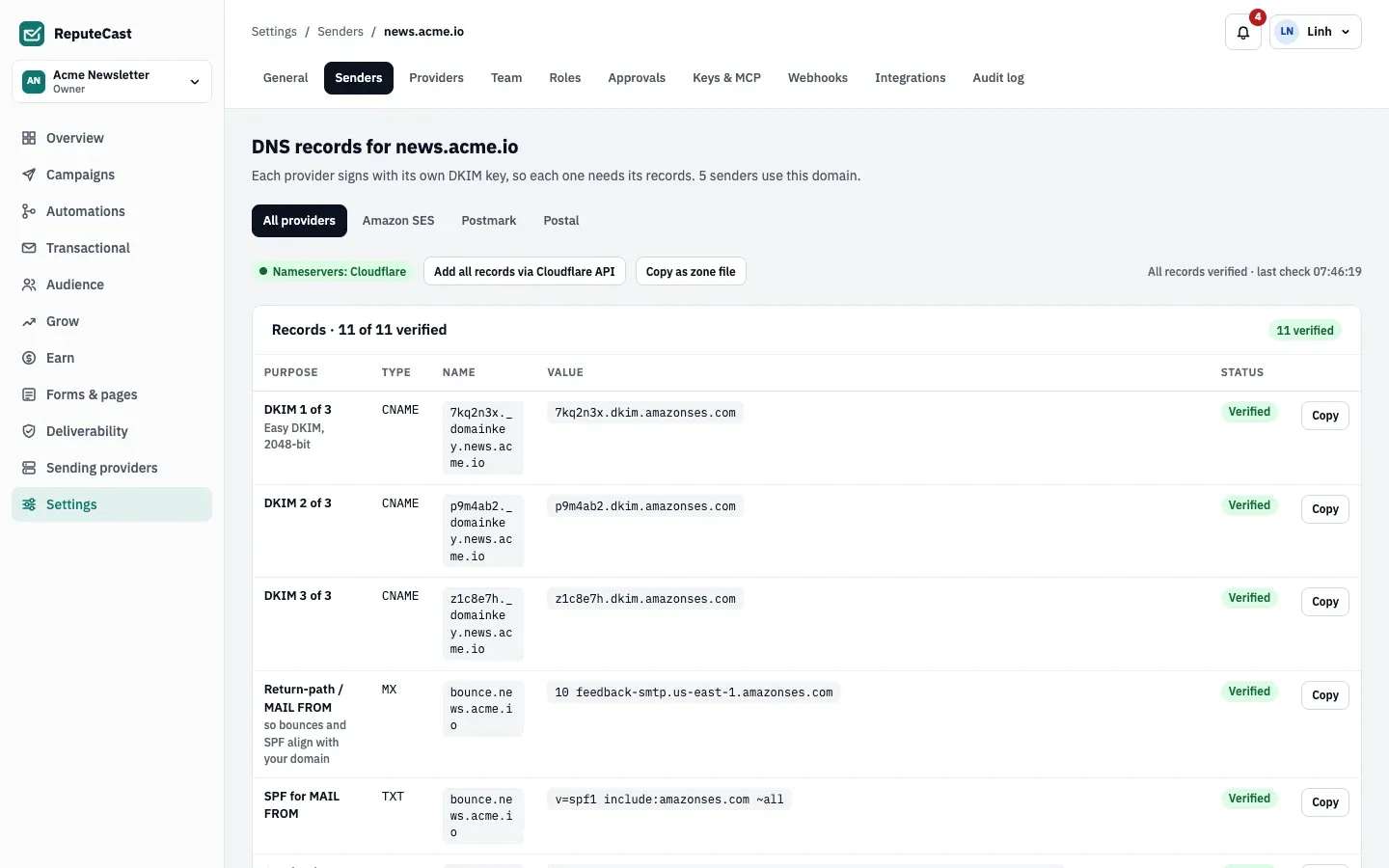
Open the domain’s Records. The page lists the records per provider, because each provider signs with its own DKIM key: DKIM, the return-path (MAIL FROM) with its SPF record, SPF for the sending domain and DMARC. Pick a provider tab to see only its records, or All providers.
-
Publish the records at your DNS host. If the nameservers are Cloudflare’s, Add all records via Cloudflare API adds the missing ones with a token that has Zone › DNS › Edit permission; the token is used once and never stored. Otherwise copy each value, or use Copy as zone file. Read Set up SPF, DKIM and DMARC for what each record does.
-
Watch the status column. While the page is open, ReputeCast checks the records every 30 seconds; each one shows Verified, Pending, Missing or “Couldn’t check”, with the value it found.
-
Optional: under Optional, choose Add tracking domain to use a subdomain such as
go.news.example.com, with a CNAME to your ReputeCast host, for links and the open pixel. The same section shows whether BIMI is set up; read Set up BIMI.
If you connect another provider later, open the domain’s records and fetch that provider’s records from its tab.
Add a sender
Section titled “Add a sender”-
Under Sender identities, choose Add sender.
-
Fill in the sender:
- Name: shown as the sender in inboxes.
- Email address: its domain must already be one of your sending domains. The address can’t be changed later.
- Reply-to: where replies go when they shouldn’t come back to the From address.
- Default sender for: the streams (Broadcasts, Automations, System, and Transactional for a sender on a Transactional domain) that use this sender unless a campaign or email picks another.
- Note: shown in the list when the sender isn’t a stream’s default, for example “personal sends”.
- Sends through: the providers that may send as this address. Clear a provider to mark it “Not used” for this sender.
-
Choose Add sender. Each provider verifies the sender through the domain’s records.
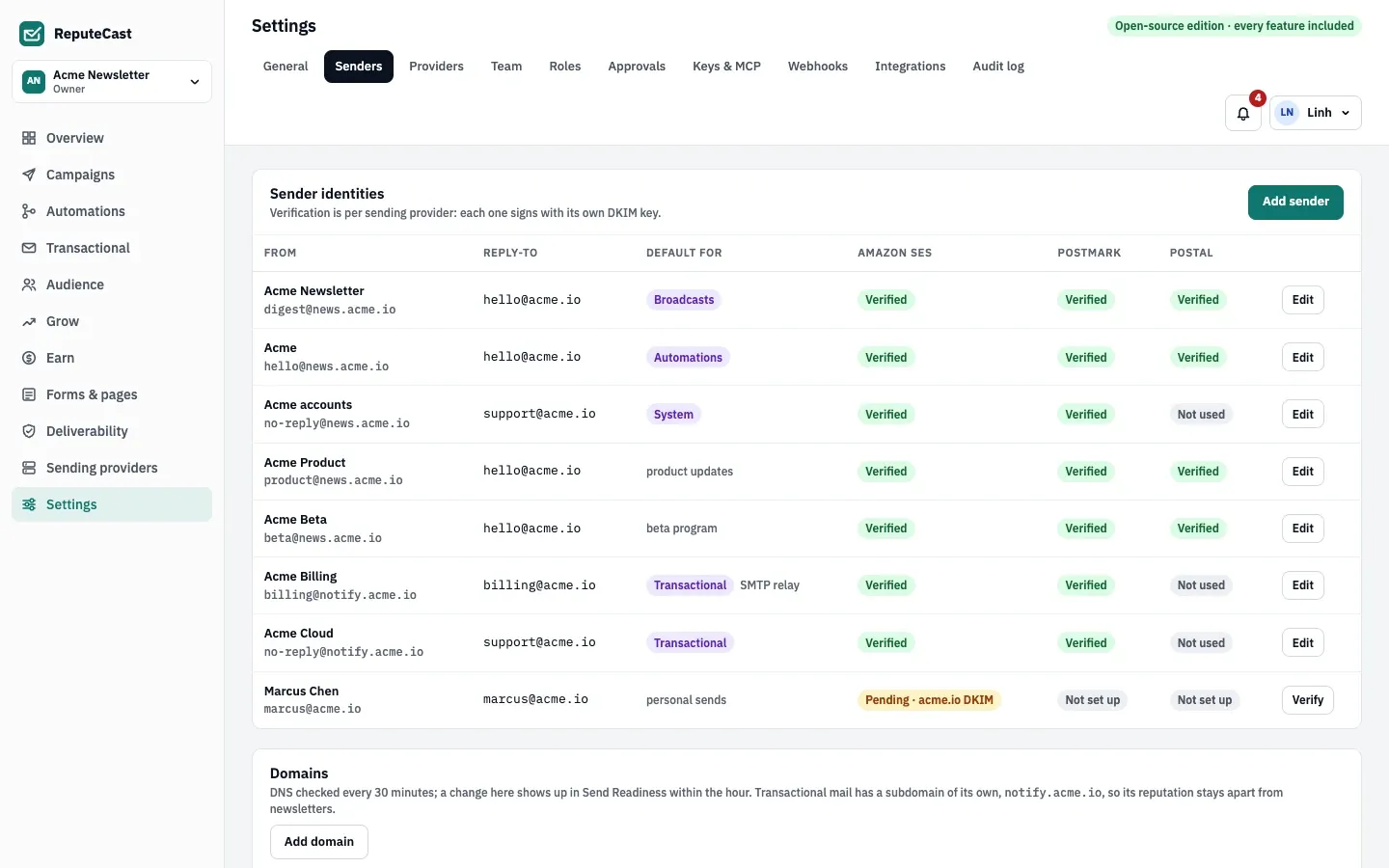
The table has a column per connected provider: Verified, Pending (with the record it waits for), Not used or Not set up. For a pending sender, Verify opens the domain’s records for that provider.
Set the defaults
Section titled “Set the defaults”The Defaults card at the bottom of the page holds:
- Default From for new campaigns, and the default From for transactional templates (a sender on a Transactional domain).
- Reply handling: forward every reply to one address, or use each sender’s own reply-to. ReputeCast doesn’t receive mail, so there is no reply inbox.
- Footer address: the postal address that email footers show through the
{{ footer_address }}token and that system emails add to their footer. Read Consent and anti-spam law basics. - Link tracking domain: a verified tracking domain for links and the open pixel, or the provider default (your ReputeCast public URL).
Check that it worked
Section titled “Check that it worked”- The domain’s row under Domains shows DKIM, SPF, DMARC and the return-path as verified for each provider that uses it.
- Each sender shows Verified for the providers that send as it.
- Send Readiness passes its authentication checks for campaigns from that domain. ReputeCast rechecks every domain’s DNS every 30 minutes, so a change at your DNS host shows up in Send Readiness within the hour.
Troubleshooting
Section titled “Troubleshooting”- “news.example.com isn’t a sending domain of this workspace yet”: add the domain first, then the sender.
- A record stays Pending: the DNS host hasn’t published it yet. Some take up to 48 hours. Compare the value found with the one shown.
- A record shows a different value: an older record with the same name exists, for example a second SPF record. A domain must have one SPF record; ReputeCast’s value merges the includes you need.
- “A sender uses this domain. Delete them first.”: a domain can only be deleted when no sender uses it. Deleting it stops the checks; the records stay at your DNS host and at each provider until you remove them there.
- A provider shows Not set up for a sender: the provider doesn’t have the domain yet. Open the domain’s records, pick the provider’s tab and fetch its records.