
Earn from your newsletter
Earn is where you run a paid newsletter self-hosted on your own ReputeCast instance: readers pay for a tier, buy a gift or a digital product, and sponsors book a slot in your issues. Readers pay you through your own Stripe account. ReputeCast takes no fee and never holds the money; only Stripe’s own fees apply.
How it works
Section titled “How it works”- Connect Stripe. You give ReputeCast a restricted key and it registers a webhook in your Stripe account. See Connect Stripe.
- Set what readers pay. Tiers, prices, trials and offers live in Earn, then Plans & offers. The hosted upgrade, cancel and gift pages use them. See Sell paid subscriptions.
- Readers pay on Stripe Checkout. Card details are entered on Stripe’s pages, and readers manage billing in Stripe’s customer portal. Stripe tells ReputeCast about each payment, renewal and cancellation through the webhook.
- Paid status follows Stripe. Each paid member gets a status (Trialing, Active, Past due, Canceled, Complimentary or Gift) that decides what they can read and which campaigns reach them. See Manage paid members.
- Other income sits beside subscriptions. Gifts, sponsorships and digital products are counted as other income, never in MRR.
- The Overview adds it up. MRR, ARR, paid members, churn and free-to-paid conversion, with each definition in a tooltip. See Revenue metrics explained.
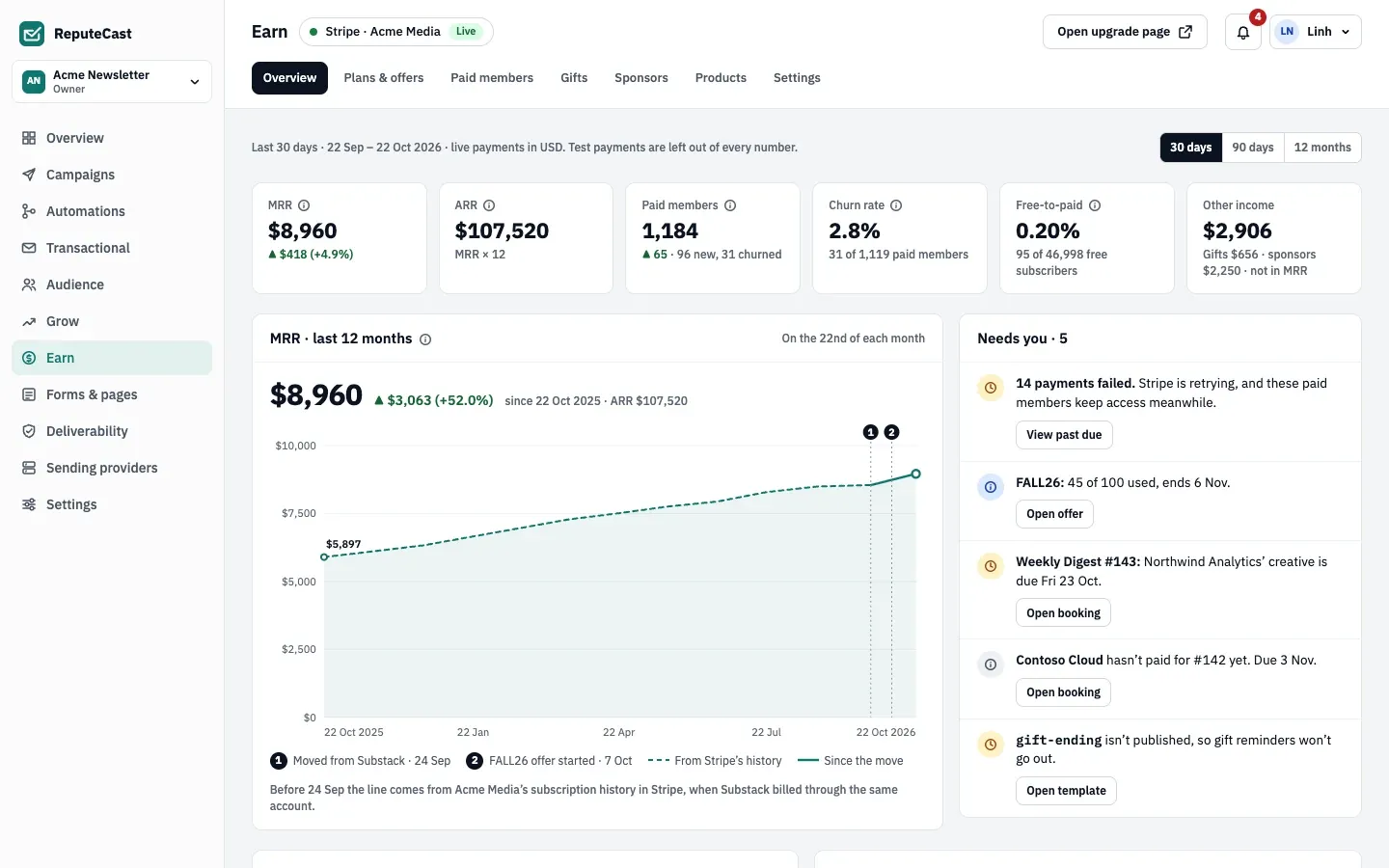
Earn’s tabs are Overview, Plans & offers, Paid members, Gifts, Sponsors, Products and Settings. The chip next to the title shows which Stripe account is connected and whether it is live or in test mode. Test payments are left out of every number.
Defaults and limits
Section titled “Defaults and limits”| Setting | Default | How to change |
|---|---|---|
| Stripe webhook events registered | 14 | Earn › Settings › Payments › Register again re-creates the webhook |
| Check for Stripe events the webhook missed | Every hour | Fixed |
| Raw Stripe events kept | 90 days | Fixed |
| Stripe webhook silent warning | 24 hours without an event, with 50 or more active subscriptions | Fixed |
| Attribution window | 7 days | Earn › Settings › Attribution, 1–30 days (needs payments:manage) |
| Free trial per tier | None | Earn › Plans & offers › tier; 7, 14 or 30 days |
| Access while a payment fails | Kept while Stripe retries | Earn › Settings › Access; keep access or end it at once |
| Retention offer per paid member | Once every 12 months | Fixed |
| Offer duration | Once | Offer editor; once, 1–36 months, or forever |
| Referral reward code valid for | 60 days | Referral reward offer, 1–365 days |
| Paying again counts as reactivated within | 90 days after access ended | Fixed |
Conversions API occurred_at | Up to 30 days in the past, never in the future | Fixed |
| Paid member import file | Up to 25 MB and 100,000 rows | Fixed |
All values: Limits and defaults.
When to change them
Section titled “When to change them”- Start with a Stripe test key. Checkout then runs with Stripe’s test cards and nothing is charged, so you can try every page before you add the live key.
- Lengthen the attribution window in Earn, then Settings, then Attribution if readers often take more than a week between clicking an email and upgrading.
- Change what happens when a payment fails in Earn, then Settings, then Access: keep access while Stripe retries (the default) or end it at once.
- To hide Earn from the sidebar for people who never use it, turn the section off in the workspace settings (Workspaces).
Who can see and change Earn is set by six permissions: earn:view, earn:edit, earn:manage, payments:manage,
sponsors:manage and conversions:create (Permissions and roles).