
Workspaces
Run multiple newsletter workspaces on one ReputeCast instance, one per newsletter, brand or client, and manage each one from its general settings. A workspace keeps its own contacts, lists, campaigns, sending providers, team and audit log. Every feature is available in every workspace, and the number of workspaces is unlimited.
Before you begin
Section titled “Before you begin”- Any signed-in person can create a workspace and becomes its Owner.
- Changing a workspace’s settings needs
workspace:manage(Owner and Admin). - Transferring ownership and deleting the workspace are for the Owner only (
workspace:transfer,workspace:delete). See roles and permissions.
-
Create a workspace. Open the workspace switcher under the logo and choose Create workspace. Enter a workspace name (up to 80 characters) and a timezone, then create it. You become the Owner, with the four built-in roles and the default approval policy. The workspace ID in its URLs (
/w/<id>/…) comes from the name and never changes when you rename the workspace. Instance admins can also create workspaces for someone else in Instance admin, then Workspaces. -
Switch workspaces. The switcher lists every workspace where your membership is active, oldest first, with your role and its number of contacts. On a phone, it sits in the More sheet. Instance admins also get All workspaces (instance admin).
-
Edit the general settings. Open Settings, then General.
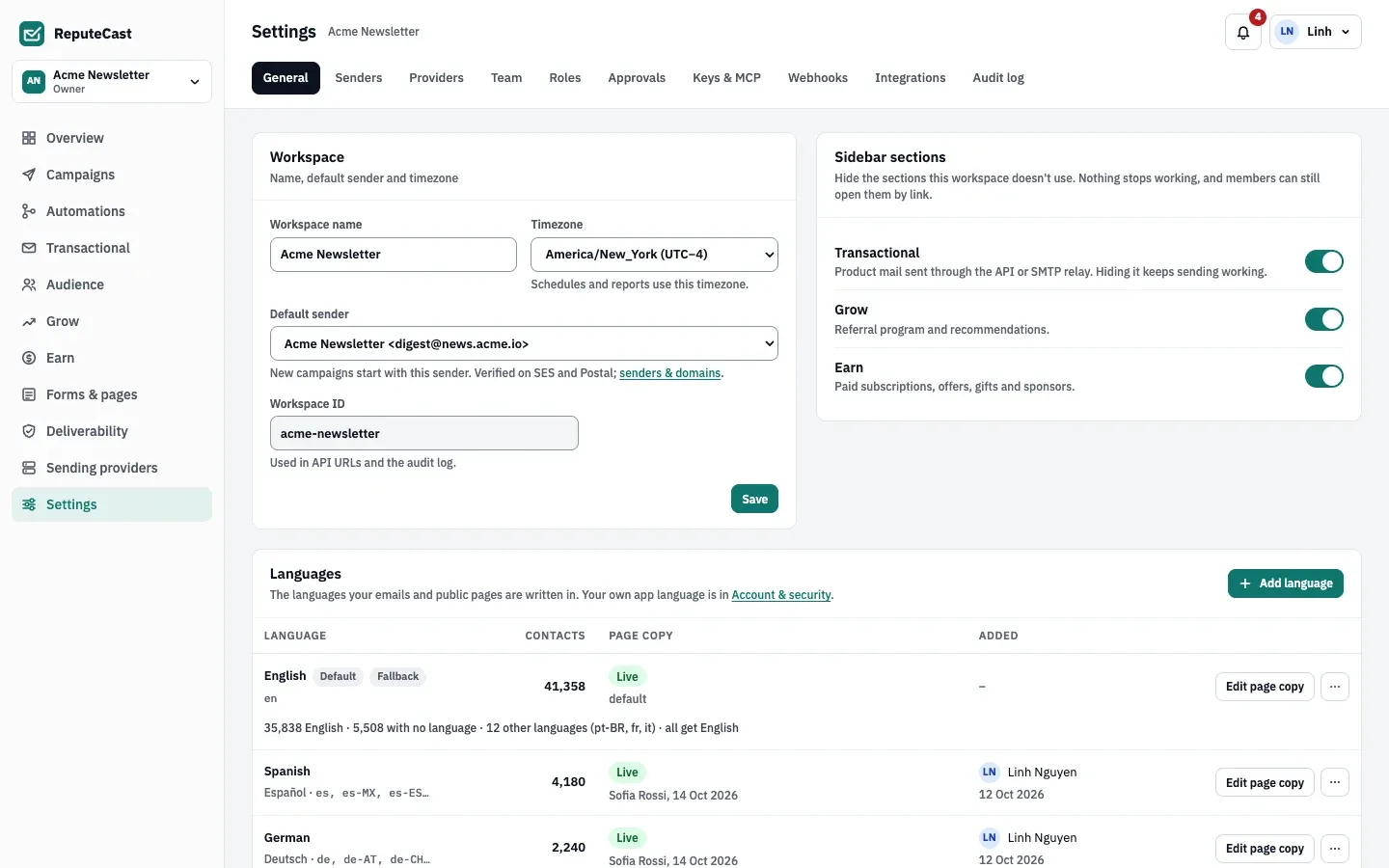
- Workspace: the name, the timezone used by schedules and reports, and the default sender new campaigns start with. Add senders first in sending domains and senders. The workspace ID is read-only; API URLs and the audit log use it.
- Sidebar sections: hide Transactional, Grow or Earn for everyone in the workspace. The switch applies at once. Hidden sections keep working, and members can still open them by link.
- Languages and Accessibility: the content languages of emails and public pages (see send each reader their language) and the accessibility policy.
- Send approvals and Members and access: summaries with links to the approval policy and to the Team and Roles pages.
Without
workspace:manage, the fields are read-only and the page names who can change them. -
Transfer ownership. In Danger zone, choose Transfer ownership, pick the new Owner and confirm with your password. Only active members with two-factor authentication (an authenticator app, a passkey or an identity provider that enforces it) can become Owner. If you sign in only through single sign-on, the transfer is accepted within 10 minutes of signing in. You become an Admin, the new Owner is notified, and the audit log records
workspace.transferred. -
Delete the workspace. In Danger zone, choose Delete workspace. Use Export everything first to download a ZIP with contacts and consent, lists, suppressions, campaigns as MJML and reports as CSV (plus the audit log as JSON if you hold
audit:view). Provider credentials, API keys and secrets are never exported. The export needssubscribers:exportand is refused to a member limited to some lists or sender domains. Then type the workspace name exactly to confirm.
| Setting | Default | How to change |
|---|---|---|
| Invitation link expiry | 7 days | Settings › Team › Invite; 24 hours, 7 days or 30 days |
| People per invitation | Up to 50; personal message up to 1,000 characters | Fixed |
| Deleted workspace can be restored for | 7 days, by an instance admin | Fixed |
| Owners per workspace | At least 1; the last Owner can't be removed, demoted or deactivated | Fixed |
Check that it worked
Section titled “Check that it worked”- The new workspace appears in the switcher with your role.
- After a transfer, the Team page shows the new Owner and you as Admin.
- After a delete, every member gets a notification with the last day it can be restored.
Troubleshooting
Section titled “Troubleshooting”- A member is missing from the transfer list or marked as having no two-factor. The new Owner needs two-factor authentication first: ask them to add a passkey or an authenticator app in Account & security.
- The Danger zone buttons are disabled. Only the Owner can transfer or delete. Admins hold every other permission.
- Create workspace is missing at medium widths. The narrow icon rail hides the switcher; open the account menu or widen the window.
- The first-run instance admin can’t create a second workspace. Finish the setup steps at
/setupfirst.