
Create and publish transactional templates
Create transactional email templates in the composer’s transactional mode, declare the variables your app sends, and publish a new version without breaking the calls your app already makes.
Before you begin
Section titled “Before you begin”transactional:editto create templates and save drafts;transactional:publishto publish, roll back, archive or delete them. Editors can edit; publishing is a sensitive permission.- A verified Transactional sender. See add sending domains and senders.
- Read how transactional email works if categories and the Transactional route are new to you.
Create a template
Section titled “Create a template”-
Open Transactional, then Templates and choose New template. Start from a starter (Password reset, Sign-in link, Email verification, Welcome, Receipt or invoice, Trial ending, Team invitation, Usage alert) or from a blank template. To bring templates from another platform, use Import templates (see import transactional templates).
-
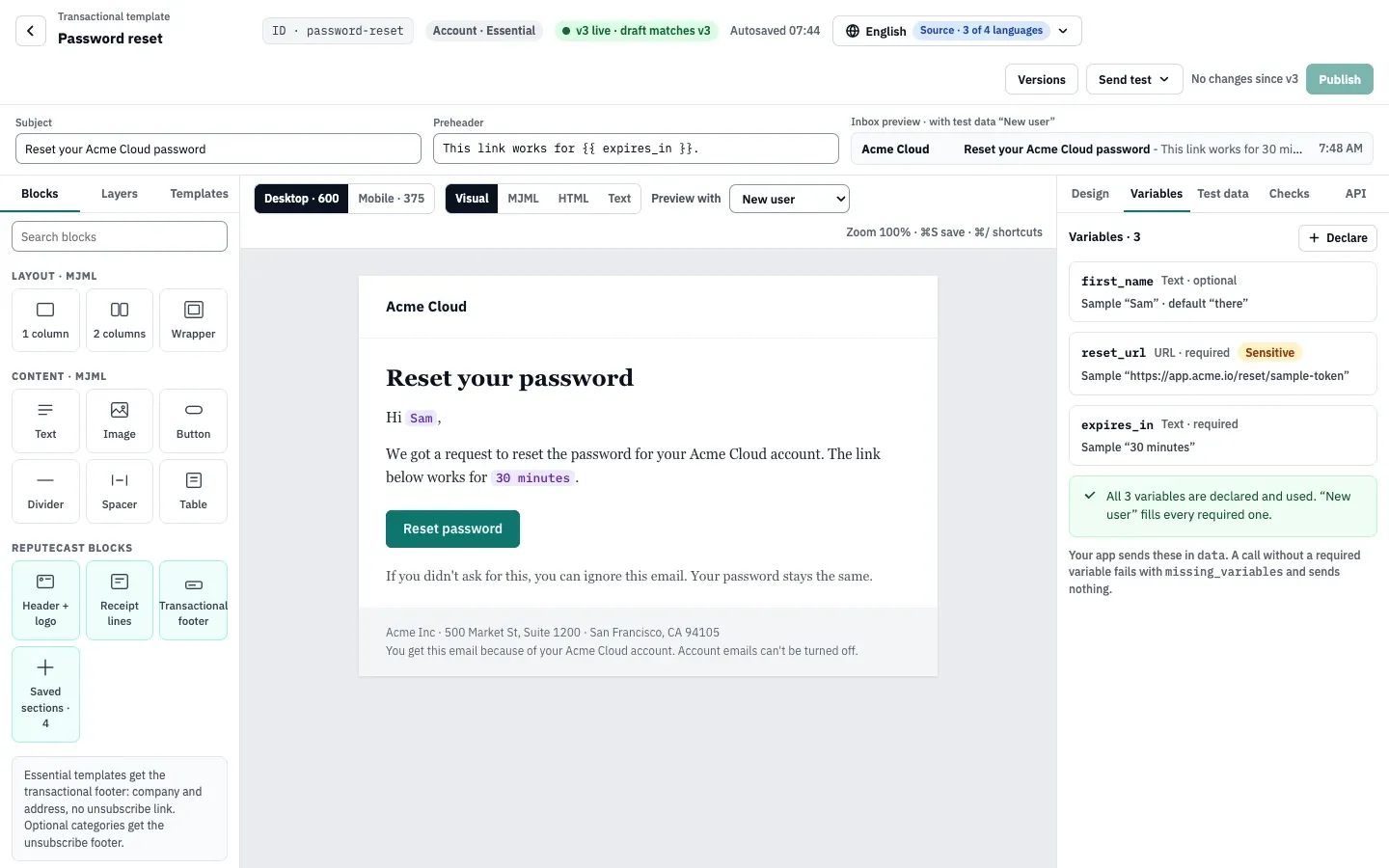
In the header, set the name, the ID your app calls (such as
password-reset) and the category. The ID uses lowercase letters, digits and single hyphens, up to 64 characters. It is fixed after the first publish; to use another ID later, duplicate the template. -
Write the Subject and Preheader. Both accept Liquid tokens such as
{{ expires_in }}. The inbox preview next to them renders with the selected test data. -
Design the body with the same blocks as the composer, plus the ReputeCast blocks Header + logo, Receipt lines and Transactional footer. Essential templates get the transactional footer with your company and address and no unsubscribe link; Optional categories get the unsubscribe footer.
-
Open the Variables tab and choose Declare for each value your app sends. A variable has a type (Text, Number, Yes/no, Date, URL, List or Object), can be Required, has a Sample value for previews, and an optional default for when it is missing. Mark a variable Sensitive for secrets such as reset links: it is never stored, logs and stored content show
••••••, and Resend is off for those messages. The panel tells you when a token in the content isn’t declared, or a declared variable isn’t used. -
Open the Test data tab to save named sets of sample values (edited as JSON), such as “New user” and “No first name”. The preview, the checks and the test renders before publish use them. Use Preview with above the canvas to switch sets.
-
Open the Checks tab to fix content, accessibility and link issues, and use Send test to send a test to yourself. Drafts autosave; ⌘ S saves at once.
Publish a version
Section titled “Publish a version”Only published versions send. Your app always gets the live version; the draft never sends.
-
Choose Publish (or Publish v2, and so on) in the top bar.
-
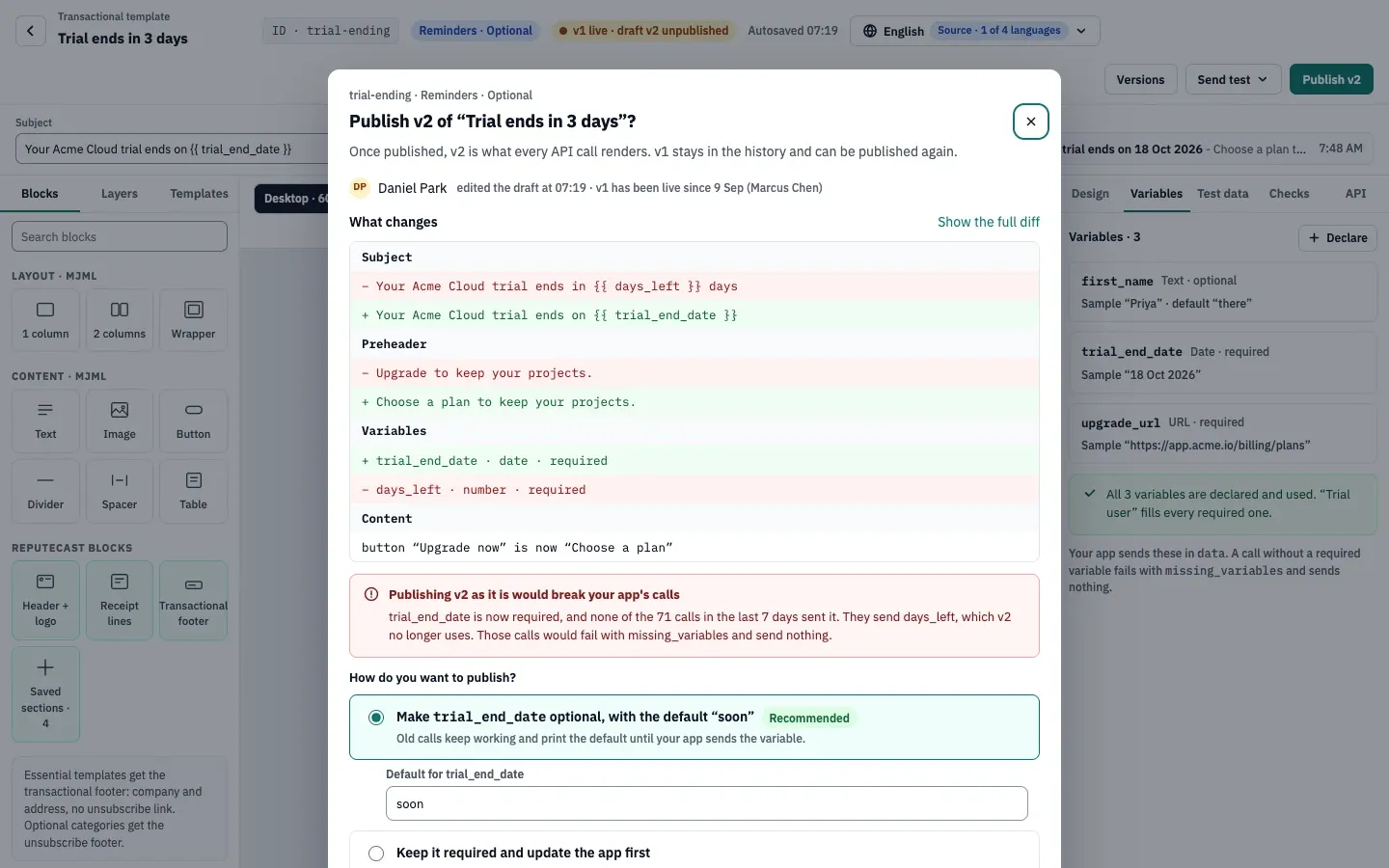
Read What changes: the diff of subject, preheader, variables and content since the live version. Show the full diff opens all of it.
-
If the change would break your app’s calls, the dialog says so. ReputeCast compares the new required variables with the calls of the last 7 days. For example, a new required variable that none of those calls sent would make them fail with
missing_variables. Choose how to publish:- Make the variable optional, with a default (recommended): old calls keep working and print the default until your app sends the variable.
- Keep it required and update the app first: publish later, and copy the new payload for your developers.
- Publish anyway: calls without the variable fail until the app is updated.
-
Confirm. The new version becomes what every API call renders; the previous one stays in the history.
If the workspace’s approval policy includes “Publishing a transactional template also requires approval” (off by default), publishing asks an approver first; see require approval for risky sends. When the workspace’s accessibility policy is set to Block, serious accessibility issues also block publishing.
Roll back
Section titled “Roll back”Open Versions, pick an earlier version and choose Publish again. That version becomes what every API call renders; the newer ones stay in the history, and your draft doesn’t change.
Check that it worked
Section titled “Check that it worked”- The header shows the live version, for example v3 live · draft matches v3.
- A render call returns the new subject and content without sending; see send transactional email with the API.
- New messages in the message log show the new version.
Troubleshooting
Section titled “Troubleshooting”- Calls fail with
template_not_published→ the template has a draft but no live version. Publish it. - Calls fail with
missing_variables→ a required variable is missing from the call. Send it, or make the variable optional with a default and publish again. - The ID field is read-only → the template was published. Duplicate it to use another ID.
- Publish is disabled with “No changes since v3” → the draft matches the live version; there is nothing new to publish.
Related
Section titled “Related”- Send your first transactional email
- Send each reader their language (language versions work for templates too)
- Categories, retention and alerts