
Use the AI assistant with your own model
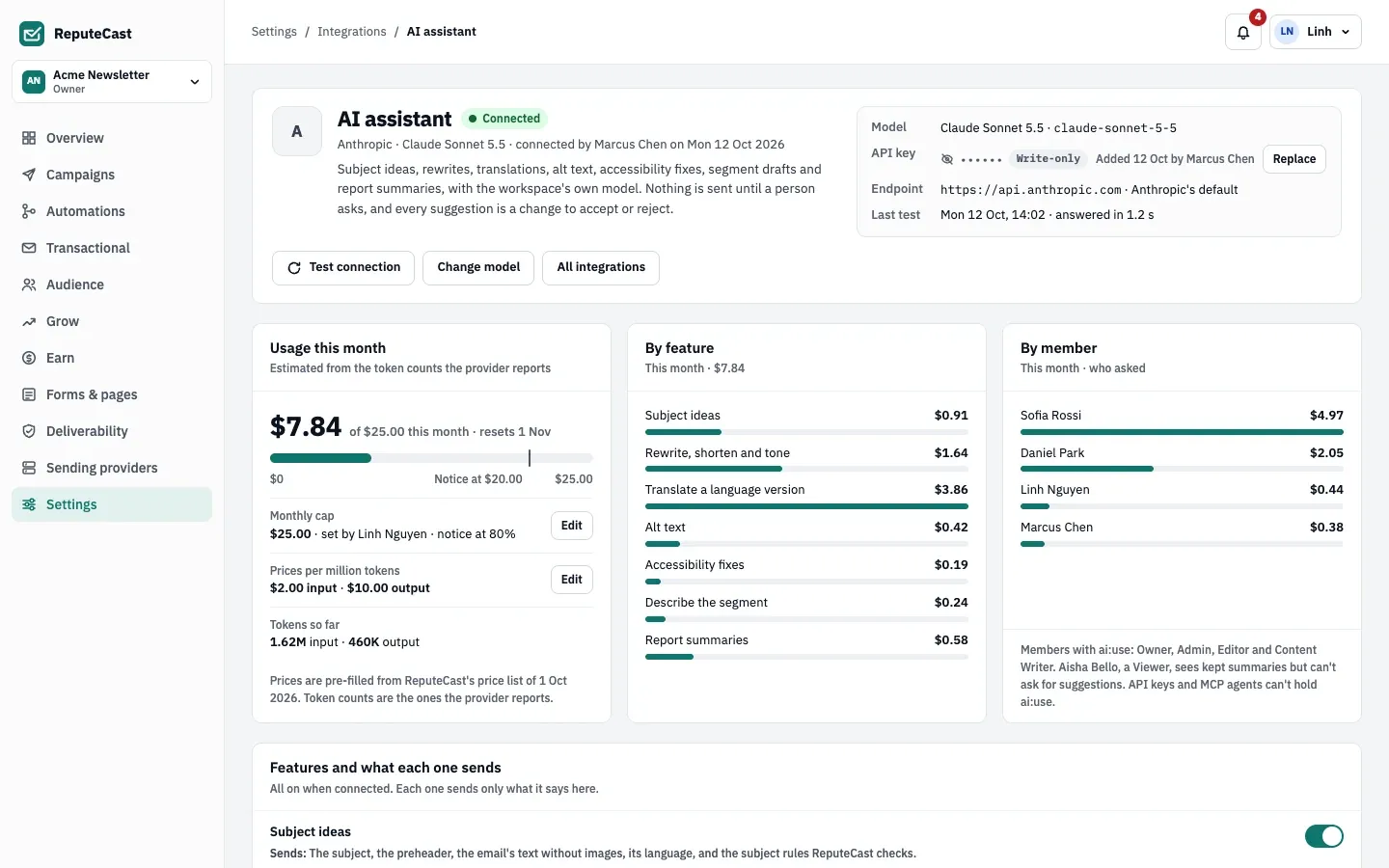
ReputeCast’s AI email writing assistant suggests subject lines, rewrites text, translates language versions, writes alt text and drafts segments with a model you connect yourself: Anthropic, OpenAI, Google Gemini, Azure OpenAI or an OpenAI-compatible server on your own network. The assistant is off until you connect a model, the provider bills your own account, and nothing changes in an email until a person accepts the suggestion.
Before you begin
Section titled “Before you begin”- Connecting, changing or disconnecting the model needs
integrations:manage, a sensitive permission that only people can hold (Owner and Admin have it). Members withintegrations:viewcan open the page and read usage and the activity log. - Asking for suggestions needs
ai:use. Owner, Admin and Editor hold it; a Viewer can read kept report summaries but can’t ask for suggestions. API keys and MCP agents can’t holdai:use. Each feature also needs the permission for what it changes, for examplecampaigns:editin the composer orsegments:editfor segment drafts. Read Permissions and roles. - Have an API key from the model provider, or the address of your own server.
- A workspace has one model at a time. To switch provider, disconnect the current one first.
Supported model providers
Section titled “Supported model providers”| Provider | Kind | Notes |
|---|---|---|
| Anthropic | API key | Text, image input and structured output. |
| OpenAI | API key | Text, image input and structured output. |
| Google Gemini | API key | Text, image input and structured output. |
| Azure OpenAI | Endpoint, deployment and key | Text and image input; data region. |
| OpenAI-compatible | Server address | A server that speaks the OpenAI API, such as Ollama, vLLM or LM Studio, on your own network. An API key is optional. |
Connect a model
Section titled “Connect a model”-
Open Settings, then Integrations and find the AI models group, or open Settings, then Integrations, then AI assistant directly. Choose Connect a model.
-
Pick the provider and fill in its fields:
- Anthropic, OpenAI, Google Gemini: the API key and the model.
- Azure OpenAI: the endpoint (HTTPS, for example
https://acme.openai.azure.com), the deployment name, the API key, an optional API version and the model the deployment runs (used for prices). Your data stays in the region of your Azure resource. - OpenAI-compatible (Ollama, vLLM, LM Studio and others): the server address including
/v1, an optional name and, if the server needs one, an API key.
The model list comes from ReputeCast’s price list first, then from the provider once the key (or the server address) is filled in. If your model isn’t listed, choose Type a model name….
The key is write-only: it’s stored encrypted and never shown again, not even to you.
-
Set the monthly cap. For hosted providers the dialog starts at $25 a month, using ReputeCast’s prices per million tokens (you can edit the prices). An OpenAI-compatible server starts with a token cap of 20,000,000 tokens a month. After connecting, you can switch to dollars, tokens or no cap.
-
Choose Connect. ReputeCast first sends a fixed test prompt with no workspace content (“Reply with the word Ready.”) and saves nothing if the test fails.
Models on your own network
Section titled “Models on your own network”An OpenAI-compatible server on a private or loopback address (such as http://ollama.acme.internal:11434/v1) is
refused with “Can’t connect to a private address” until an operator sets
providers.allow_private_networks to true
(REPUTECAST_PROVIDERS__ALLOW_PRIVATE_NETWORKS=true). Host names ending in .internal or .localhost count as
private. Link-local and cloud metadata addresses are always refused. Read
Security and hardening.
What the assistant does
Section titled “What the assistant does”Each feature has its own switch under Features and what each one sends; all seven start on.
| Feature | Where you find it | What you get |
|---|---|---|
| Subject ideas | Ideas next to the subject in the composer, or Assist › Subject ideas | Five subjects, each with the subject checks; Use this applies one |
| Rewrite, shorten and tone | The text toolbar: Shorten, Friendlier, More formal, More direct, With an instruction… | The rewritten text as a change against the original |
| Translate a language version | Translate <language> with AI in the composer’s language menu, the Add language dialog or the compare view | A side-by-side translation to accept block by block or all at once |
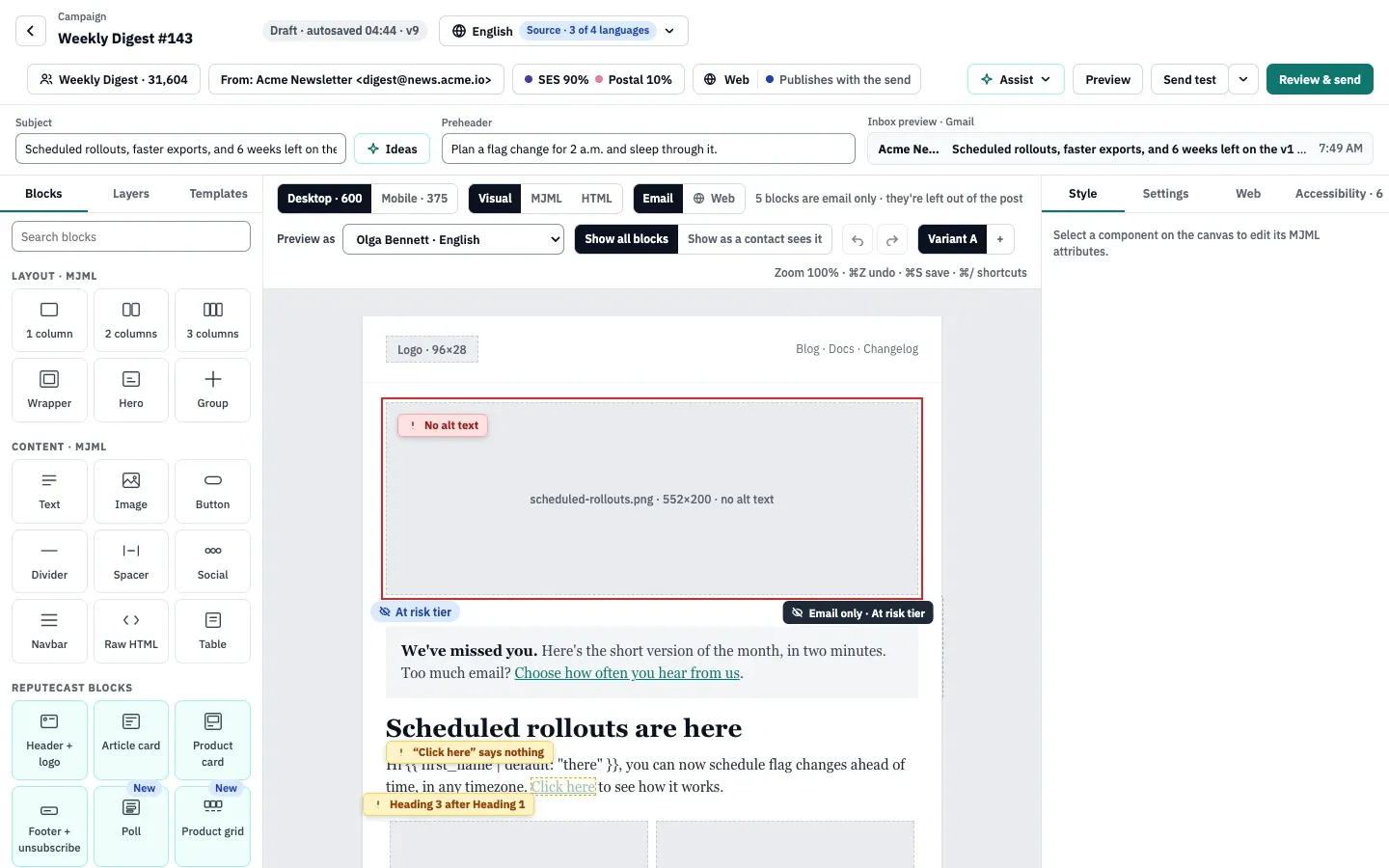
| Alt text | Suggest alt text in an image’s settings, and in the accessibility panel | A description with checks; “Decorative image” stays your choice |
| Accessibility fixes | Suggest a fix in the accessibility panel | Clearer link text |
| Describe the segment | The segment builder’s Describe the segment card, then Draft | Conditions marked Added and Removed, with the live count |
| Report summaries | Summarize results on a campaign report | A summary to keep, edit or discard |
Nothing changes without you
Section titled “Nothing changes without you”- A request starts only when someone clicks. The model’s answer is a suggestion: Accept, Edit (opens it in the block first), Reject or Try again. For subject ideas you choose Use this; report summaries offer Keep and Discard.
- Accepted rewrites and alt text are saved through the composer like any edit, so they appear in version history and can be undone.
- Personalization tokens and links the model changed are restored from your original, and the card says how many.
- A suggestion can be decided only by the person who asked for it, within 24 hours.
- A translation accepted in full is marked “AI · not reviewed” until someone marks it reviewed or edits it.
The assistant doesn’t look at sender reputation. Questions about blocklists, DMARC or why mail goes to spam send nothing to the model; ReputeCast points you to Deliverability instead.
What leaves your instance
Section titled “What leaves your instance”Only what a person is working on, only when they ask, and only for the features that are on:
- Subject ideas and translation: the email’s text (without images), subject, preheader and language.
- Rewrite: the selected paragraph and your instruction.
- Alt text: the image (resized to 1,024 px wide), its file name and the text around it. The model must read images; with a text-only model, alt text stays off.
- Accessibility fixes: the link text, its address and the sentence around it.
- Segment drafts: your description, the segment builder’s field names, operators and option names (lists, tags, tiers) and the current conditions.
- Report summaries: totals and rates, the top three links, mailbox provider rates and unsubscribe reasons.
Never sent: contacts, addresses, names, field values, recipient lists, keys or credentials. Liquid tokens go as written (a preview “as a contact” is never sent), and nothing from the assistant goes to HostRepute.
Cap, usage and the activity log
Section titled “Cap, usage and the activity log”Usage is the token count the provider reports times the prices on the page, added up from the 1st of the month in the workspace time zone.
| Setting | Default | How to change |
|---|---|---|
| Monthly cap | $25 | Settings › Integrations › AI assistant; dollars ($1–$100,000), tokens (at least 10,000) or no cap |
| Cap notices | At 80% and at 100%; at 100% AI features pause until the 1st | Fixed |
| AI activity log kept | 90 days, without content | Fixed |
| Request timeouts | Rewrites, alt text and fixes 45 s; subject ideas, segment drafts and summaries 60 s; translation 120 s | Fixed |
- At 80% of the cap, members with
integrations:manageget a notification (in the app and by email). At 100% the assistant pauses until the 1st; editing, sending and reports carry on as usual. Raising the cap resumes it. - The AI activity log keeps who asked, when, which feature, on what, the model, tokens, cost and the outcome for 90 days, without the text that was sent or returned.
- Connecting, changing the model or key, the cap, prices and feature switches are recorded in the audit log. Single AI requests are not.
Check that it worked
Section titled “Check that it worked”- The page shows Connected, the model and a Last test time.
- In the composer, the Assist menu lists the features you switched on.
Troubleshooting
Section titled “Troubleshooting”- “Error · key rejected”: the provider refused the key. Every feature stops until you choose Replace key or a Test connection passes.
- “Can’t connect to a private address”: see Models on your own network.
- Azure: the wrong deployment after Change model: changing the model also sets the deployment name to the model you picked. Choose Type a model name… and enter the deployment name.
- Alt text stays off: the model doesn’t read images. Pick a model that does.
- “This month’s cap is reached”: raise the cap under Monthly cap › Edit, or wait for the 1st.
- The provider’s rate limit: the card counts down (“Try again in N s”); nothing in the email changes.