
Send your first newsletter
In this tutorial you send a newsletter from start to finish: you import your contacts from a CSV file, write the email, let Send Readiness check it, schedule it, watch it go out and read its report. It takes about 20 minutes, plus the time your email takes to write.
Before you begin
Section titled “Before you begin”- ReputeCast is running and you finished the first setup. If not, follow the quickstart.
- A sending provider carries the Broadcasts stream in your workspace. Read Connect a sending provider.
- Your sending domain has SPF, DKIM and DMARC records, and a sender (the From address) exists in Settings, then Senders. Read Set up SPF, DKIM and DMARC and Add sending domains and senders.
- A CSV or XLSX file of people who agreed to get your newsletter. The first row holds the column names, and one column holds the email address.
- Your role includes
subscribers:import,campaigns:editandcampaigns:send. Owners and Admins have them; an Editor has all three too.
Send the newsletter
Section titled “Send the newsletter”-
Import your contacts. Select Import contacts at the bottom of the sidebar and choose CSV or XLSX as the source. Drop your file, pick the list the contacts go into, then select Continue to field mapping.
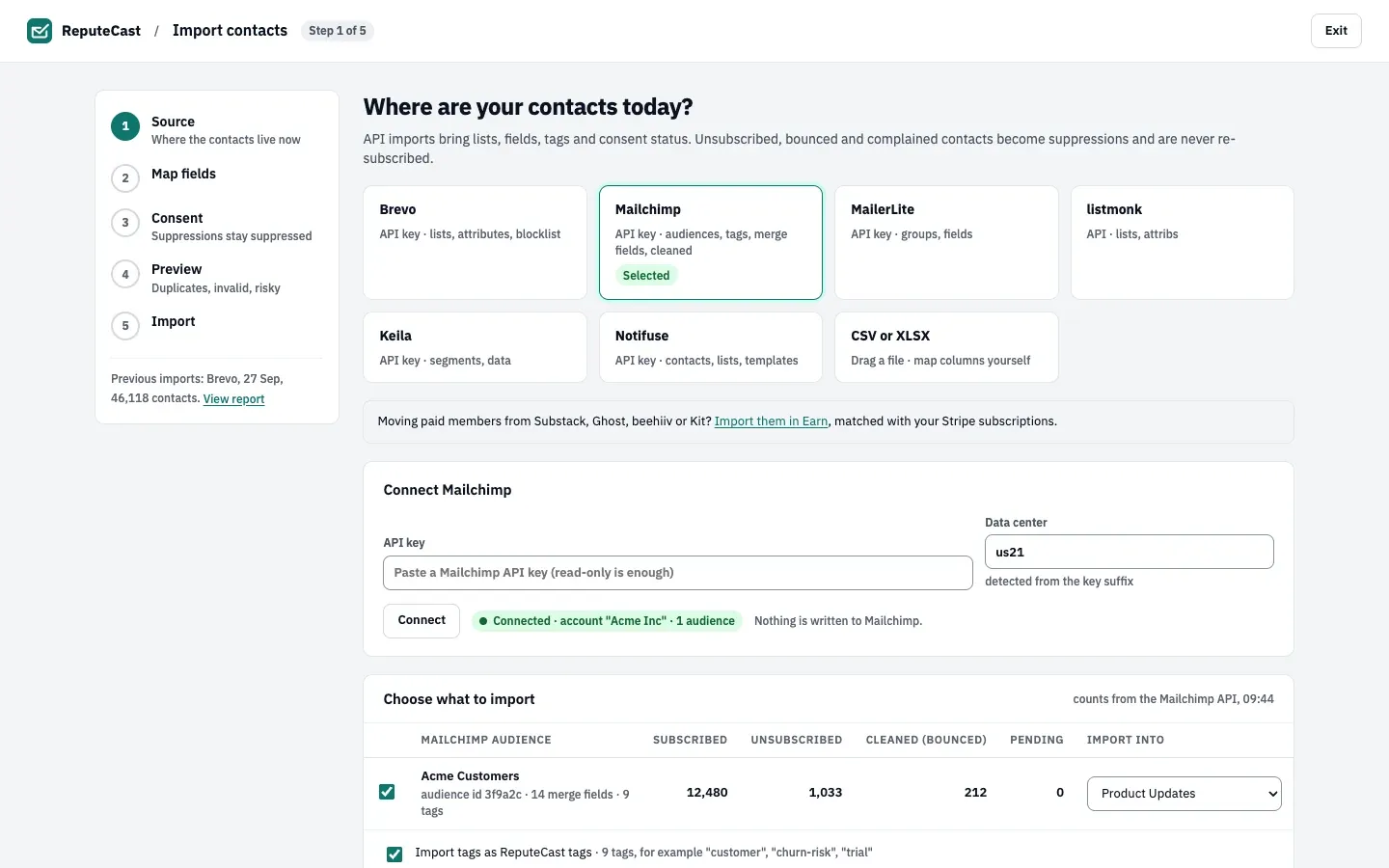
Work through the next steps:
- Map fields: check that the email column maps to Email and the other columns to the right fields.
- Consent: say how consent carries over. If the list is old or people joined without confirming, choose Re-permission everyone first: everyone gets one confirmation email first. Unsubscribed, bounced and complained contacts become suppressions and are never subscribed again.
- Preview: a dry run shows how many contacts are new, merged, suppressed, invalid or risky. Nothing is written until you start the import.
Read Import contacts from CSV or XLSX for every option.
-
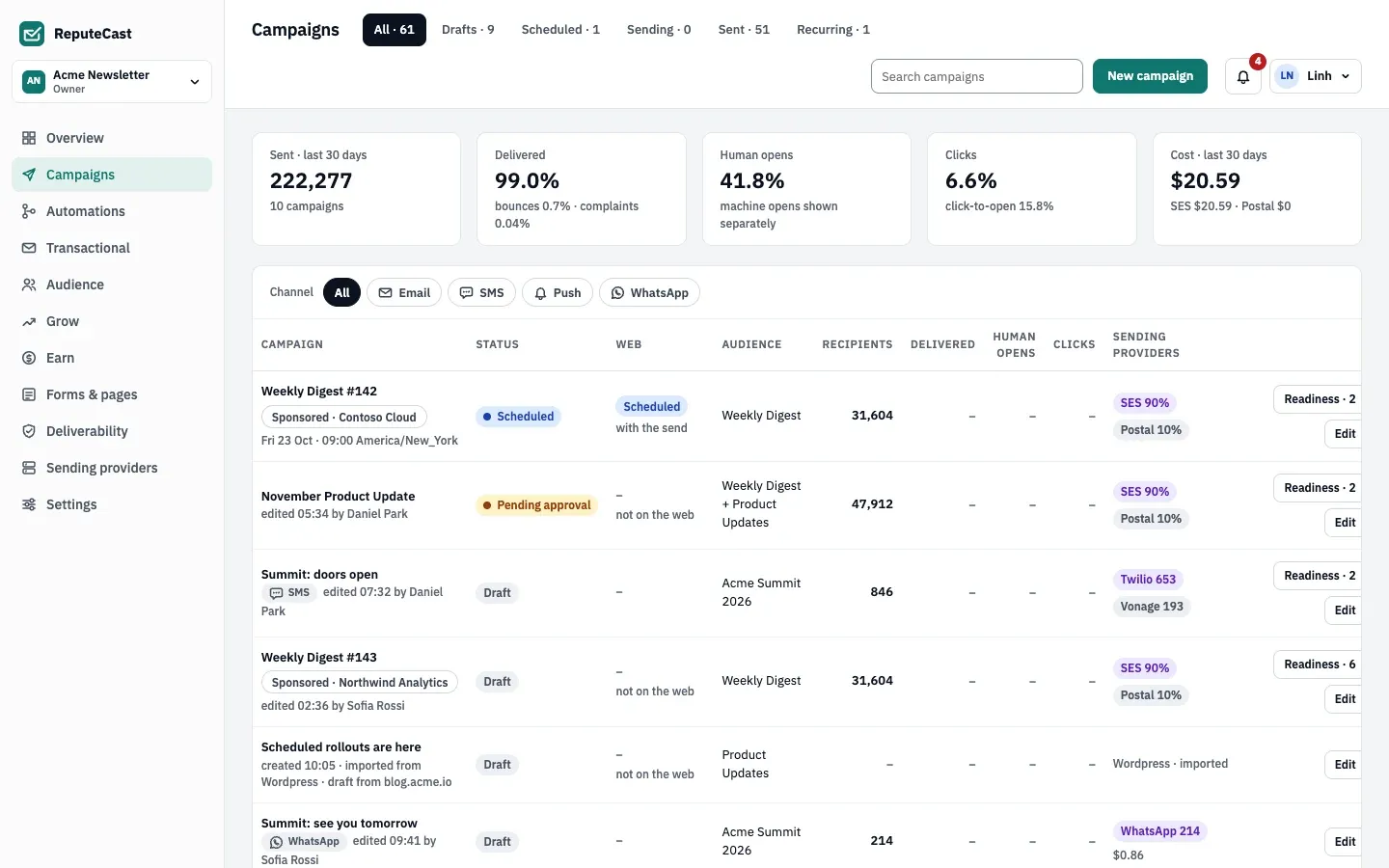
Create the campaign. Open Campaigns and select New campaign. Choose Regular, one email sent once, and continue. The composer opens on the template gallery; pick a template or start blank.
-
Write the email. At the top of the composer, name the campaign, then use Choose audience to pick the list you imported and Choose sender to pick your sender. Fill in the Subject and the Preheader, then edit the blocks on the canvas. Drafts save automatically.
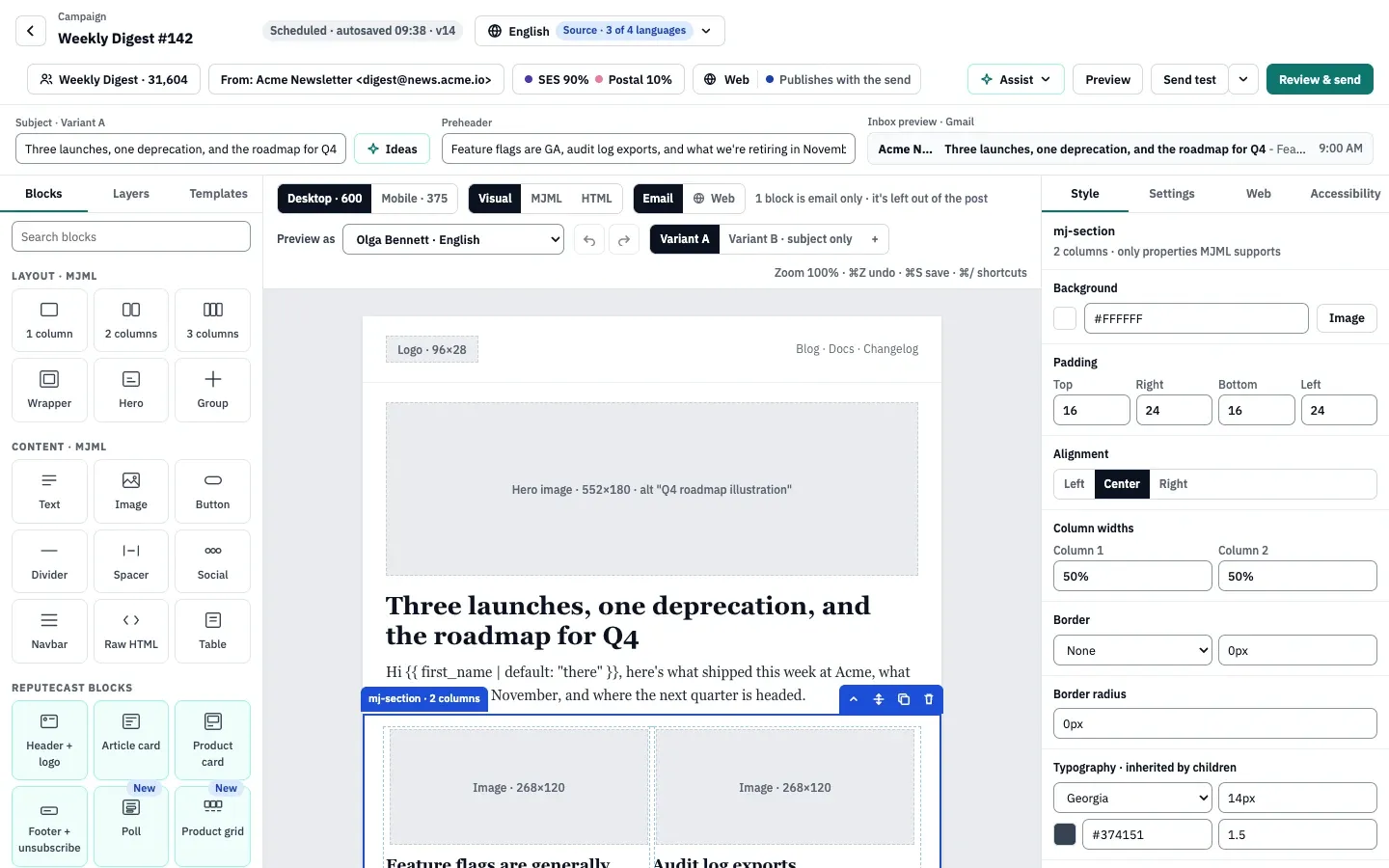
- Blocks and layers: drag blocks onto the email.
- The canvas: select a block to edit it.
- The inspector: style and settings of the selected block.
- Assist, Preview, Send test and Review & send.
Select Send test to get a copy in your own inbox and read it there. Personalize the email with tokens such as
{{ first_name | default: "there" }}; read Personalize emails with Liquid. -
Check it with Send Readiness. Select Review & send. Send Readiness checks reputation, authentication, content, languages, accessibility, conditional content, links, compliance, audience quality and routing, then gives a verdict: Ready, Ready with warnings or Blocked.
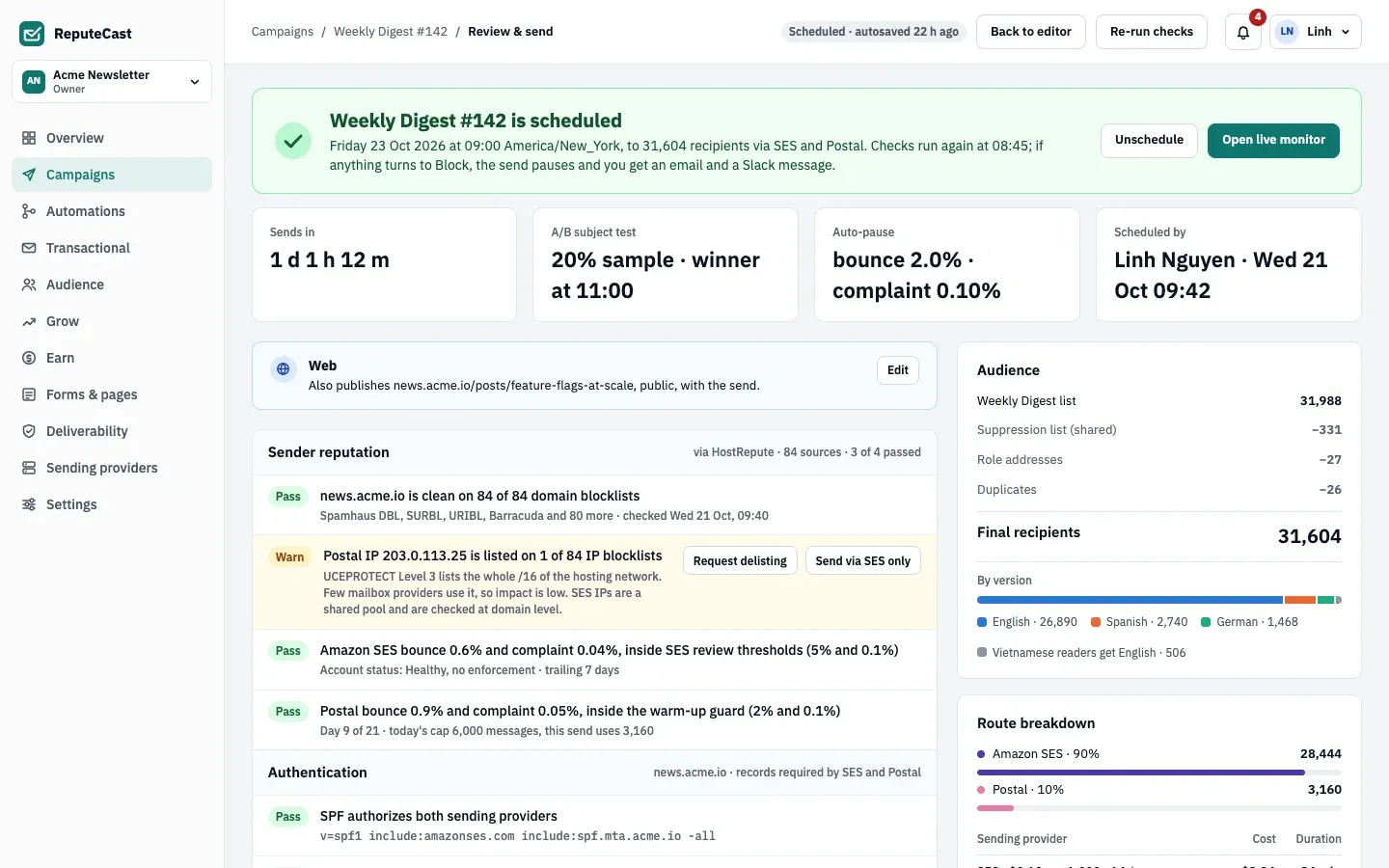
- The verdict and what it means for this send.
- The check groups, each with its result and evidence.
- The audience: final recipients after suppressions, the route, cost and duration.
- The actions for this campaign.
Open each Warn or Block result to see why it fired. Many results offer a fix you can apply from the check, such as adding the footer with your postal address; the checks then run again. You can’t send while a check blocks. Read Send Readiness: check before you send.
-
Schedule the send. Under scheduling, choose Send now, Schedule (a date and time in any time zone) or Best time per recipient. Select Schedule send (or Send now) and confirm the warnings you accept. For 1,000 recipients or more, ReputeCast asks you to Type the recipient count to confirm, because a large send can’t be recalled once it leaves the queue.
Send Readiness runs again 15 minutes before a scheduled send and when the send starts; a Block at that point holds the send.
-
Watch it go out. When the send starts, open the Live monitor from the campaign.
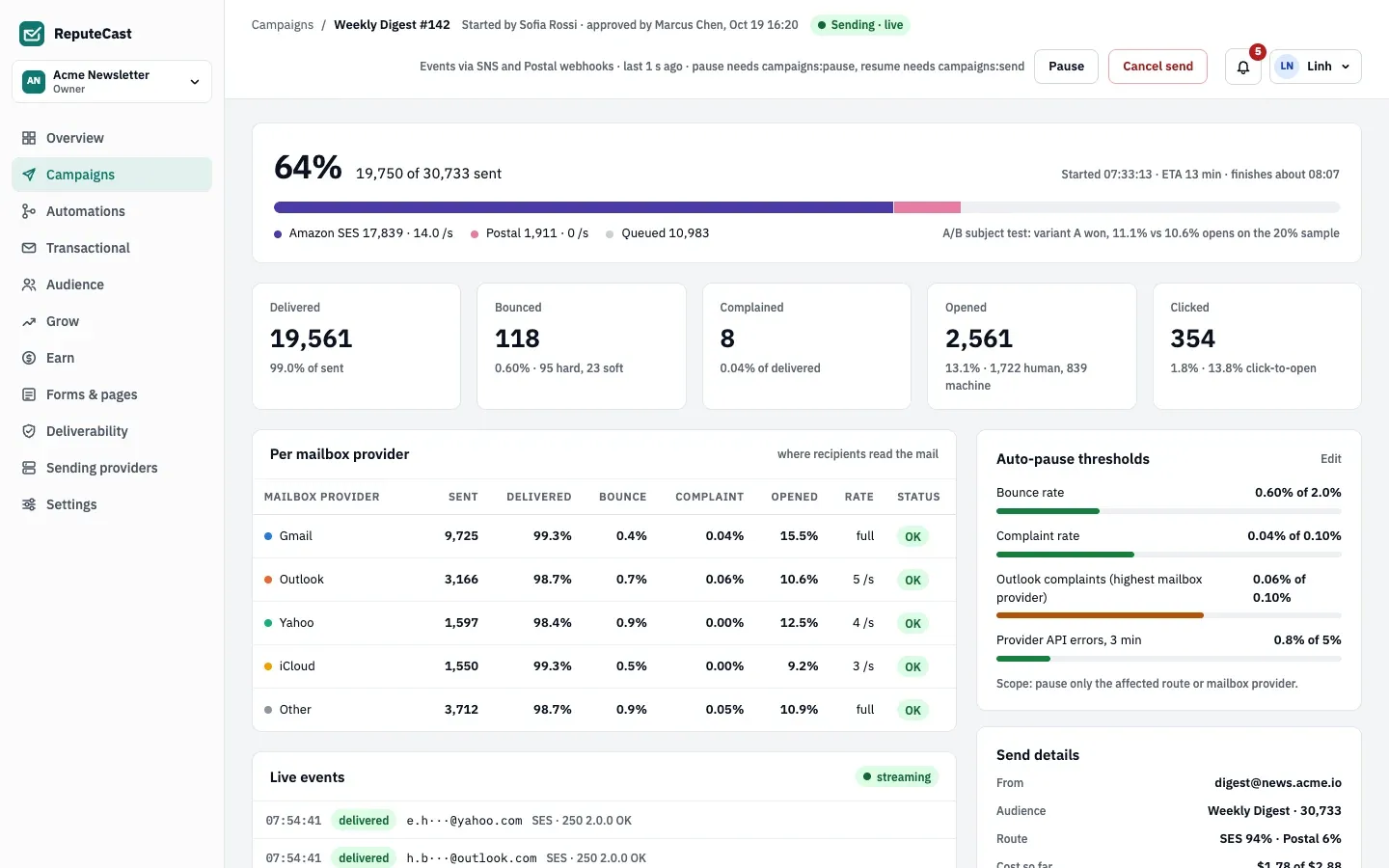
The monitor shows progress per sending provider and results per mailbox provider. If bounces or complaints cross a threshold, ReputeCast pauses the affected route and tells you what tripped; you decide whether to resume or cancel. Read Monitor a send and auto-pause.
-
Read the report. When the send is done, open the campaign’s Report.
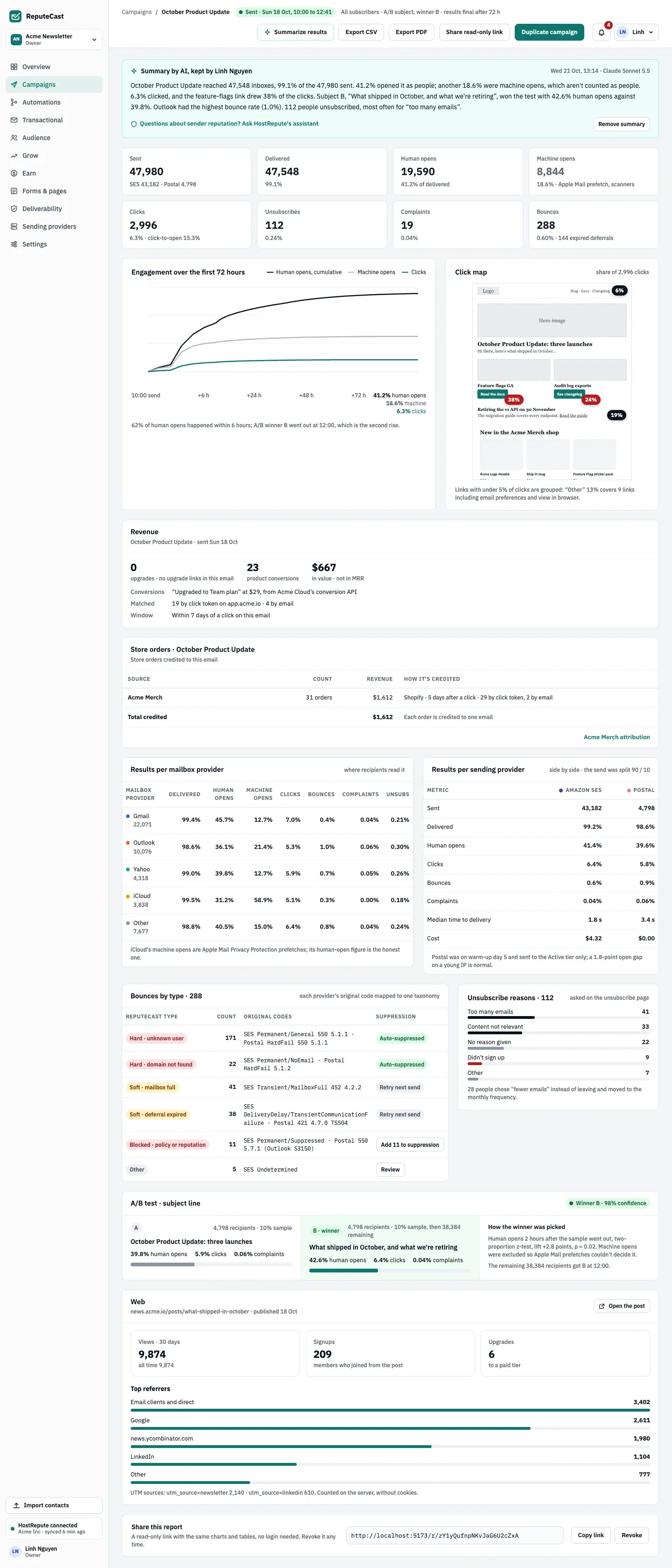
- Engagement over the first 72 hours, human opens apart from machine opens.
- The click map: the share of clicks on each link of the email.
- Results per mailbox provider.
- Results per sending provider, side by side.
Results keep coming in for 72 hours after the send; Read campaign reports explains each part.
What you built
Section titled “What you built”You imported a list with its consent intact, wrote and tested an email, passed Send Readiness, sent the campaign with guarded sending watching every mailbox provider and sending provider, and read a report that separates human opens from machine opens.