
Manage paid members
Manage paid subscribers from one list: see each paid member’s tier, status and lifetime value, give complimentary access, cancel a subscription and export the list. Paid status comes from Stripe, so most changes happen on their own as readers pay, renew or cancel.
Before you begin
Section titled “Before you begin”- Seeing paid members needs
earn:view. Granting complimentary access, importing and canceling needearn:manage(sensitive). Exporting needssubscribers:export(sensitive; every export is logged). See Permissions and roles. - Connect Stripe and create at least one tier.
Find a paid member
Section titled “Find a paid member”Open Earn, then Paid members. The line above the table counts paying members, MRR and how many are past due while Stripe retries.
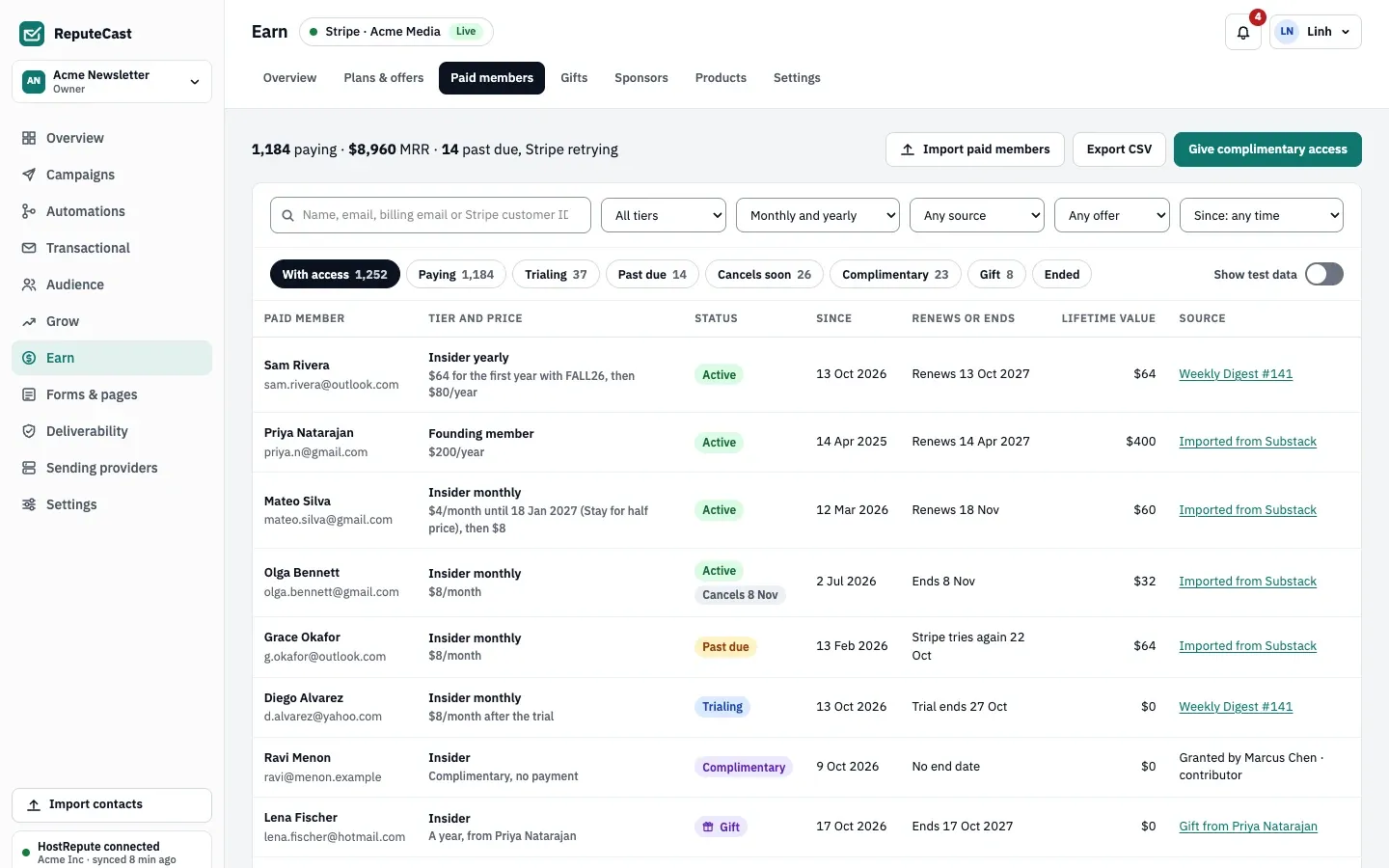
- Search by name, email, billing email or Stripe customer ID.
- Filter by tier, billing period, source, offer and start date.
- Status chips: With access, Paying, Trialing, Past due, Cancels soon, Complimentary, Gift and Ended.
- Source shows where the member came from: the campaign they upgraded from, an import, a grant or a gift.
- Show test data adds members from test checkouts. They are labelled Test and left out of every number and every campaign audience.
Select a member to open their panel with their subscription, payments and activity.
Give complimentary access
Section titled “Give complimentary access”- Select Give complimentary access.
- Choose the contact and the tier.
- Pick a reason: Team, Contributor, Press, Partner, Giveaway or Other. The reason shows in the member’s Source column (“Granted by … · contributor”).
- Save. The contact gets the tier’s access without a payment and without anything changing in Stripe.
Complimentary members are counted apart from paying members and never in MRR (Revenue metrics explained).
Cancel a subscription or resend a member email
Section titled “Cancel a subscription or resend a member email”Open the member’s panel:
- Cancel subscription asks when: At the end of the period (the member keeps the tier until then and nothing more is charged) or Now (make any refund in Stripe). Readers can also cancel themselves through your cancel page, where a retention offer can appear.
- Resend a member email sends it again through Transactional, with today’s details, for example when a reader says the welcome email never arrived.
Export paid members
Section titled “Export paid members”Select Export CSV to download the paid members as a CSV. Every export is recorded in the audit log.
Import paid members from another platform
Section titled “Import paid members from another platform”Select Import paid members to bring over paying readers from Substack, Ghost, beehiiv or Kit. Exports are matched to customers in your Stripe account read-only; nothing changes in Stripe. Step by step: Import paid members.
Check that it worked
Section titled “Check that it worked”- A complimentary member shows the Complimentary status and appears under the Complimentary chip.
- A canceled member shows Cancels with the date access ends, then moves to Ended.
Troubleshooting
Section titled “Troubleshooting”- A member shows Past due → Stripe could not charge the card and is retrying. They keep access while Stripe retries unless you changed that in Earn, then Settings, then Access.
- Export CSV is missing → you don’t hold
subscribers:export. Ask an Owner. - A reader paid but isn’t listed → check the Stripe webhook in Earn, then Settings, then Payments. The hourly catch-up adds missed payments.