
Secure your account
Set up two-factor authentication (passkeys or an authenticator app), keep recovery codes, and control your password, sign-in methods and sessions from Account & security in the account menu. The rules come from the instance’s authentication policy, which an instance admin sets.
Before you begin
Section titled “Before you begin”- Everything on this page is about your own account; no workspace permission is needed.
- If you hold a sensitive permission, two-factor authentication is required by default after a 7-day grace period. The Authenticator app card says whether it is required for you.
- Passkeys need the instance’s public URL to use a domain name, not an IP address.
-
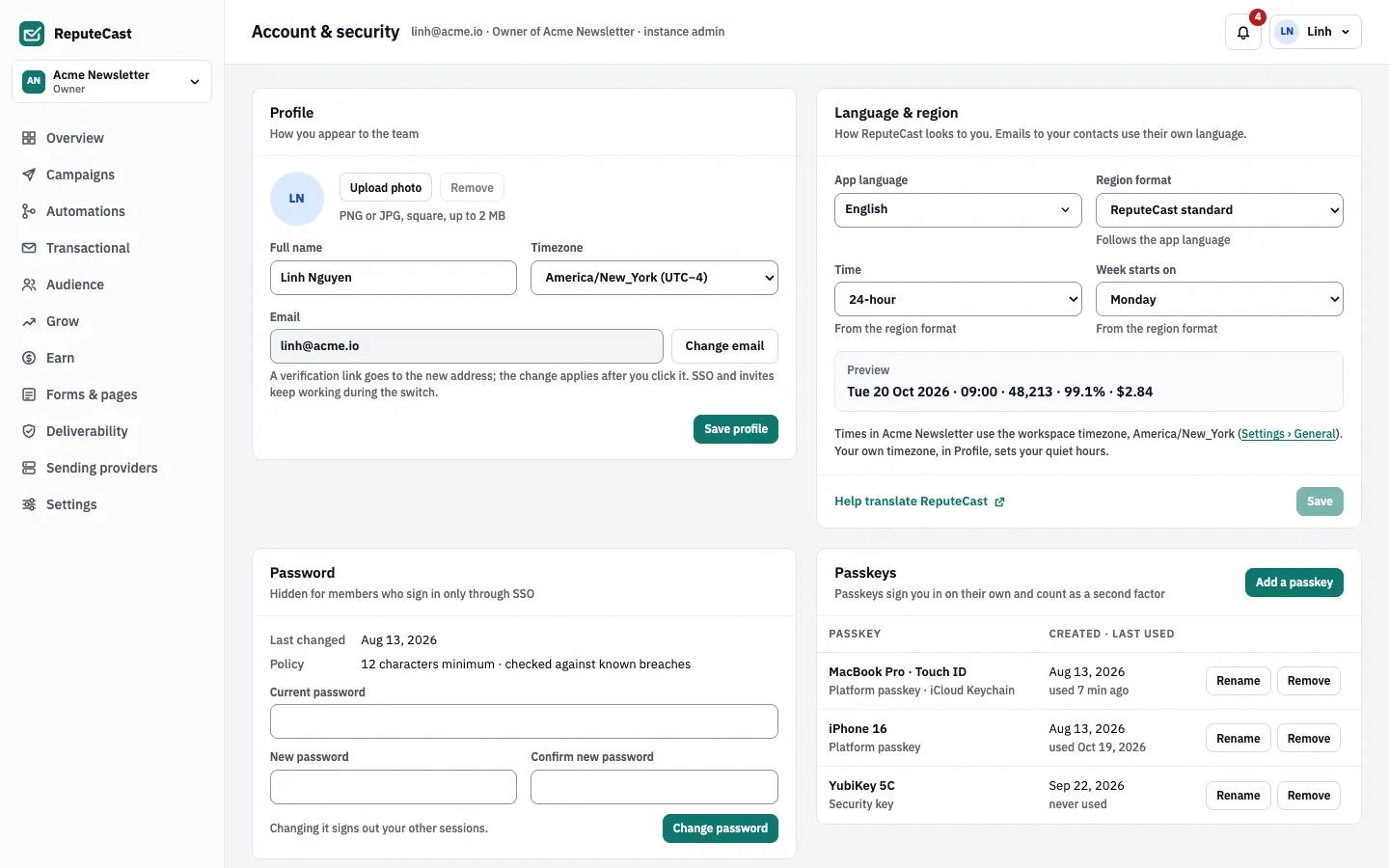
Change your password. In Password, enter your current password and the new one twice, then choose Change password. The new password must meet the minimum length, can’t be your current one or one of your recent passwords, and is checked against known breaches when the instance turns that on. Changing it signs out your other sessions. If you sign in only through single sign-on, this card is hidden.
-
Add a passkey. In Passkeys, choose Add a passkey and follow your browser’s prompt (Touch ID, Face ID, Windows Hello, a password manager or a security key). A passkey signs you in on its own with Sign in with a passkey, and after a password it counts as your second factor. Rename it so you recognize it later. You can add as many as you like.
-
Set up an authenticator app. In Authenticator app, choose Set up. Scan the QR code with any TOTP app (1Password, Google Authenticator, Authy) or type the key, then enter the 6-digit code. Codes change every 30 seconds.
-
Save your recovery codes. After the code is confirmed, ReputeCast shows 10 recovery codes once. Download, print or copy them, tick that you saved them, and finish. Each code works once at sign-in through Use a recovery code. Regenerate codes replaces every old code with 10 new ones.
-
Link other sign-ins. In Connected sign-ins, choose Link next to Google, Microsoft or GitHub when the instance offers them. Unlink is disabled for your last remaining sign-in method.
-
Review your sessions. Active sessions lists each signed-in device and browser with its IP address and last activity. Use Sign out on a row, or Sign out all other sessions. To end the session you are using, choose Sign out in the account menu.
-
Change your email. In Profile, choose Change email, enter the new address and your current password, then Send verification link. Open the link from the new mailbox within 24 hours while signed in to the same account. Your old address gets a note after the change.
Sessions, timeouts and lockout
Section titled “Sessions, timeouts and lockout”- A session ends after the session lifetime, or after the idle timeout without activity. Two minutes before it ends, a banner lets you extend the idle time; the lifetime never moves.
- When an instance admin shortens the idle timeout, existing sessions follow within about 30 seconds. A new lifetime applies to sessions started after the change.
- Too many wrong passwords for one email lock password sign-in for that email. A passkey sign-in still works, and Forgot password? sends a reset link that works once for 15 minutes and clears the lock. Using it signs out all your sessions.
| Setting | Default | How to change |
|---|---|---|
| Session lifetime | 14 days | Instance admin › Authentication; 1 day, 7 days, 14 days or 30 days (API 1–2,160 hours); applies to new sessions |
| Idle timeout | 12 hours | Instance admin › Authentication; 1, 4, 12 or 24 hours (API 5–4,320 minutes), never longer than the session lifetime |
| Lockout after failed sign-ins | 10 failed attempts for one email lock it for 15 minutes | Instance admin › Authentication; 3–100 attempts, 5 minutes, 15 minutes or 1 hour (API 1–1,440 minutes) |
| Two-factor authentication required for | Members with a sensitive permission | Instance admin › Authentication; everyone, members with a sensitive permission, or off |
| Grace period to set up two-factor authentication | 7 days | Instance admin › Authentication; none, 1, 3, 7 or 14 days (API 0–90) |
| Minimum password length | 12 characters | Instance admin › Authentication, 8–128; passwords can be up to 256 characters |
| Password re-use | The last 5 passwords are blocked | Instance admin › Authentication; block the last 5, block the last 10, or allow re-use |
| Check new passwords against known breaches | Off | Instance admin › Authentication |
| Email domains allowed for new SSO accounts | Up to 50 (none means any domain the identity provider allows) | Instance admin › Authentication |
| Password reset link | Works once, for 15 minutes | Fixed |
Time to set up two-factor authentication again after reputecast user reset-2fa | 72 hours | Fixed; a reset in Instance admin › Users uses the policy's grace period |
| Recovery codes | 10, each works once | Account & security › regenerate (replaces all) |
| Email change verification link | 24 hours | Fixed |
| Time to finish the second sign-in step | 10 minutes; 5 wrong codes restart the sign-in | Fixed |
Check that it worked
Section titled “Check that it worked”- The Authenticator app card shows On with the setup date, and the recovery codes row shows 10 remaining.
- Your passkey is listed with “used now” after you sign in with it.
- On the Team page, your 2FA column shows “On · TOTP” or “On · passkey”.
Troubleshooting
Section titled “Troubleshooting”- The 6-digit code is refused. Set your phone’s clock to update automatically and try the next code.
- “This passkey is your only way to sign in.” Add another passkey or a password before removing it.
- “Two-factor is required for your account” when removing a passkey. Set up an authenticator app or add another passkey first.
- Every page sends you to setup. Your grace period is over: add a passkey or an authenticator app to continue.
- “Sign-in is locked”. Wait for the lock to end, reset your password, or sign in with a passkey. The failed attempts are in the audit log with their IP addresses.