
Send web push notifications
ReputeCast sends web push notifications to readers’ browsers on your own sites without an outside push account: it generates the VAPID keys for your workspace, serves the service worker, shows a prompt you design and sends campaigns or automation steps with a daily cap and quiet hours. Readers who turn notifications on become push subscribers, linked to their contact when they’re signed in or known.
Before you begin
Section titled “Before you begin”- Turning push on, adding sites and changing the cap or quiet hours needs
providers:manage. Designing and publishing the prompt needsforms:edit. - Sending or scheduling a push campaign needs
campaigns:sendandpush:send, and publishing an automation with a push step needspush:send. Both send keys are sensitive permissions. Without them, the composer offers Review & request approval instead. Read Require approval for risky sends. - Sites must use HTTPS (plain HTTP works only for
localhost).
Turn on push
Section titled “Turn on push”-
Open Sending providers, then Push. If push is the first channel besides email, choose Add a channel and pick push.
-
Choose Generate keys and turn on push. ReputeCast creates the workspace’s VAPID key pair: the public key is shown, the private key is sealed (encrypted) and never returned. The contact address the push services can use if something goes wrong starts as your email; change it with Edit (a
mailto:orhttps:address). Turning push on asks nobody anything until you publish a prompt. If the workspace has a newsletter website, it’s added as the first site. -
Add your other sites with Add a site, for example
help.acme.io. Browsers accept a service worker only from the site’s own origin, so each site hosts one file:-
Add the snippet to every page:
Every page of the site <script async src="https://reputecast.acme.io/push/v1/prompt.js"data-workspace="acme-newsletter"data-site="help.acme.io"></script> -
Download
rc-push-sw.jsfrom the Setup page and upload it to the site’s root, so it’s served athttps://help.acme.io/rc-push-sw.js. If the site already has a service worker, add the import line the Setup page gives you (importScripts("https://reputecast.acme.io/push/v1/sw.js");) to it instead.
Then choose Check. The publication website needs nothing: ReputeCast serves its worker itself.
-
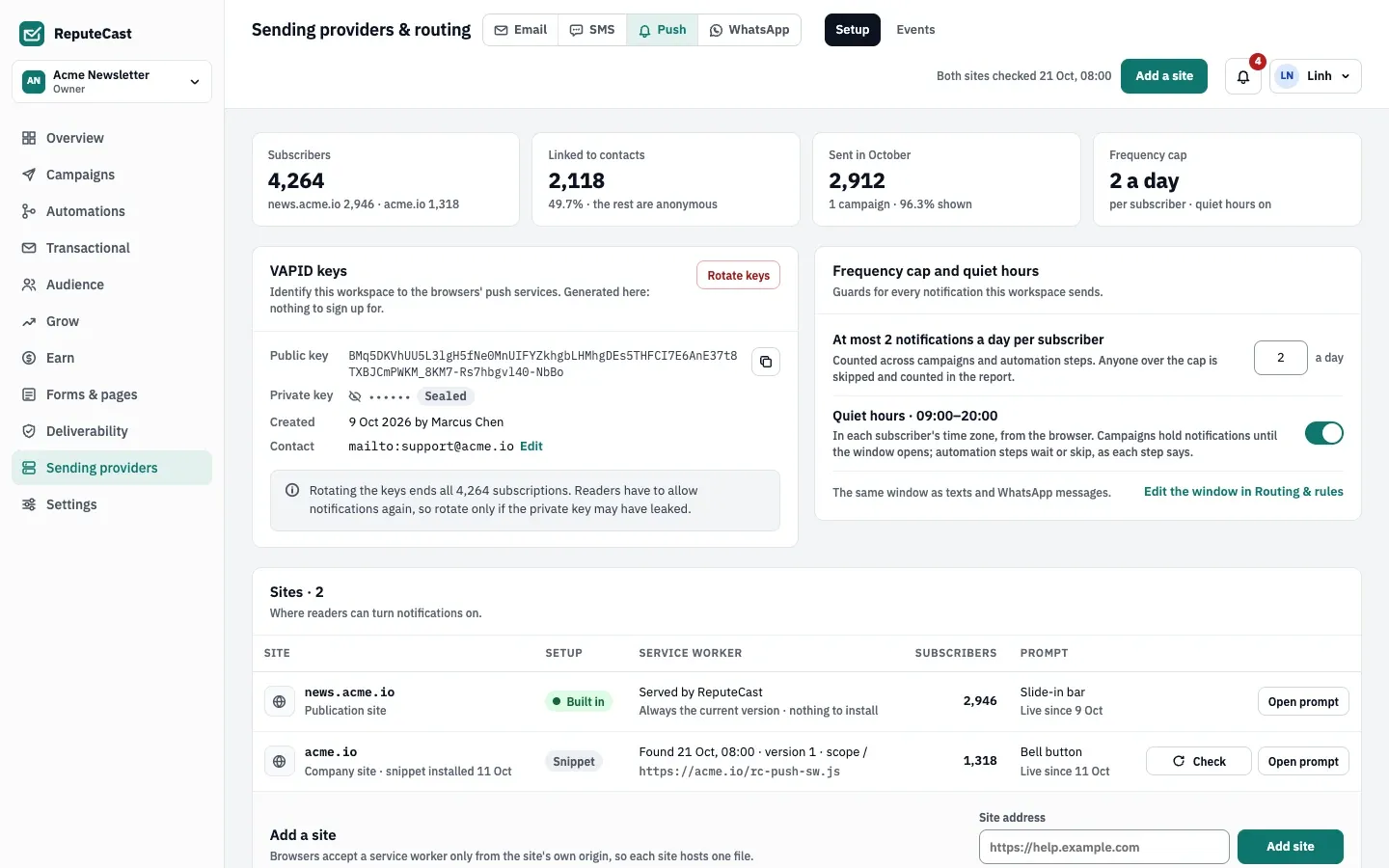
ReputeCast checks each site’s worker every day. When a worker goes missing, pushes to that site are held, members with
providers:view get a notification, and the held pushes go out when the worker is back (unless they expired). Push
subscriptions from sites that aren’t on the list are refused.
Design the prompt
Section titled “Design the prompt”Choose New push prompt on the Setup page. ReputeCast first shows its own soft prompt, and the browser’s permission prompt appears only after the reader chooses Allow, so “Not now” never uses up the browser’s one chance to ask.
- Style: Slide-in bar (bottom of the page), Dialog (a centred card) or Bell button (opens on click; bottom right or bottom left).
- Text: the title (up to 40 characters), the message (up to 120) and the two button labels.
- When: after a number of seconds on a page, after scrolling a share of a post, after reading a number of posts, or
when the reader clicks your own button (any element with
data-rc-push). At least one must be on. - Where: every page except some, or only some pages (up to 20 paths).
- Frequency: after “Not now”, ask again in 1–365 days.
- iPhone and iPad: Safari supports web push only for sites added to the Home Screen. Show the steps to add the site, or stay hidden.
Save & publish puts the prompt live. The prompt is never shown in a browser that has blocked notifications, and each subscription keeps a consent record.
Send a push campaign
Section titled “Send a push campaign”-
In Campaigns, start a new campaign and choose Push notification. The card appears once push is set up.
-
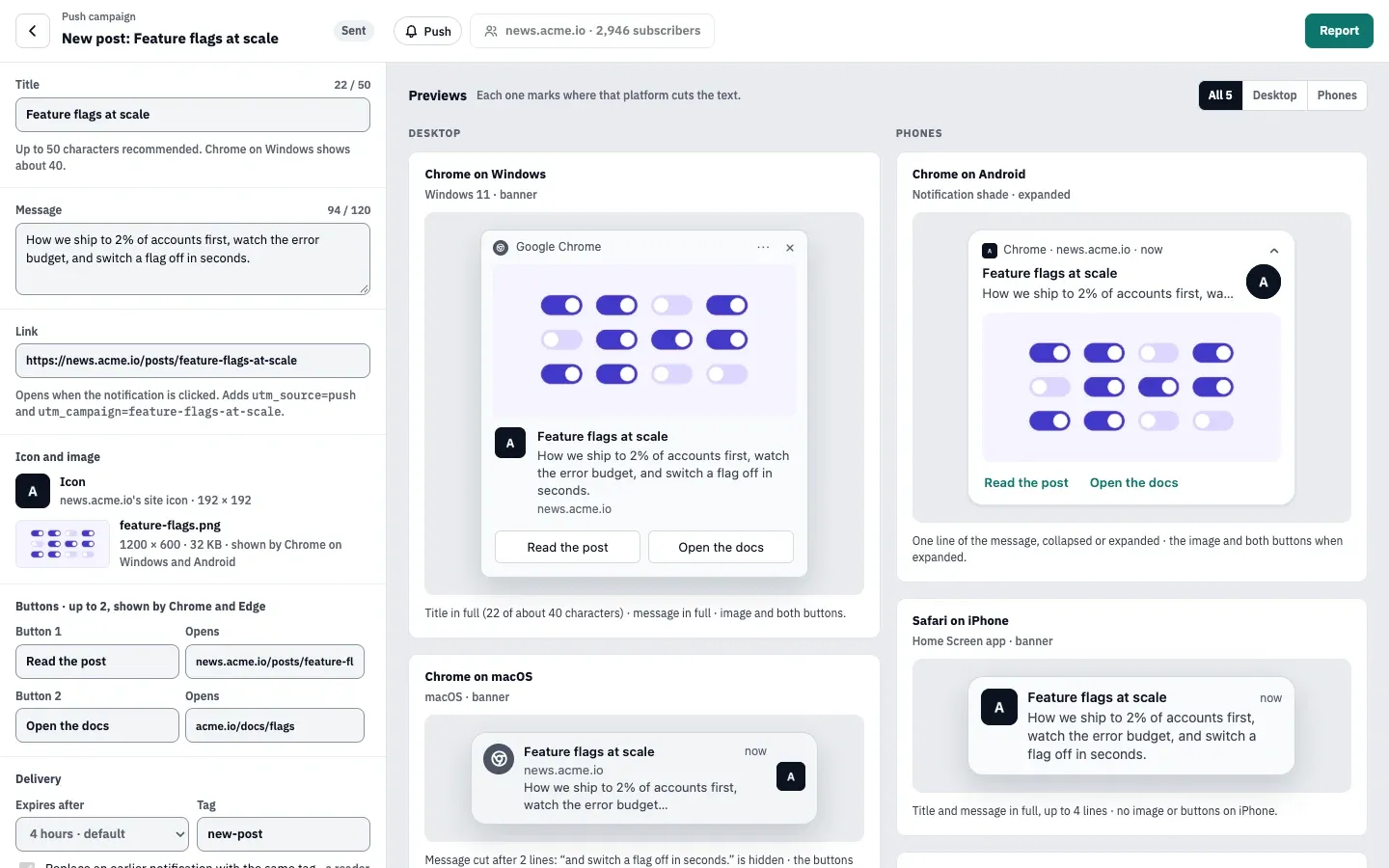
Write the notification: Title (up to 50 characters recommended; Chrome on Windows shows about 40), Message (up to 120 recommended), Link (clicks get
utm_source=push,utm_medium=pushandutm_campaign=<campaign>when the link has none), the icon (the site’s icon, else the workspace logo), an optional image (2:1 works best), up to two buttons (shown by Chrome and Edge), Expires after and an optional Tag to replace an earlier notification with the same tag. -
Check the previews. Each one marks where that platform cuts the text: Chrome on Windows, Chrome on macOS, Safari on macOS, Chrome on Android and Safari on iPhone. Send to my browser sends a test to you.
-
Choose who gets it: one or more sites, optionally only subscribers linked to contacts on chosen lists or segments (anonymous subscribers drop out).
-
Choose Review & send. The checks are Keys, Service worker, Audience, Frequency cap, Quiet hours, Link, Lengths, Image and Approval. A missing key, no working service worker on any chosen site, an empty audience, link or title block the send; the rest warn. Send now or schedule, and choose what happens to subscribers outside quiet hours: Hold until the window opens (the default) or Skip them.
The report shows sent, shown and clicked notifications, people who unsubscribed within 24 hours, subscriptions removed because the browser dropped them, and held and skipped notifications, by browser and by site. “Shown” is reported by the browser and can be late or missing, most often in Firefox.
In automations, the Send push step reaches subscriptions linked to the contact only, and waits for the window or skips the notification outside quiet hours.
Frequency cap and quiet hours
Section titled “Frequency cap and quiet hours”- Frequency cap: at most 2 notifications a day per subscription (browser), counted across campaigns and automation steps; set 1–24. Anyone over the cap is skipped and counted in the report.
- Quiet hours: on by default, in each subscriber’s time zone from the browser. Push uses the same window as SMS and WhatsApp (09:00–20:00 by default, never outside 08:00–21:00); change it in Sending providers, then SMS, then Routing & rules. Read Send SMS campaigns.
| Setting | Default | How to change |
|---|---|---|
| Recommended lengths | Title 50 characters, message 120 (longer gives a warning) | Fixed |
| Buttons per notification | Up to 2 (shown by Chrome and Edge) | Fixed |
| Notification expiry | 4 hours | Push composer › Expires after; 1 hour, 4 hours, 12 hours, 1 day or 4 weeks |
| Notifications per subscriber per day | 2 | Sending providers › Push › Setup, 1–24 |
| Prompt asks again after Not now | 14 days | Push prompt designer › Frequency, 1–365 days |
| Prompt appears | After 30 s on a page or after scrolling 50% of a post | Push prompt designer › When |
| Quiet hours | On, using the SMS window (09:00–20:00 by default) | Sending providers › Push › Setup |
Check that it worked
Section titled “Check that it worked”- On Sending providers, then Push, then Setup, every site shows a found service worker and a live prompt.
- Sending providers, then Push, then Events lists each notification as sent, shown and clicked.
Troubleshooting
Section titled “Troubleshooting”- “Service worker missing”: the file isn’t at the site’s root or answers with an error. Upload
rc-push-sw.jsto the root and choose Check. - “Not a service worker”: the address redirects or isn’t served as JavaScript. Serve the file directly with a JavaScript content type.
- “Site unreachable”: the site answered 5xx or 429. Try Check again later.
- The prompt never appears: the prompt isn’t published, the page is excluded, the reader chose “Not now” recently, or the browser blocked notifications for the site.
- No prompt on iPhone: the site isn’t added to the Home Screen.