
Templates and saved sections
Email templates let you start every campaign from a tested layout instead of a blank canvas, and saved sections let you drop the same header, sign-off or promo block into any email. Both live in the composer and are written in MJML, so everything you load stays editable block by block.
Before you begin
Section titled “Before you begin”- Starting a campaign from a template needs
campaigns:edit. - Saving a template or a section needs
templates:edit. Owner, Admin and Editor have it; Viewer only hastemplates:viewand can’t save. See permissions and roles. - Set your postal address under Settings, then Senders (Footer address) first: the built-in templates fill their footer with it.
Start a campaign from a template
Section titled “Start a campaign from a template”-
Open Campaigns, select New campaign, choose Regular and select Continue. The composer opens an empty draft on the template gallery.
-
Under Start from a template or a blank canvas, select a tile:
- a built-in template (see the table below),
- a template your team saved, under Yours,
- Copy of your last sent campaign, to start from its layout and content, or
- Import MJML or HTML, to paste or upload an
.mjmlor.htmlfile.
-
The template loads at once. Edit it like any email; the subject, preheader and audience are yours to set.
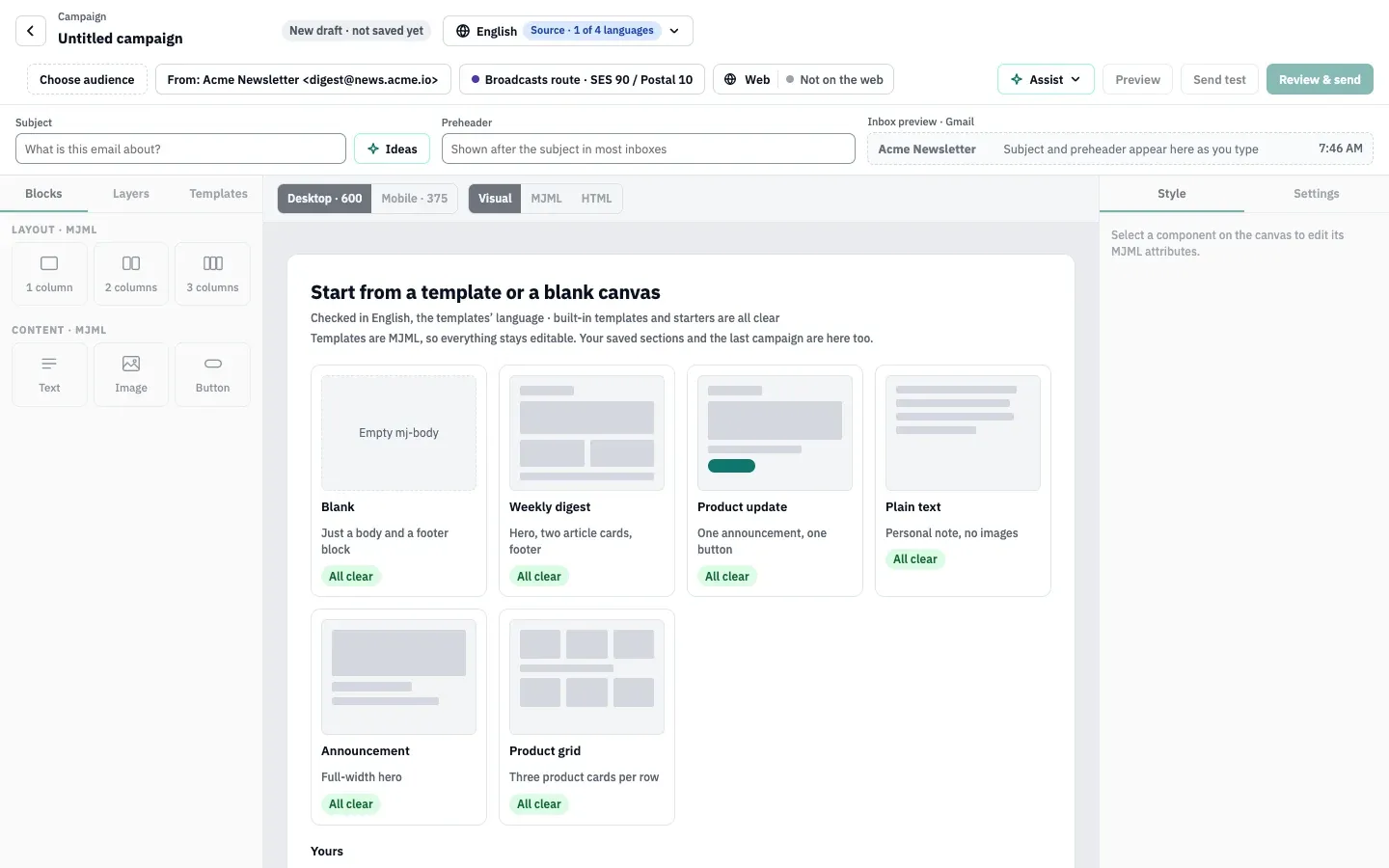
Each tile also shows its accessibility result, such as “All clear” or the number of issues found, so you can start from a layout without accessibility problems. Agency staff working in a client workspace also see the agency’s shared library; see run client workspaces as an agency.
Built-in templates
Section titled “Built-in templates”| Template | What it holds |
|---|---|
| Blank | A body and a footer block. |
| Weekly digest | Header with logo, hero image and heading, an intro, two article cards with “Read the article” buttons, footer. |
| Product update | Header with logo, hero, heading, text and a “See what’s new” button, footer. |
| Plain text | A personal note in four paragraphs, no images, short footer. |
| Announcement | A full-width banner image, heading, two paragraphs and a “Read the announcement” button, footer. |
| Product grid | Two rows of three product cards with text between them, footer. |
A seventh template, Blog digest, shows the feed’s posts as cards and is offered only when you design a recurring digest. The images in the built-in templates are placeholders: replace them with your own.
If no footer address is set, the footer reads “Your company · Street and number · City, postcode”, and the content checks flag it until you change it.
Replace an email’s content with a template
Section titled “Replace an email’s content with a template”-
In the composer’s left panel, open Templates.
-
Select a template.
-
Confirm with Replace the content, or select Keep editing to cancel.
The canvas content is replaced; the subject, preheader and audience stay. The version before the change stays in the version history, so you can restore it.
Save a template or a section
Section titled “Save a template or a section”-
To save one section, select it on the canvas first.
-
In the left panel, open Templates and select Save as template or section at the bottom of the list.
-
Under What to save, choose The whole email (a template) or The selected section (a saved section).
-
Give it a name of up to 120 characters and, optionally, a description of up to 300 characters.
-
Select Save.
Saving the whole email first saves the campaign as a new version, then stores its MJML and compiled HTML as a template. A section stores only that section’s MJML. A confirmation under the canvas says the template is now in Templates.
Names are unique per kind: two templates, or two saved sections, can’t have the same name (letter case doesn’t matter).
Insert a saved section
Section titled “Insert a saved section”-
Select the section the new one should follow. With nothing selected, it goes at the end of the email.
-
In Blocks, under ReputeCast blocks, select the Saved sections tile. The panel switches to Templates and scrolls to the list.
-
Select a section. It is inserted at once.
Saved sections show in the panel once the canvas has content; on an empty draft, start from a template first.
Rename or delete a template
Section titled “Rename or delete a template”The app has no screen to rename, edit or delete a saved template or section in this build. With templates:edit you can do it through the API: update a template or delete a template. Deleted templates are removed from the gallery and recorded in the audit log.
Check that it worked
Section titled “Check that it worked”- The template appears under Yours the next time someone opens the gallery, and in Templates.
- The Saved sections tile counts your new section.
Troubleshooting
Section titled “Troubleshooting”- There is no Save as template or section button. Your role lacks
templates:edit, or the campaign can’t be edited (it is sending or sent). - The selected section option is greyed out. Nothing is selected. Select a section, or any block inside it, on the canvas first.
- “A template called … already exists”. Pick another name, or delete the old one through the API.
- “The MJML doesn’t parse”. The email has an MJML error. Fix it in the MJML view, then save again.
- An imported HTML email can’t be edited block by block. HTML goes into one Raw HTML section. Rebuild it with MJML blocks, then save it as a template.