
Quickstart: run ReputeCast with Docker
In this tutorial you self-host the ReputeCast newsletter platform with Docker on your own computer, finish the first setup and send a test email to a local test mail server. It takes about 15 minutes. Everything runs in containers, and you can remove it all with one command at the end.
Before you begin
Section titled “Before you begin”- Docker with Compose v2 (Docker Desktop, or Docker Engine with the Compose plugin). Check with
docker compose version. - Port 8080 (ReputeCast) and port 8025 (the test mail server’s inbox) free on your computer.
- A passkey (Touch ID, Face ID, Windows Hello or a security key) or an authenticator app such as 1Password, Google Authenticator or Authy. Two-factor sign-in is required for the first Owner.
ReputeCast needs only PostgreSQL next to the app; the compose file starts both.
Start ReputeCast
Section titled “Start ReputeCast”-
Download the compose file into an empty folder:
Terminal window mkdir reputecast && cd reputecastcurl -fsSL https://raw.githubusercontent.com/hostrepute/reputecast/main/deploy/docker-compose.yml -o docker-compose.ymlIt defines two services:
postgres(PostgreSQL 18) andapp(ReputeCast). The app applies its database migrations and creates the first Owner when it starts. -
Add a test mail server for this trial. A real installation sends through your sending provider. For this local trial, add Mailpit, a test mail server that keeps every message in a web inbox. ReputeCast reads bounces from a mailbox over TLS, so first create a certificate for Mailpit:
Terminal window docker run --rm -v "$PWD/mailpit-tls:/tls" alpine:3.22 sh -c 'apk add --no-cache openssl >/dev/null && openssl req -x509 -newkey rsa:2048 -nodes -days 365 -subj "/CN=mailpit" -addext "subjectAltName=DNS:mailpit" -keyout /tls/mailpit.key -out /tls/mailpit.crt'Then save this file next to
docker-compose.yml. Compose reads it automatically:docker-compose.override.yml services:mailpit:image: axllent/mailpit:v1.31.5restart: unless-stoppedports:- "8025:8025" # Mailpit's inbox: http://localhost:8025environment:MP_SMTP_AUTH_ACCEPT_ANY: "1"MP_SMTP_AUTH_ALLOW_INSECURE: "1"MP_SMTP_BIND_ADDR: 0.0.0.0:2525MP_POP3_BIND_ADDR: 0.0.0.0:995MP_POP3_AUTH: "bounces:bounces-password"MP_POP3_TLS_CERT: /tls/mailpit.crtMP_POP3_TLS_KEY: /tls/mailpit.keyvolumes:- ./mailpit-tls:/tls:roapp:environment:# Mailpit runs on the private Docker network.REPUTECAST_PROVIDERS__ALLOW_PRIVATE_NETWORKS: "true"# Trust Mailpit's certificate next to the system certificates.SSL_CERT_DIR: /etc/ssl/certs:/trustvolumes:- ./mailpit-tls/mailpit.crt:/trust/mailpit.crt:ro -
Start the stack with your email address as the first Owner:
Terminal window REPUTECAST_ADMIN_EMAIL=you@company.com docker compose up -d -
Read the temporary password. The first start takes about 20 seconds while the migrations run. Then:
Terminal window docker compose logs app | grep -A4 "ReputeCast is installed"Output app-1 | ReputeCast is installed.app-1 |app-1 | Sign in at http://localhost:8080app-1 | Email you@company.comapp-1 | Password aEkq-cFUR-E5js-vfyU (temporary: you'll replace it at first sign-in)If the command prints nothing, wait a few seconds and run it again.
Finish the first setup
Section titled “Finish the first setup”-
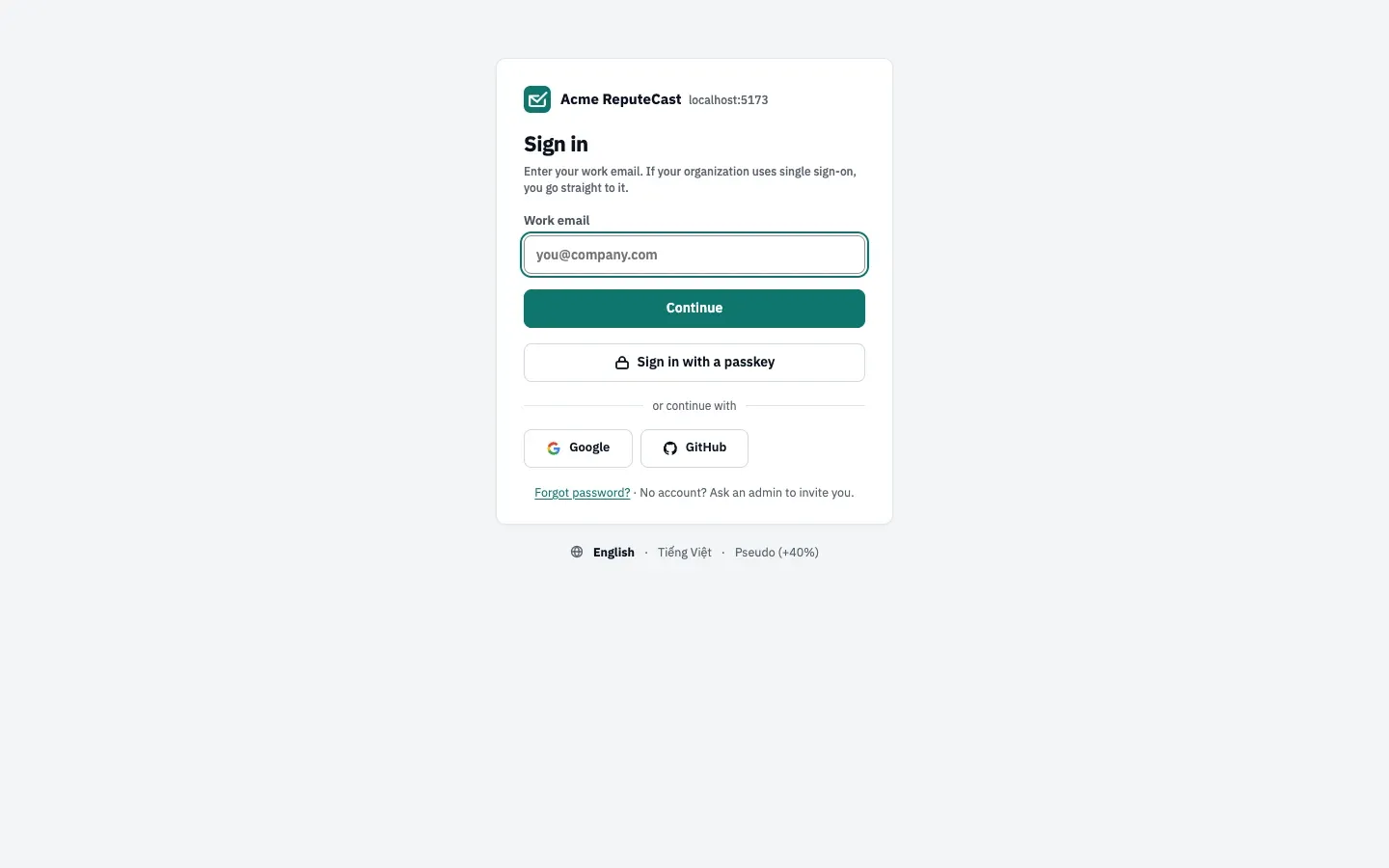
Sign in. Open http://localhost:8080, enter your email, select Continue, then enter the temporary password.
-
Work through the six setup steps. ReputeCast saves each one, so you can stop and come back.
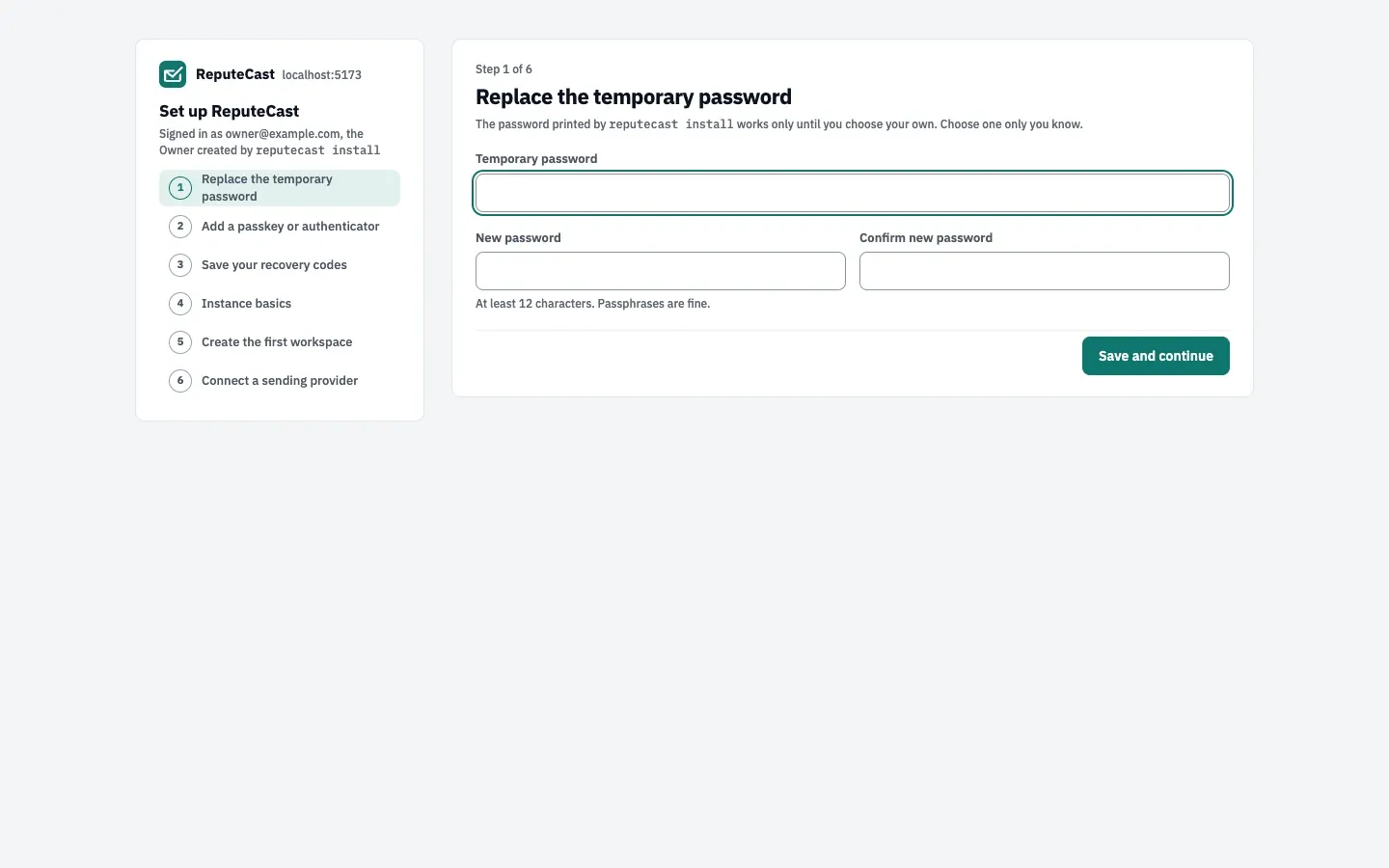
- In Replace the temporary password, enter the temporary password and a new one of at least 12 characters.
- Add a passkey or authenticator: add a passkey, or scan the QR code with your authenticator app and enter the code it shows.
- Save your recovery codes: download, print or copy the 10 codes. Each one signs you in once if you lose your passkey or authenticator; you see them only now.
- Instance basics: name the instance, pick the default timezone and language, and check the
public URL. On your own computer the TLS line warns about plain
http, and the reachability check can fail; you can save anyway. Leave Check GitHub for new releases once a day on or off; it fetches only the latest version number. - Create the first workspace: name your first workspace, for example after your newsletter.
- Connect a sending provider: select it to open the provider wizard.
Connect the test mail server and send a test
Section titled “Connect the test mail server and send a test”-
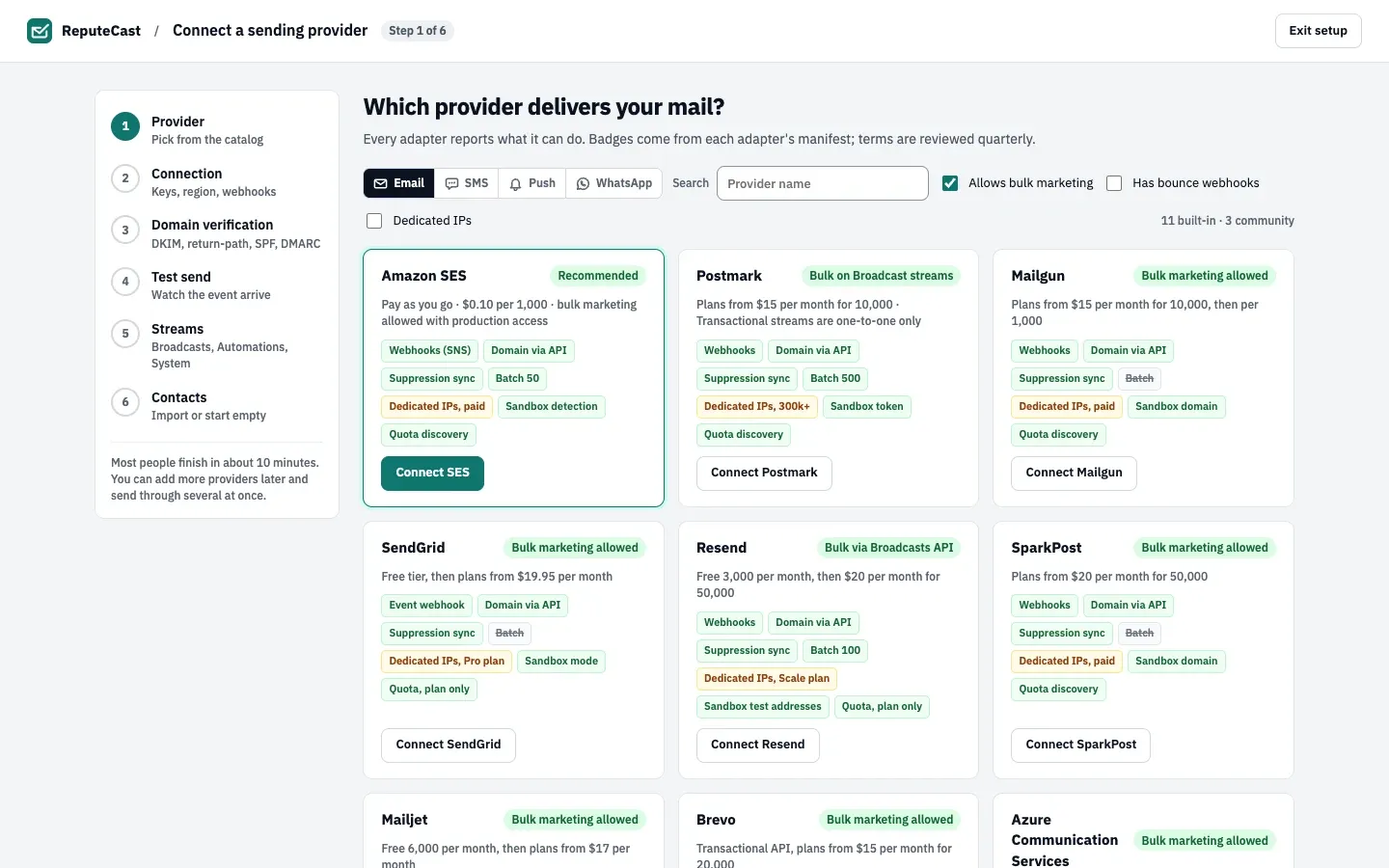
Pick the provider. The wizard lists every built-in sending provider with what it can do. Choose Any SMTP server.
-
Connect the outgoing server. Enter host
mailpit, port2525and encryption None; leave the username and password empty. Select Test connection: the result reads “Connected … No TLS · no authentication”. -
Connect the bounce mailbox. SMTP has no webhooks, so ReputeCast reads bounces from a mailbox. Enter return-path address
bounces@example.com, protocol POP3, mail servermailpit, port 995 · TLS, usernamebouncesand passwordbounces-password. Select Test mailbox, then continue to domain verification. -
Enter a sending domain. Type
example.com, select Show the DNS records, then continue to the test send. For a real domain you add these records at your DNS host; read Set up SPF, DKIM and DMARC. -
Add a sender. The test needs a From address. In a new browser tab, open Settings, then Senders, select Add sender, enter a name and
news@example.com, tick Broadcasts, Automations and System, and add it. Back in the wizard, reload the page. -
Send the test. Select Send test. The delivery timeline fills in as Mailpit accepts the message. Open http://localhost:8025 to read it in Mailpit’s inbox.
-
Finish the wizard. Keep all four streams on the SMTP server, then choose Start empty and finish (or import contacts). The summary lists what was configured.
What you built
Section titled “What you built”ReputeCast and PostgreSQL run on your computer, your Owner account is protected with two-factor sign-in, the instance and your first workspace are set up, and a test email went from ReputeCast through an SMTP server into an inbox.
To remove everything, including the database, run docker compose down -v in the folder.
For real sending, run ReputeCast on a server with a public HTTPS address, so sending providers can report deliveries, bounces and complaints back to it, and connect your own provider. Read Install with Docker Compose and Connect a sending provider.