
Send WhatsApp messages
ReputeCast sends WhatsApp marketing messages through Meta’s WhatsApp Cloud API with your own WhatsApp Business Account. Campaigns use the message templates Meta approved, go only to people with WhatsApp consent on the list, show the estimated cost before you send and respect Meta’s 24-hour customer service window for free-text replies.
Before you begin
Section titled “Before you begin”- Connecting the account, syncing templates and editing the rate card needs
providers:manage(Owner and Admin). - Sending or scheduling a WhatsApp campaign needs
campaigns:sendandwhatsapp:send, and publishing an automation with a WhatsApp step needswhatsapp:send. Both send keys are sensitive permissions; without them the campaign offers Review & request approval. - In Meta, have a WhatsApp Business Account with a phone number, a Meta app with the WhatsApp product, and a permanent access token for a system user.
- ReputeCast’s public URL must be reachable from the internet over HTTPS, because Meta calls it with webhooks. Read Reverse proxy and TLS.
Connect your WhatsApp business account
Section titled “Connect your WhatsApp business account”-
Open Sending providers. Until a second channel is set up, choose Add a channel and pick WhatsApp; after that, switch to Sending providers, then WhatsApp, then Account.
-
Enter the four values from Meta: WhatsApp Business Account ID, Phone number ID, Permanent access token and App secret. All four are write-only: sealed when saved and never shown again. Choose Connect and show the webhook. ReputeCast checks them with Meta’s Graph API, subscribes the app to the account’s webhooks and syncs your templates.
-
Copy the Callback URL (
https://<your instance>/hooks/whatsapp/<workspace>) and the Verify token into Meta for Developers › your app › WhatsApp › Configuration, and choose Verify and save there. ReputeCast shows the account as connected once Meta’s verification request arrives; Check again checks at once. -
Choose Send a test message to send one to your own number.
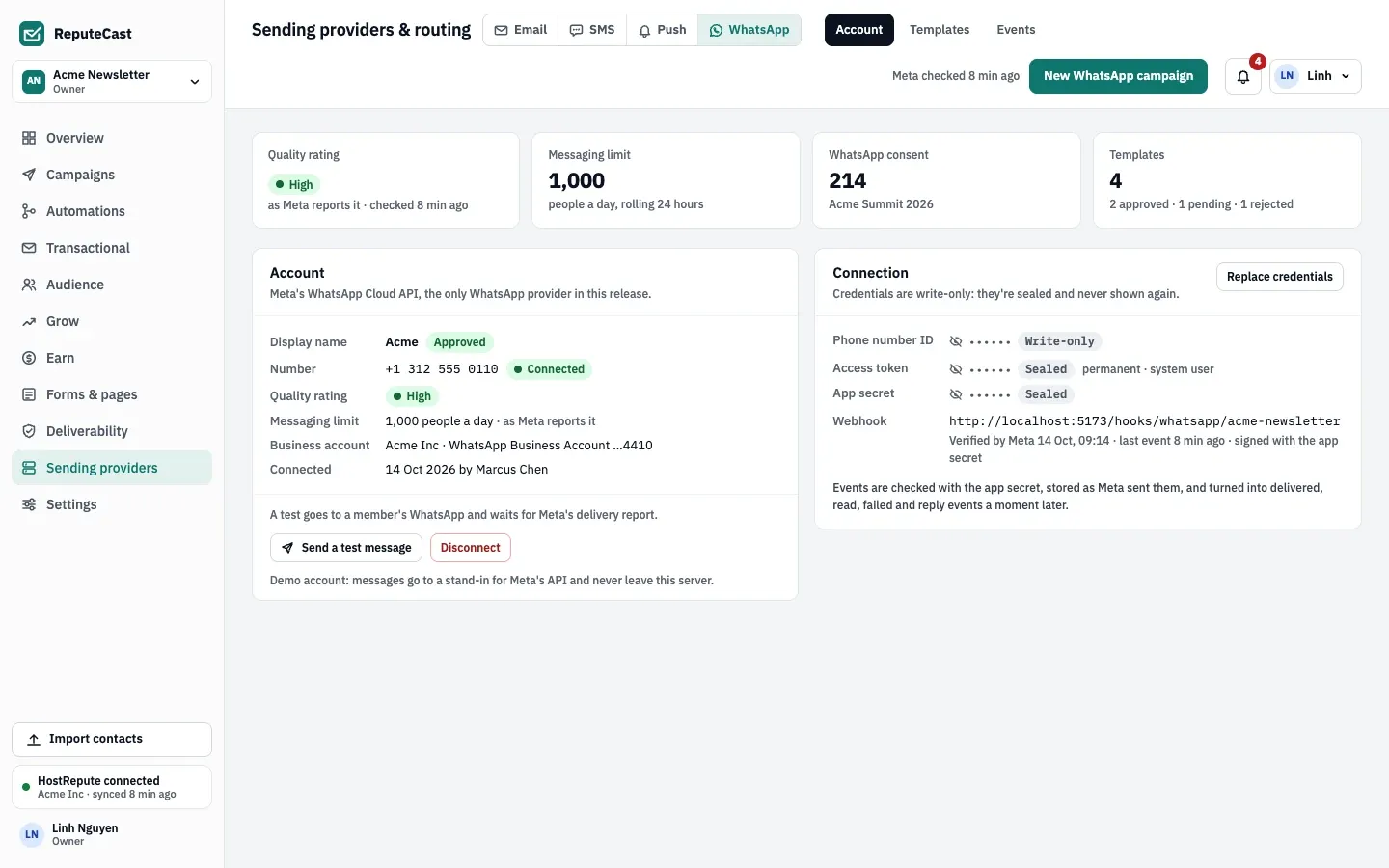
Meta signs every webhook with X-Hub-Signature-256 (an HMAC-SHA256 of the body keyed with your app secret), and
ReputeCast refuses deliveries whose signature doesn’t match. The
Sending providers, then WhatsApp, then Events tab shows each raw webhook next to what
ReputeCast made of it, with the signature check.
If Meta rejects the access token later, queued messages are held and members with providers:manage are notified.
Reconnect with a new token releases them. Disconnect cancels queued and held messages.
Templates
Section titled “Templates”You create and edit templates in Meta’s WhatsApp Manager; ReputeCast reads them. They sync when you connect, every hour, on Sync now and whenever Meta reports a status change. The Sending providers, then WhatsApp, then Templates tab lists each template’s category (Marketing, Utility or Authentication), language, status, body, variables and buttons.
Statuses are Approved, Pending, Rejected (with Meta’s reason), Paused, Disabled, In appeal and Other. Only approved templates can be picked for a campaign.
The 24-hour customer service window
Section titled “The 24-hour customer service window”Meta allows free-text messages only for 24 hours after the person’s last message to your number, of any kind (a reply, a button click, an opt-out or opt-in). Outside the window, only approved templates can be sent.
- On the contact’s profile, the WhatsApp card shows “Window open until …” or “Window closed”, the last messages and,
while the window is open, Reply with free text (up to 4,096 characters; needs
whatsapp:send). - In an automation, a free-text WhatsApp step outside the window skips the message or sends a template instead, as the step says.
- There is no shared inbox: replies appear on the contact’s timeline and in the campaign report.
Consent and opt-outs
Section titled “Consent and opt-outs”WhatsApp consent is kept per list, separate from email and SMS, and needs a phone number on the contact. Record it on
the contact’s profile with Record WhatsApp consent (subscribers:edit), with the exact text the person agreed to,
where and when; or through the API. Signup forms and imports don’t record WhatsApp consent. Read
Lists, consent and double opt-in.
Opt-out keywords are the SMS ones: STOP, STOPALL, UNSUBSCRIBE, CANCEL, END, QUIT, OPTOUT and REVOKE, and a quick-reply button that starts with “stop” or “unsubscribe”. An opt-out applies to every list and suppresses the number on WhatsApp; only the person can come back, by writing START or UNSTOP. Read Send SMS campaigns.
Send a campaign
Section titled “Send a campaign”-
Choose New WhatsApp campaign on any WhatsApp tab (or start a new campaign in Campaigns and choose WhatsApp message).
-
Pick an approved template and fill its variables (
{{1}},{{2}}…): each from a contact field with a fallback, or fixed text. The chat preview shows the message as a chosen contact sees it. Send test to my WhatsApp sends it to you. -
Choose the audience (lists, counting only people with WhatsApp consent) and the schedule: send now, at a date and time, or at a time in each recipient’s time zone.
-
Check the Estimated cost. It comes from Meta’s rate card per country and template category, which ReputeCast keeps as a table you can change with Edit rates. Meta charges when a template message is delivered; free text inside the window costs nothing.
-
Choose Review & send. The checks are Account, Consent, Template, Quality rating, Messaging limit, Cost and Approval. An account that isn’t connected, an empty audience or a template that isn’t approved block the send. A Medium or Low quality rating warns, and so does an audience above the number’s messaging limit (the people it may reach in 24 hours, as Meta reports it): send the rest later, or skip them.
Campaign messages wait for quiet hours to end: the window is shared with SMS and push (09:00–20:00 by default, never outside 08:00–21:00) and set in Sending providers, then SMS, then Routing & rules. Automation steps wait or skip, as each step says.
The report shows messages sent (accepted by Meta), delivered, read (only from people who share read receipts), failed with Meta’s codes and reasons, replies and button clicks, and the estimated cost, by country.
| Setting | Default | How to change |
|---|---|---|
| Templates synced from Meta | Every hour | Sync now for an immediate sync |
| Customer service window for free-text messages | 24 hours after the contact's last message | Fixed (Meta's rule) |
| Raw webhooks and received messages kept | 90 days | Fixed |
Troubleshooting
Section titled “Troubleshooting”- “Waiting for Meta’s verification request”: the Callback URL or Verify token in Meta doesn’t match, or Meta can’t reach your public URL. Paste both again, choose Verify and save in Meta, then Check again.
- The account shows the token was rejected: the access token expired or was revoked. Create a new permanent token for the system user and choose Reconnect.
- A template can’t be picked: it isn’t approved yet, or Meta paused or disabled it. Fix it in WhatsApp Manager, then Sync now.
- The quality rating dropped: members with
providers:vieware notified. Send to fewer, more engaged contacts until it recovers.