
Invite and manage members
Invite team members to a workspace by email or with a link, give each one a role and an optional scope, and change, deactivate or remove members later from the Team page.
Before you begin
Section titled “Before you begin”- Inviting needs
team:invite. Changing roles, deactivating and removing members needsteam:manage(sensitive). Owners and Admins hold both; every built-in role can view the team. - You can only give a role whose permissions you all hold yourself, and only a scope within your own. Nobody can invite someone as Owner: transfer ownership instead.
- Invitation emails go out on the System stream. Without a sending provider on that stream, ReputeCast creates the invitations and gives you the links to share (see connect a sending provider).
Invite members
Section titled “Invite members”-
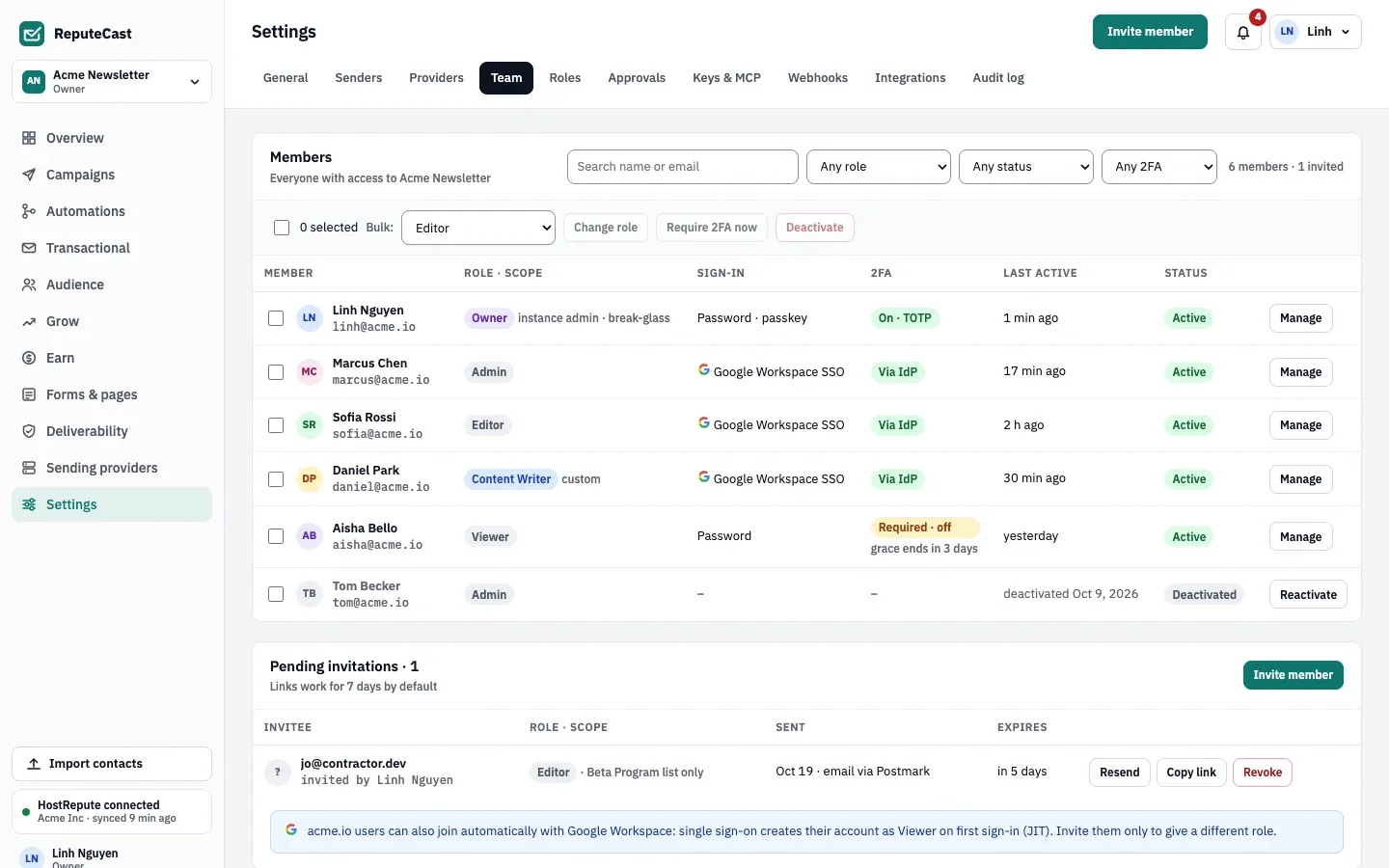
Open Settings, then Team and choose Invite member.
-
In Email addresses, paste or type up to 50 addresses. Press Enter or type a comma after each one.
-
Pick a Role. Editor is preselected when you can grant it; roles you can’t grant are listed but disabled. The hint under the field says when the role makes two-factor authentication required.
-
Set when the Invitation expires: in 24 hours, 7 days (default) or 30 days.
-
Optional: under Scope, choose Add list or sender domain to limit the members to some lists or sender domains (up to 100 lists and 20 sender domains). Add a personal message of up to 1,000 characters. When the instance offers more than one language, pick the Invitation language for the email and the page it opens.
-
Send the invitations, or create them and copy the links when no System provider is connected.
The invitee opens the link, sets a name and password (or continues with single sign-on, Google, Microsoft or GitHub when those are turned on) and joins with the role and scope you chose. If the role holds a sensitive permission, their two-factor grace period starts. You get an “Invite accepted” notification.
Pending invitations are listed under the members. Use Resend to send one again and restart its expiry, Copy link to share the link yourself (the copy is logged), or Revoke to make the link stop working. Resend and Copy link work only on an invitation you could have sent yourself: its role holds nothing you don’t, and its scope is within yours.
Manage members
Section titled “Manage members”Choose Manage on a row to open a member’s page. It lists their Effective permissions with where each comes from (the role, an SSO group mapping or the scope), their recent audit entries, the API keys they created, their approvals and their sessions.
- A change made with Change role or scope applies on the member’s next request, and the old and new values go to the audit log. A role set by an SSO group mapping is applied again at the next sign-in.
- Deactivate signs the member out everywhere and blocks this workspace only. You choose whether their API keys stay or are revoked; kept keys hold no permissions while the member is deactivated. Integrations they connected can be taken over. To bring them back with the same role, choose Reactivate.
- Remove deletes the membership and revokes the API keys and MCP agents they created. Campaigns, templates and approvals they made stay. The audit log still names them.
- Force sign-out ends all their sessions without changing access.
To act on several members, tick their rows and use the bulk bar: Change role, Require 2FA now (ends the grace period for members without two-factor) or Deactivate. Up to 200 members at a time; your own row is never selected.
What a Viewer sees
Section titled “What a Viewer sees”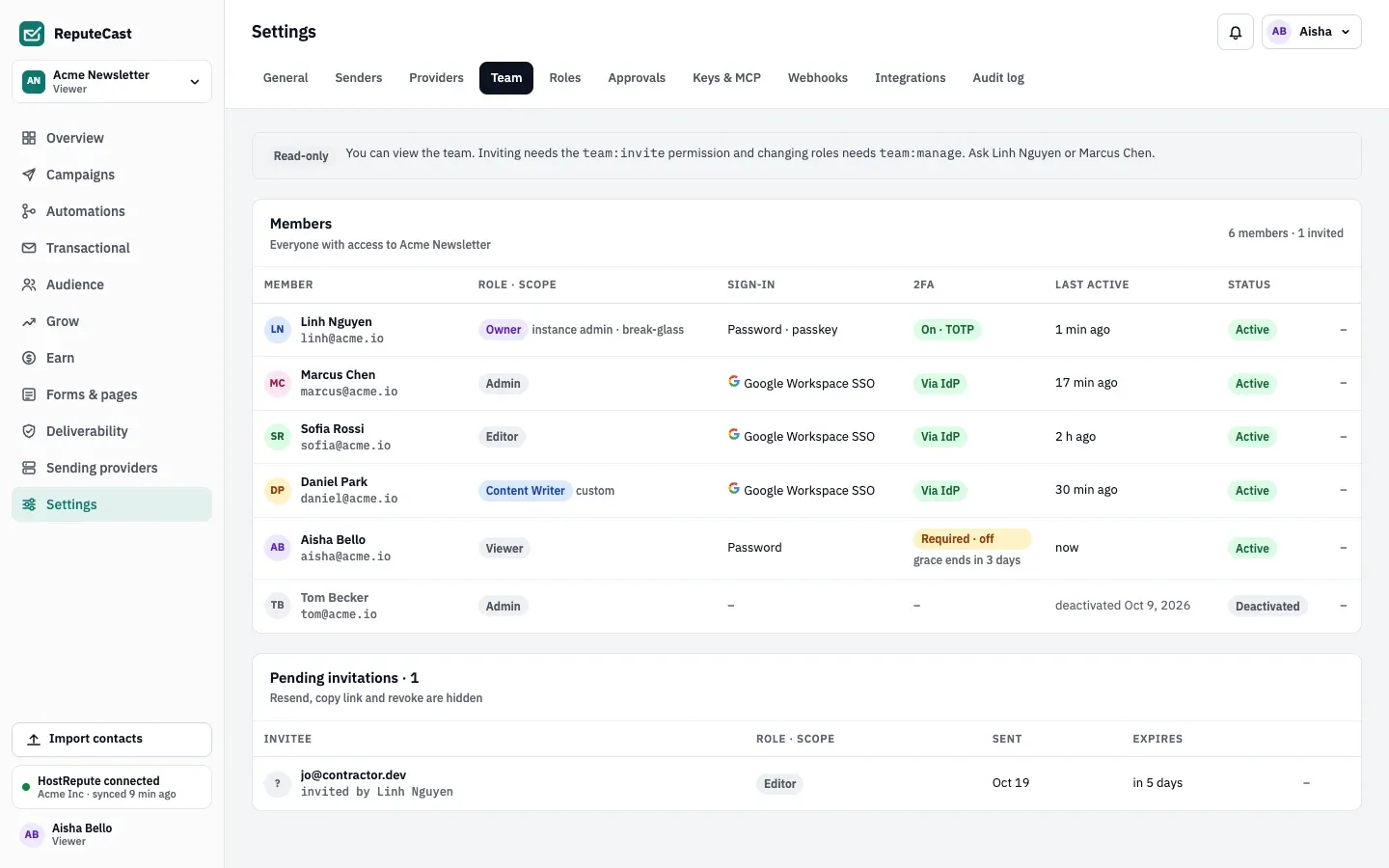
Members without team:invite see the team read-only, with a note naming up to two people who can change roles. On a
page their role can’t open, they can choose Request access and
Send request: everyone with team:manage gets a notification that links to the requester’s
member page. Granting it means changing their role; nobody is told automatically. One request per role every 24 hours.
| Setting | Default | How to change |
|---|---|---|
| Invitation link expiry | 7 days | Settings › Team › Invite; 24 hours, 7 days or 30 days |
| People per invitation | Up to 50; personal message up to 1,000 characters | Fixed |
| Deleted workspace can be restored for | 7 days, by an instance admin | Fixed |
| Owners per workspace | At least 1; the last Owner can't be removed, demoted or deactivated | Fixed |
Check that it worked
Section titled “Check that it worked”- The invitee appears under pending invitations with “email via” your provider, or “link only”.
- After they join, they move to the members table with the role and scope you chose, and the audit log shows
invitation.accept.
Troubleshooting
Section titled “Troubleshooting”- “… is already a member”. The address belongs to a member, possibly deactivated: reactivate them instead.
- “… already has a pending invitation”. Use Resend on the existing invitation.
- A role is disabled in the list. It holds a permission you don’t hold. Ask an Owner to invite them.
- The invitee sees “This invitation has expired”. They can ask you for a new one from that page; resend it.
- Their account is deactivated on the whole instance. Only an instance admin can reactivate it, in Instance admin.