
Send each reader their language
A multilingual newsletter in ReputeCast is one campaign with one language version per language: each contact gets the version in their language, and everyone else gets the fallback language. You write the versions in the composer, check them in Send Readiness and compare their results in the report.
Before you begin
Section titled “Before you begin”- Adding or removing workspace languages and choosing the default and fallback needs
workspace:manage. Anyone in the workspace can see the settings. - Writing a language version needs
campaigns:edit. - Contacts need a language. ReputeCast stores it as a BCP 47 code (
es-MX,de). It accepts names and loose codes such as “Spanish”, “español”,es_MXorESon the contact profile, in imports and through the API, and turns them into a code. The API refuses a value that isn’t a language with422and, when it finds a close match, suggests it inmeta.closest.
Add the workspace languages
Section titled “Add the workspace languages”-
Open Settings, then General and find the Languages card. A workspace that never changed it is English only, with English as both default and fallback.
-
Select Add language and pick a language from the list of 77. Search matches the English name, the native name or the code.
A workspace language is a base language:
esalso matches contacts withes-MXores-AR, so you addes, not each region. -
Set the Default language. New emails are written in it, and it is the first language of your public pages.
-
Set the Fallback language. It is what a contact gets when an email has no ready version in their language, or when they have no language.
Write a language version
Section titled “Write a language version”-
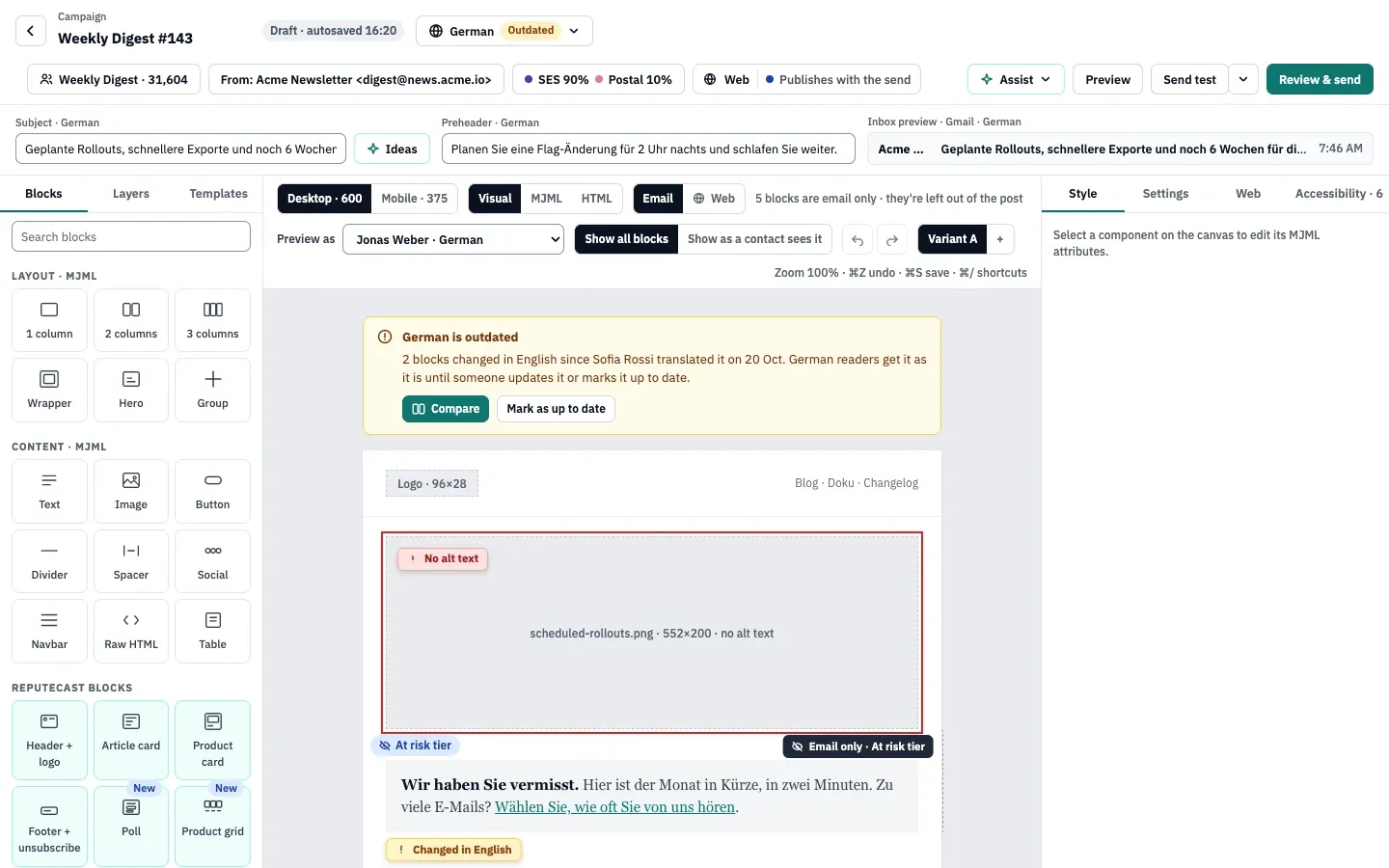
Open the campaign in the composer. The language menu in the top bar, next to the campaign name, shows the version you are editing and its status, for example “German · Outdated”.
-
Open the menu and select Add language. Choose how the version starts:
- a copy of an existing version (layout and text; blocks still in the source language are tagged until you translate them), or
- The layout only (text blocks start empty; buttons, images and links stay).
The new version starts as a Draft.
-
Translate the subject, the preheader and every text block. Alt text is written per language too.
-
Select Mark as translated when the version is ready. Until then its readers get the fallback: a draft is never sent.
-
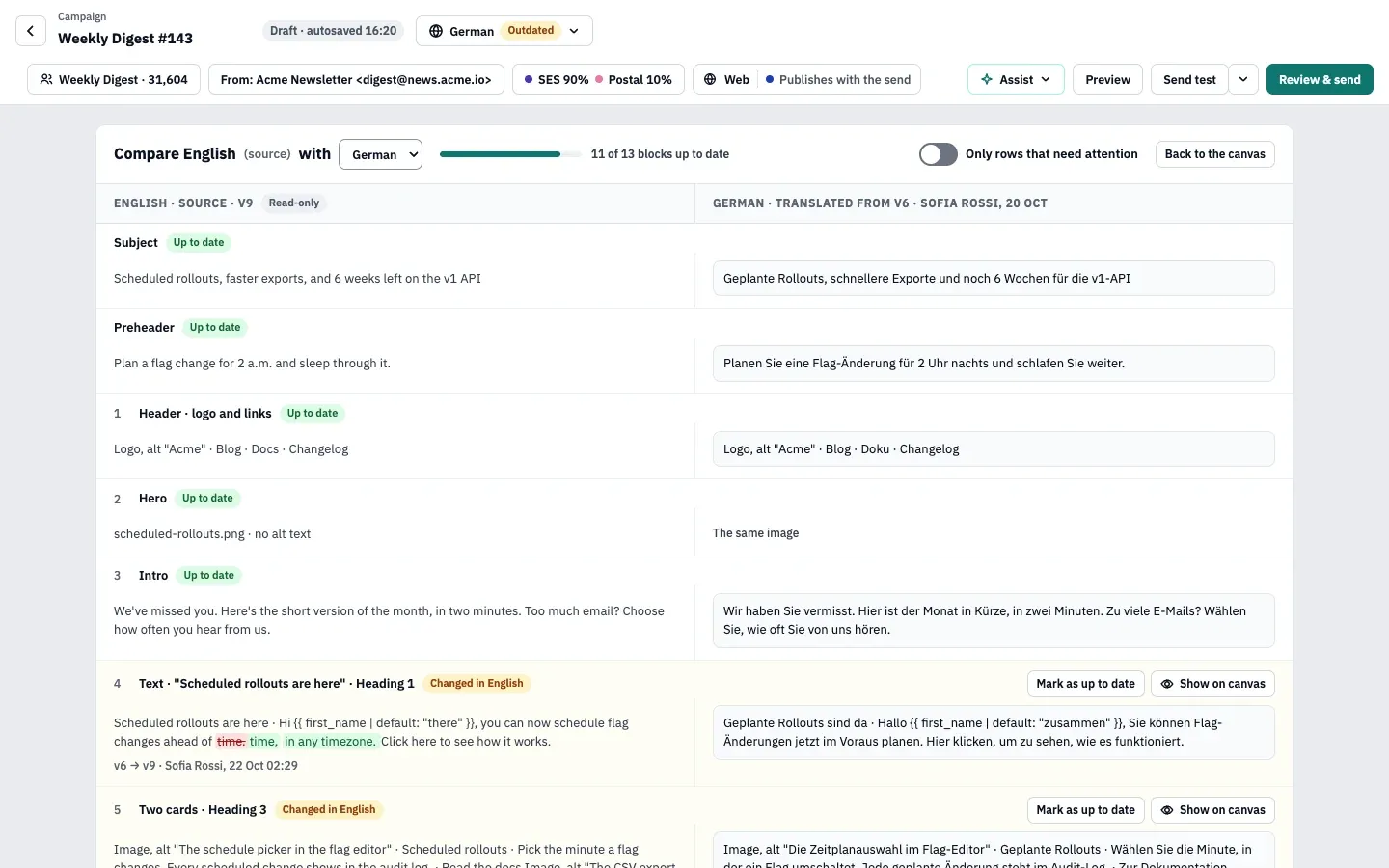
When you later change the source, the version becomes Outdated and a banner says how many blocks changed. Select Compare (or Compare languages in the language menu) to see the source and the version side by side, row by row. Update the changed rows, then select Mark as up to date.
-
Use Preview as to open the email as a real contact sees it. The list offers one contact per workspace language in the campaign’s audience and shows which version each one gets.
Version statuses
Section titled “Version statuses”| Status | What it means | Who gets it |
|---|---|---|
| Source | The email’s own language. | Its readers and, as a last resort, everyone else. |
| Up to date | Translated, and the source hasn’t changed since. | Its readers. |
| Outdated | Translated, but source blocks, the subject or the preheader changed afterwards. | Its readers, as it is. |
| Draft | Never marked translated. | Nobody: its readers get the fallback. |
| Missing | No version in a workspace language. | Nobody: its readers get the fallback. |
| Held | A version you kept but chose not to send this time (Send Readiness offers it for an outdated version). | Nobody: its readers get the fallback. |
If you remove a language from the workspace, its versions and page copy stay but are never sent. Adding the language again brings them back.
Which version a contact gets
Section titled “Which version a contact gets”ReputeCast picks one version per contact when the send starts and freezes the choice into the send:
- It takes the base of the contact’s language (
es-MXbecomeses). If the workspace offers that language and its version is ready, the contact gets it. Ready means the source, or a version marked translated that isn’t held: Up to date and Outdated versions are ready; Draft, Held and Missing ones are not. - Otherwise the contact gets the fallback language’s version, if it is ready.
- Otherwise the contact gets the source.
Contacts without a language, or with a language the workspace doesn’t offer (a contact can keep pt-BR even if you don’t offer Portuguese), start at step 2.
Check that it worked
Section titled “Check that it worked”- On Review & send, the Languages group lists who gets which version (“gets English: there’s no Vietnamese version”), warns about Outdated and Draft versions, and says when a language’s preference center and unsubscribe page fall back to another language. Every version also gets its own content, link and compliance checks: a version without an unsubscribe link or postal address blocks the send.
- Send a test in each language. With two or more versions, Review & send shows Language of the test; pick a version or One of each language. Test subjects start with
[Test]. - After the send, the report has a Results per language table (shown when two or more languages were sent): readers, sent, delivered, human opens, clicks, unsubscribes and complaints per version. Readers who got the fallback have their own row, highlighted when their open rate is 5 or more points lower, or their unsubscribes or complaints 1.5 times higher, than the version’s own readers. See read campaign reports.
Troubleshooting
Section titled “Troubleshooting”- German readers got the English email. The German version was a Draft or missing when the send started. Mark it as translated before the next send.
- “Pick a language from the list” when you add
es-MX. Workspace languages are base languages. Addes; it covers every Spanish region. - A language is greyed out with “Right to left”. Right-to-left languages are not supported; those contacts get the fallback.
- You can’t remove a language. The default and fallback languages can’t be removed. Choose another default or fallback first.
- The language settings are read-only. Changing workspace languages needs
workspace:manage; the card names who can help.
Related
Section titled “Related”- Send Readiness: check before you send explains the Languages group and the other nine.
- Check email accessibility runs on every language version that is sent.
- Subscribe, preference and unsubscribe pages covers page copy per language.
- Change the app language and region format is about the language of the ReputeCast interface, not your emails.