
Publish a newsletter website
A newsletter website turns your archive into a site with a home page, a post for every
issue, tag pages with feeds, member sign-in and, when you want them, members-only and paid posts. It runs on your own
domain or under /p/<workspace>/ on your ReputeCast server, uses your branding, and counts views on the server
without cookies.
Before you begin
Section titled “Before you begin”- Turning the website on or off, and changing its home page, navigation, tags and access, needs the
website:managepermission. Putting posts on the site or taking them down needswebsite:publish. Writing drafts needswebsite:edit. Owners, Admins and Editors have all three; Viewers can look but not change anything. - Optionally, verify a custom domain first. Without one, the site runs at your server’s address, and links move to the domain once it checks out.
- Paid posts need Stripe and at least one paid tier. See connect Stripe and sell paid subscriptions.
- Members get their sign-in links on the System stream, so route it to a sending provider.
Turn on the website
Section titled “Turn on the website”- Open Forms & pages, then Website and select Turn on the website.
- Read the four checks:
- Address: where the site runs, and whether the custom domain and its certificate are ready.
- What changes: how many archived campaigns become posts and which lists become tags.
- Home layout: Featured and latest, Latest as a list, or Grid. You can change it later.
- Members: whether readers can sign in, and which lists they are offered when they sign up on the site.
- Select Turn on the website. It takes about a minute.
When the website turns on:
- The root of the address becomes the home page.
/subscribestays where it is. - Every archived campaign becomes a public post, published at its send date. Its old
/archive/<issue>address redirects (301) to the post. Nothing goes behind a paywall until you set a post’s visibility. - Each list with archived campaigns becomes a tag with its own page and feed. If the header had no links, it gets the new tags, up to 6.
- Campaigns sent later to those lists become posts by themselves.
- The archive stays at
/archiveas the full, searchable list of posts.
Turning on is blocked only when a verified custom domain’s certificate is failing. An unverified domain doesn’t block it.
Publish a campaign on the website
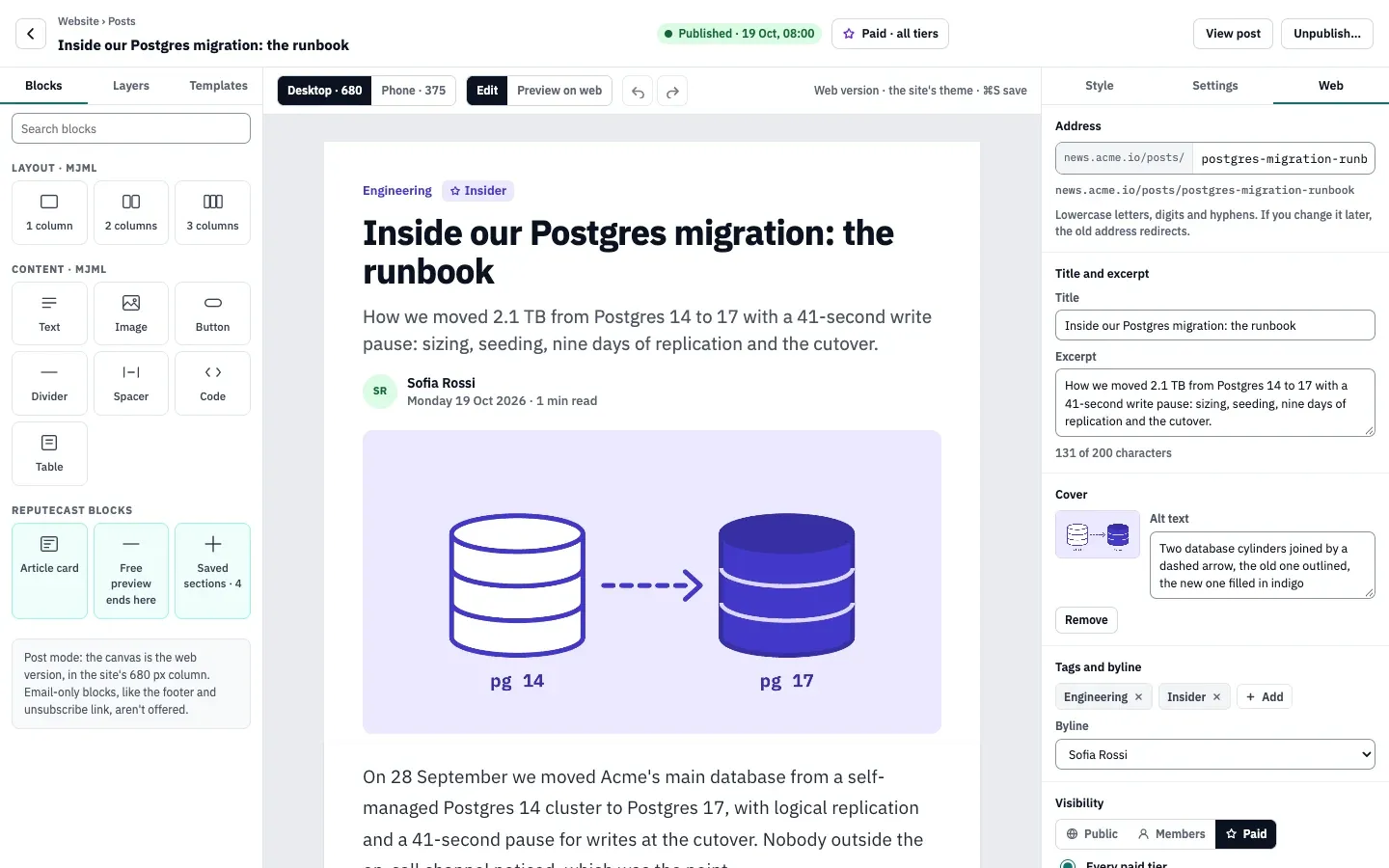
Section titled “Publish a campaign on the website”While the website is on, the campaign composer has a Web chip in its header and a Web tab in the right panel:
- Publish to your site: on by default when the campaign’s lists are in the archive.
- Address: lowercase letters, digits and hyphens. If you change it after publishing, the old address redirects.
- Title and excerpt: up to 200 characters each; they start as the subject and preheader.
- Cover with alt text, tags (up to 5) and a byline (a member, or a name you type).
- Visibility: Public, Members or Paid (every paid tier or chosen tiers). It follows the audience by default: a paid-only campaign becomes a Paid post.
- When: with the send (the default), at a time, or now for a campaign already sent.
- Feature on home, up to 3 featured posts.
- SEO and social: SEO title, description, social image, canonical URL, and an option to hide the post from search engines.
Each block also has Show on in its style settings: Email and web, Email only or Web only. Footer, unsubscribe, view-online and referral blocks are Email only by default. On the web, conditional blocks are hidden, except blocks for a paid tier, which show to readers who hold that tier.
Write a web-only post
Section titled “Write a web-only post”- In Forms & pages, then Website, then Posts, select New post. The composer opens in post mode: the canvas is the site’s 680 px column, and email-only blocks aren’t offered.
- Write the post and fill in the Web tab as for a campaign.
- For a Members or Paid post, drag the Free preview ends here block where the free part should end. Without a marker, readers without access see the title, cover and excerpt, then the paywall card. Turn on Never free to leave the post out of the meter.
- Use Preview on web to see the post as a visitor, a free member or a paid member.
- Select Publish or Schedule. For 10 seconds after publishing, Undo takes the post back down.
Manage posts
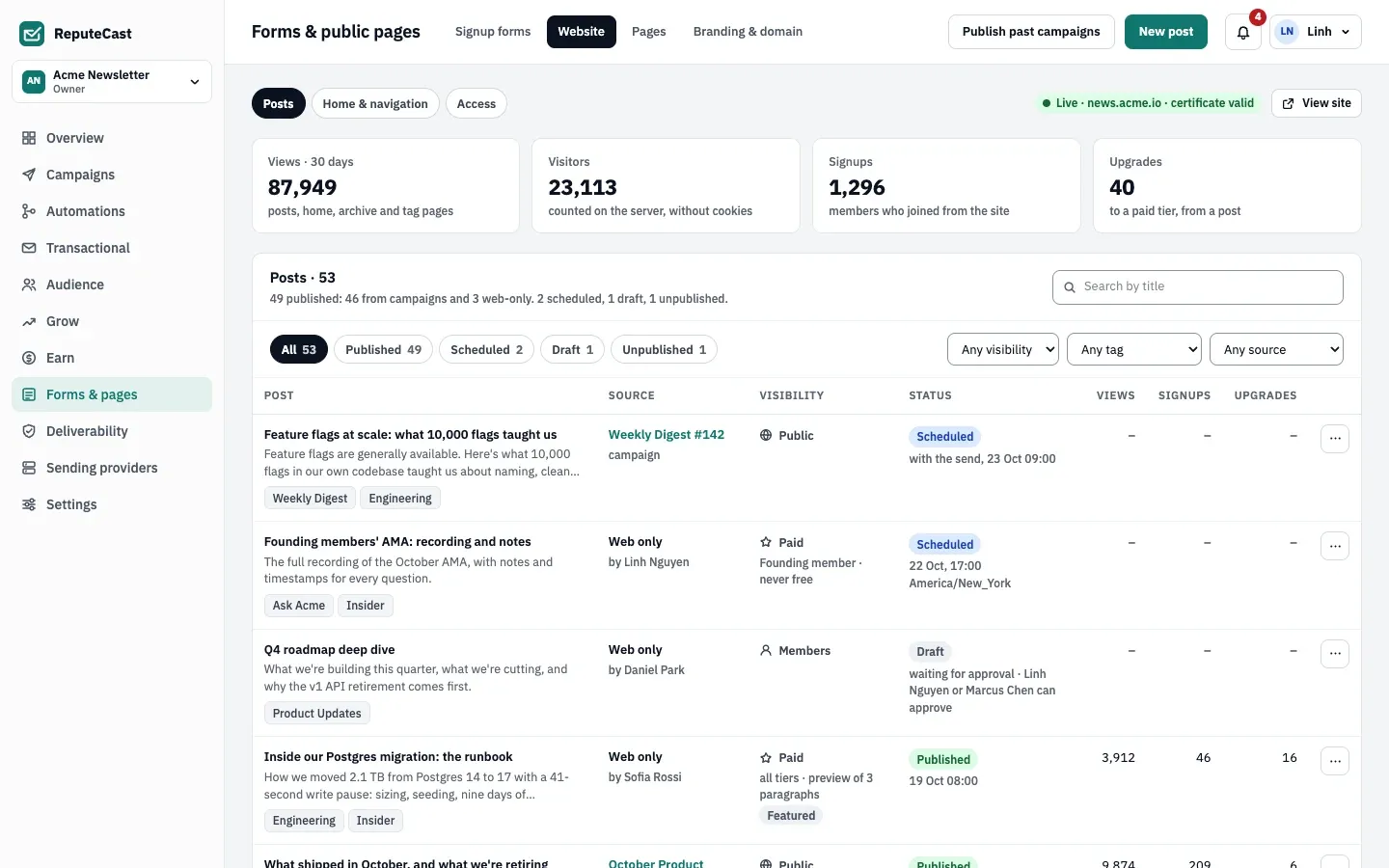
Section titled “Manage posts”Posts lists every post with its source (a campaign or web only), visibility, status, views, signups and upgrades. From a post’s menu:
- Selecting Unpublish… takes the post off the home page, tags, the archive, feeds and the sitemap. Its address answers 410 (“This post is no longer available”), or redirects (301) to a post or page you choose. The post is kept, and so are the campaign’s emails. Change the target later with Redirect to a post or page.
- Selecting Send as a campaign turns a web-only post into a campaign draft once: the title becomes
the subject and the excerpt the preheader. It needs the
campaigns:editpermission. - Deleting a post deletes its versions and numbers, and its address answers 410. Deleting a published post needs
website:publish.
Publish past campaigns lists sent campaigns that aren’t posts yet. Each becomes a post at its send date, with the tags of its lists, and a visibility that follows its audience unless you choose Public or Members for all of them.
Set up the home page and navigation
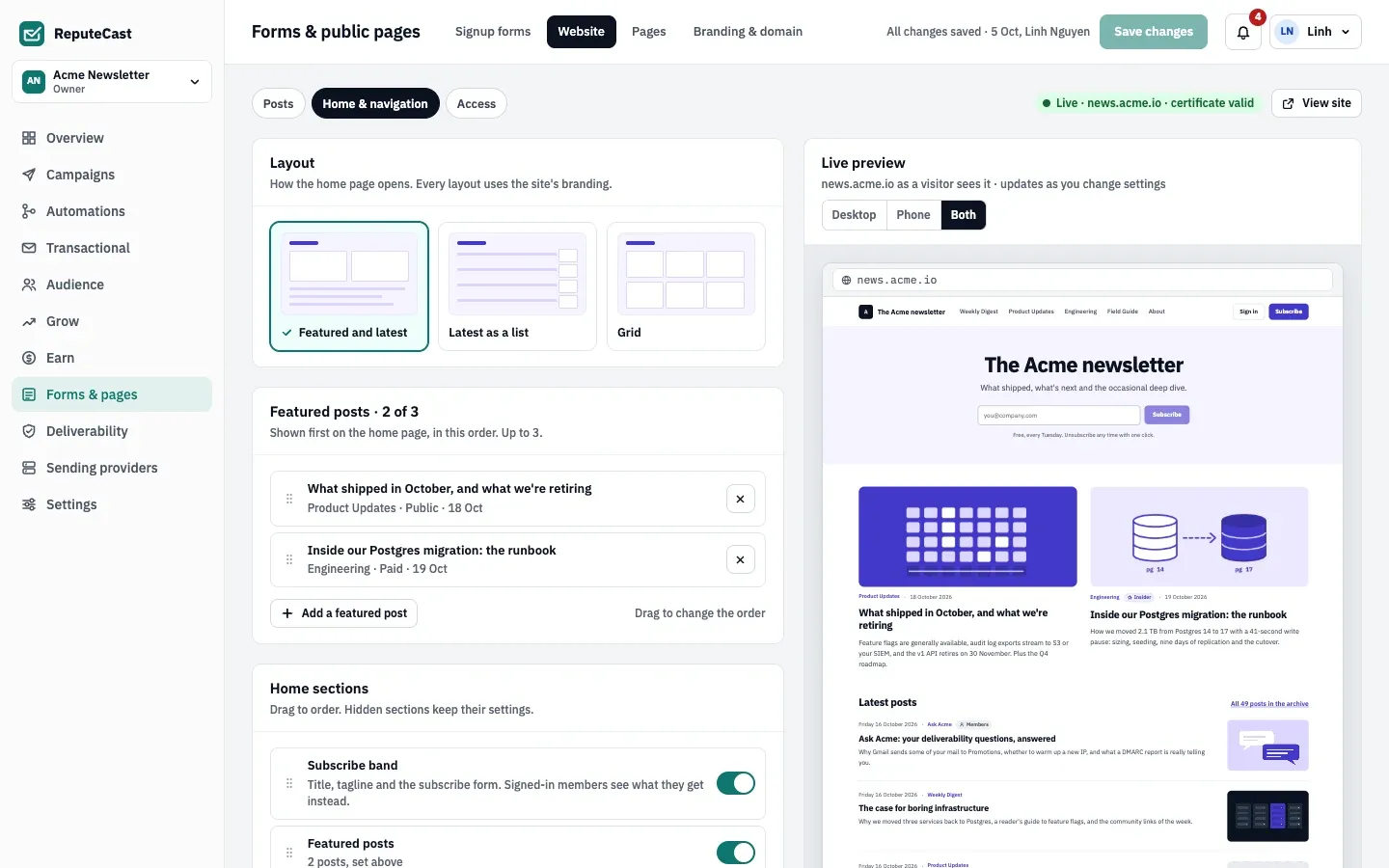
Section titled “Set up the home page and navigation”In Home & navigation, every change shows in the live preview and goes live when you select Save changes:
- Layout: Featured and latest, Latest as a list, or Grid.
- Featured posts: up to 3, in the order you set.
- Home sections: Subscribe band, Featured posts, Latest posts (6 by default), a row per tag, About text and a Paid tiers band from Earn.
- Navigation: up to 6 header links to a tag, a page, the home page, the archive or an outside address. Subscribe and Sign in are always in the header; on phones the links fold into a menu.
- Footer links: Archive, RSS, Email preferences, “Sent with ReputeCast” and the privacy policy.
- Let search engines index the site: on by default. The sitemap lists the home page, the archive, the tags and every post not hidden from search engines.
- Site identity: site title, tagline, description and a 1200 × 630 social image. The favicon comes from the logo in your branding.
Members, access and the paywall
Section titled “Members, access and the paywall”In Access:
- Members can sign in: readers sign in with a link and a 6-digit code sent by email, with no password. The link and code work once. Members stay signed in for 90 days by default. Turning sign-in off makes members-only and paid posts unreadable on the web.
- Readers can sign up on the site: choose the lists offered on the site’s sign-up and their consent text. One email confirms the subscription and signs the reader in. Membership alone never adds anyone to a list.
- Default visibility for web-only posts and pages, and for posts from campaigns (“Follow the audience” by default).
- Meter: both rules are off by default. Visitors who aren’t signed in can read a number of members-only posts a month, and free members a number of paid posts a month, from 1 to 20. Months are calendar months.
- Paywall card: the heading, buttons and tiers that replace the rest of a gated post after its free preview.
Gating happens on the server: text a reader may not see is never sent to the browser, and feeds and the sitemap carry only what a visitor sees. Views are counted on the server from a hash with a daily salt, with no cookie. Sign-in and the meter do use first-party cookies.
Members manage their newsletters, plan, gifts, purchases, referrals and sessions on their account page at /account.
| Setting | Default | How to change |
|---|---|---|
| Member sign-in link and 6-digit code work for | 30 minutes, once | Website › Access; 10, 15, 30 or 60 minutes |
| Sign-in links per email address | 5 per hour | Fixed |
| Members stay signed in for | 90 days | Website › Access, 7–365 days |
| Post limits | Title and excerpt up to 200 characters; up to 5 tags | Fixed |
| Home page and navigation | Up to 3 featured posts and 6 header links; Latest posts shows 6 | Website › Home & navigation (Latest posts 0–24) |
| Meter | Off; when on, 2 posts a month for visitors and 1 for free members | Website › Access › Meter, 1–20 posts a month |
Require approval to publish
Section titled “Require approval to publish”In Settings, then Approvals, turn on Publishing a post or page needs approval (off by
default). An approval covers the post’s content, address, visibility and publish time, and any later change needs a new
one. Approvers are the people with campaigns:approve, never the author. With the rule
The author lacks the send permission on (the default), an author without website:publish gets
Request approval instead of Publish. A campaign post that publishes with the send is
covered by the campaign’s own approval. See
require approval for risky sends.
Turn the website off
Section titled “Turn the website off”At the bottom of Home & navigation, select Turn off the website… and type the
site’s address to confirm. The home page, tag pages, web-only posts, sign-in, the account page, the paywall and pages
with Members or Paid visibility go offline. Public pages, the shop and posts from campaigns stay online, and the
archive comes back at /archive. Every post, page and setting is kept for when you turn the website on again.
Website addresses
Section titled “Website addresses”| Address | What it is |
|---|---|
/ |
The home page |
/posts/<slug> |
A post |
/tag/<slug>, /tag/<slug>/feed |
A tag’s page and its feed |
/feed |
The site feed, with the 30 latest posts |
/sitemap.xml |
The sitemap |
/signin, /account |
Member sign-in and the member’s account page |
/archive |
Every post, with search |
On your server, each address starts with /p/<workspace>. While the website is on, /archive.rss redirects to
/feed. See public URLs and endpoints.
Check that it worked
Section titled “Check that it worked”- Select View site: the home page opens with your layout and featured posts.
- Open a post from an old archive link: it redirects to the post.
- Sign in as a member from a private window with an address on your list, and open a Members post.
Troubleshooting
Section titled “Troubleshooting”- Turn on is unavailable until the certificate is issued. The custom domain is verified, but the proxy has no valid certificate for it. Ask your operator; see reverse proxy and TLS.
- “Three posts are featured already.” Remove one in Home & navigation first.
- A seventh header link is refused. The header holds 6 links. Remove one first.
- Paid isn’t offered as a visibility. Connect Stripe and create a paid tier in Earn.
- A member gets no sign-in email. The address bounced, complained or is suppressed (the attempt shows on the contact’s timeline), or nothing can send System mail.