
Import contacts from CSV or XLSX
Import an email list from a CSV or XLSX file in five steps (Source, Map fields, Consent, Preview, Import), then read the summary. Every row keeps its consent: addresses that unsubscribed, bounced or complained in the old tool go straight to the suppression list and an import can never subscribe them again.
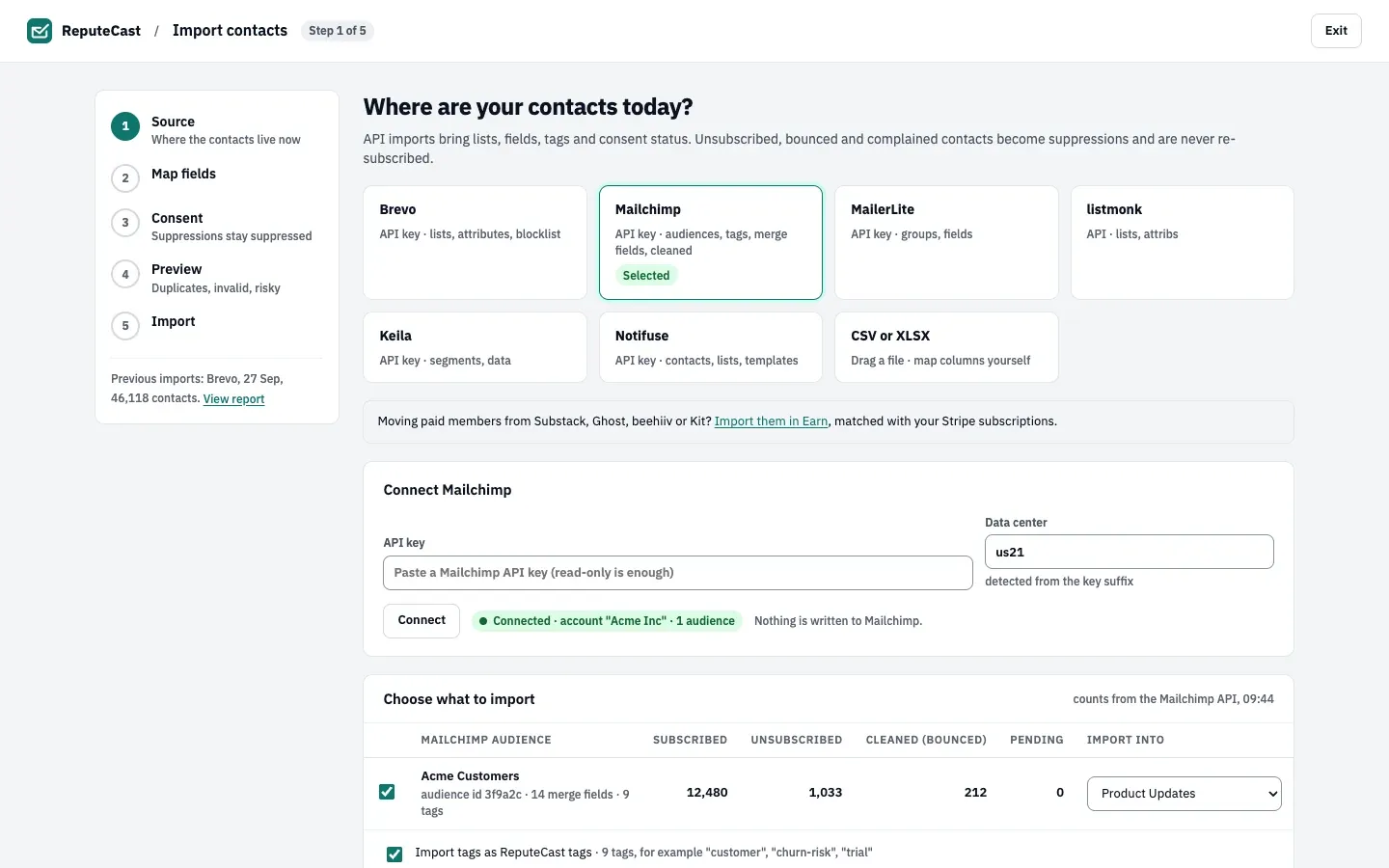
The screens are the same for a file and for an API source such as Mailchimp or Brevo; the screenshots below show API imports. To bring contacts from another platform’s API, see Move to ReputeCast without losing consent.
Before you begin
Section titled “Before you begin”- You need
subscribers:import. The Owner, Admin and Editor roles have it; a Viewer does not. - Prepare a
.csvor.xlsxfile. The first non-empty row must be the headers. XLSX files are read from the first sheet only;.xlsfiles are not supported, so save them as XLSX or CSV first. - Connect your sending providers first if you can. The import then pulls the bounces, complaints and unsubscribes they already block before it adds anyone.
- Optional: connect an address verification service to check new addresses in the preview.
| Setting | Default | How to change |
|---|---|---|
| Largest CSV or XLSX file | 100 MB and 500,000 rows (XLSX reads the first sheet) | Fixed |
| Source API rate limit (429) | Up to 5 retries, each after the source's Retry-After (2 s when absent, at most 60 s); then the import pauses and resumes by itself after 1 minute | Resume now, or Slow down to 3 req/s on the paused import |
| Source server or network errors | Up to 5 retries, after 1, 2, 4, 8 and 16 s | Fixed |
How ReputeCast reads the file
Section titled “How ReputeCast reads the file”- Delimiter: comma, semicolon, tab or pipe, whichever appears most in the first line.
- Encoding: UTF-8 (a byte-order mark is ignored); anything that is not valid UTF-8 is read as Latin-1.
- Email column: a header named
email,e-mail,email addressormail. Without one, ReputeCast picks the column with the most valid addresses in its first 20 values. - Status column: a header named
status,consent,subscribed,subscription status,opt-in statusoremail status. Its values decide what each row becomes in the Consent step (see the table there). - Tags column: a header named
tags,tag,labelsorlabel. Values are split on commas, semicolons or pipes and lower-cased.
Import the file
Section titled “Import the file”-
Select Import contacts in the sidebar, or Audience, then Contacts, then Import. Under Source, drop the file on the page or select Choose a file.
If a CSV row has a different number of columns than the header (usually an unquoted comma inside a value), the page names the row. Skip those rows, download them, or upload a fixed file.
-
In Choose what to import, pick the list the file goes into under Import into list: an existing list, or a new list named after the file. Leave Also pull existing suppressions from connected sending providers on, then select Continue to field mapping.
-
Under Map fields, check the guesses. Each column maps to a built-in field (first name, last name, name, company, country, time zone, language, phone, SMS consent), an existing custom field, a new custom field (text, number, date or boolean), or Skip. Exactly one column must map to email.
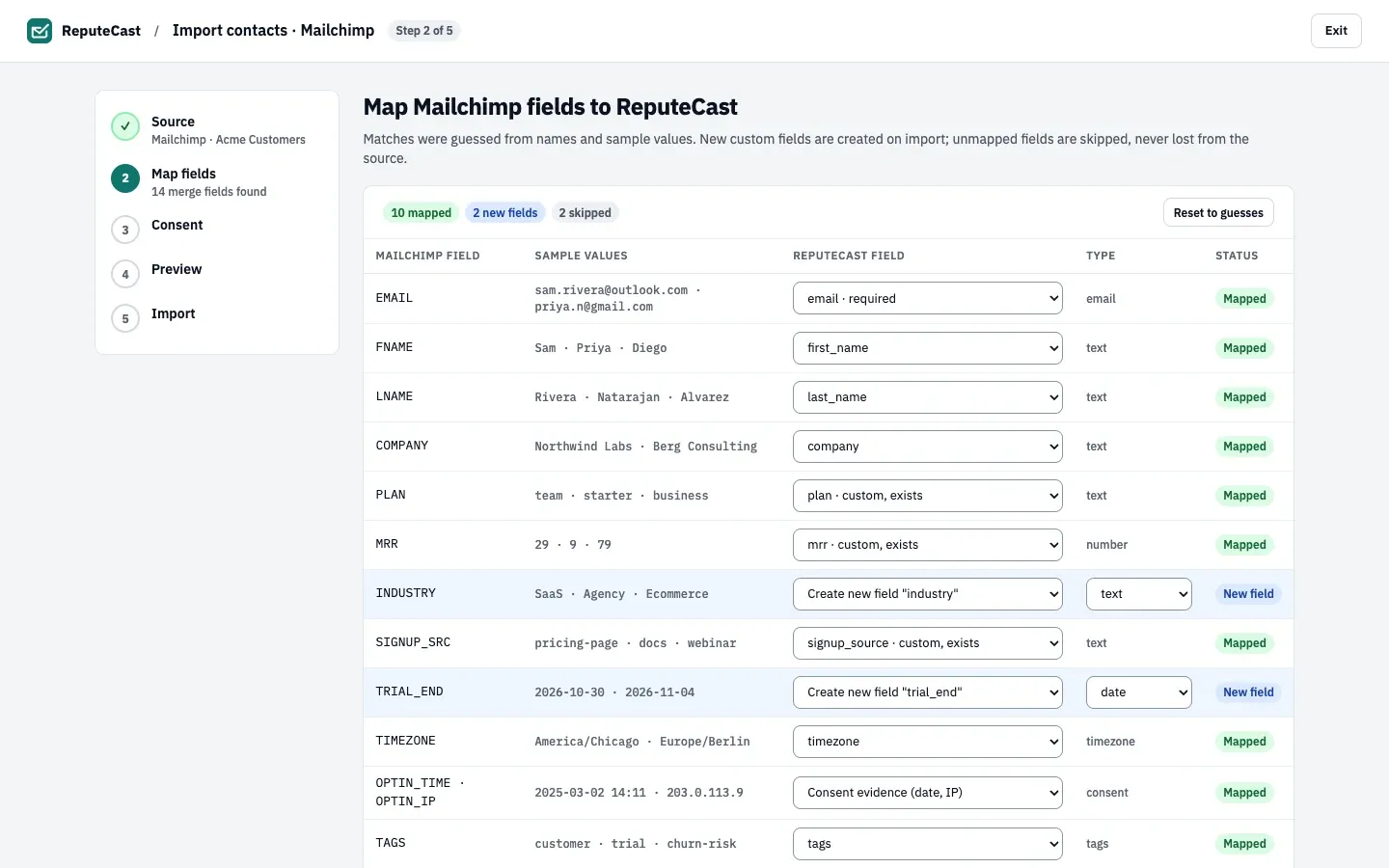
A language column is converted to language codes (“Spanish”, “español” and “ES” become
es). Values that aren’t languages are left empty and counted under the column. Select Continue to consent. -
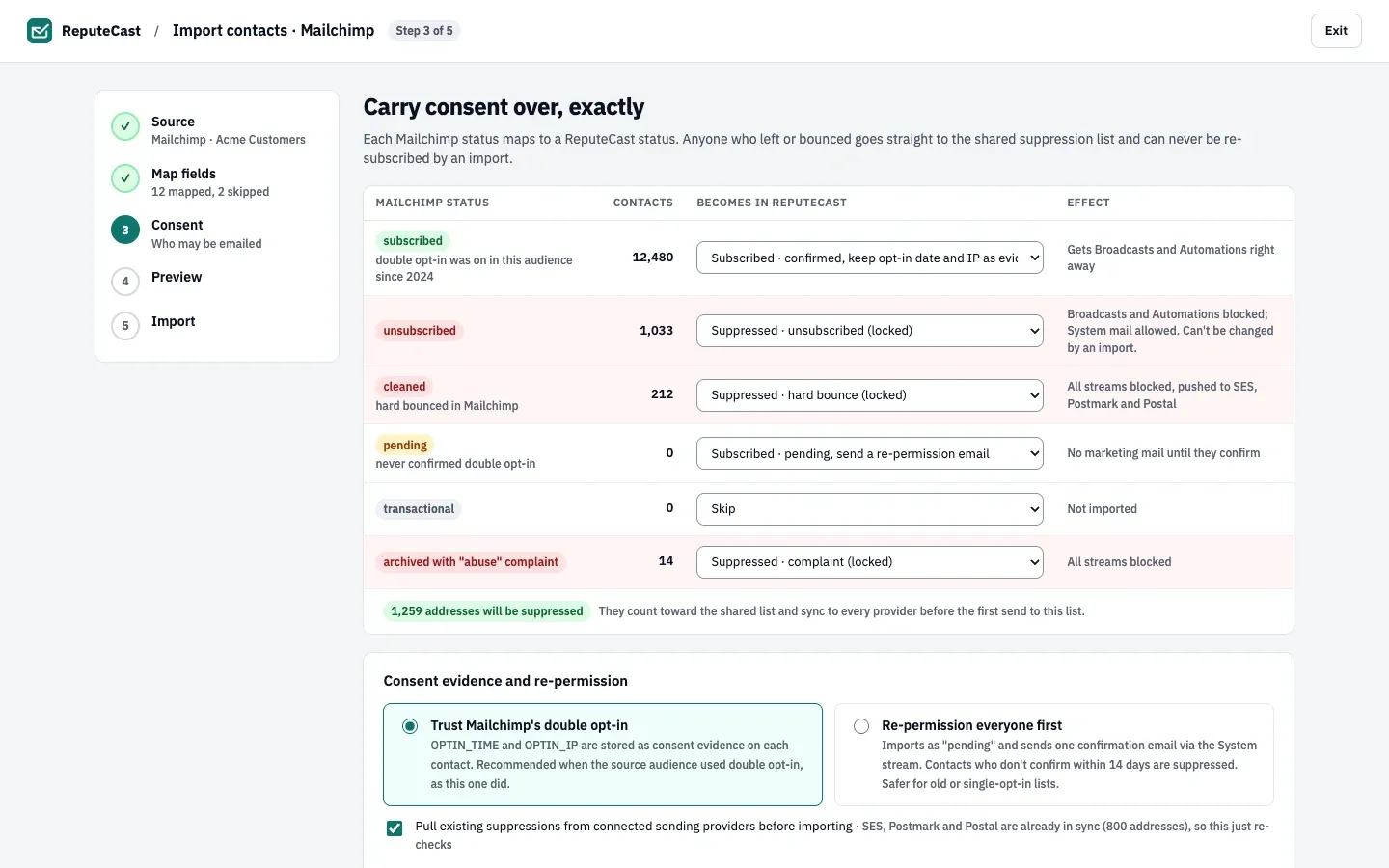
Under Consent, check what each status becomes. Unsubscribed, cleaned (bounced) and complained rows are locked: they become suppressions.
Value in the status column Becomes Effect Empty, subscribed,active,yes,true,1,confirmed,opted in,opt-in,enabledSubscribed (you can choose pending or Skip instead) Gets Broadcasts and Automations right away pending,unconfirmed,not confirmedPending, with a re-permission email, or Skip No marketing mail until they confirm bounced,cleaned,hard bounce,invalid,undeliverableSuppressed as a hard bounce (locked) All streams blocked complained,spam,abuse,junkSuppressed as a complaint (locked) All streams blocked transactionalSkip, or Subscribed · pending Not imported, or pending Any other value Suppressed as unsubscribed (locked) Broadcasts and Automations blocked; System mail allowed Under Consent evidence and re-permission, choose one:
- Trust the file’s opt-in: only when every contact opted in. Contacts are subscribed with single opt-in consent.
- Re-permission everyone first: contacts are imported as pending and get one confirmation email through the System stream after the import. Safer for old or single opt-in lists.
Keep Pull existing suppressions from connected sending providers before importing and Record the import in each contact's consent history on, then select Continue to preview.
-
Under Preview, read the dry run. Nothing is written yet. The tiles count rows that will be imported, merged with existing contacts, suppressed, skipped as invalid, and risky.
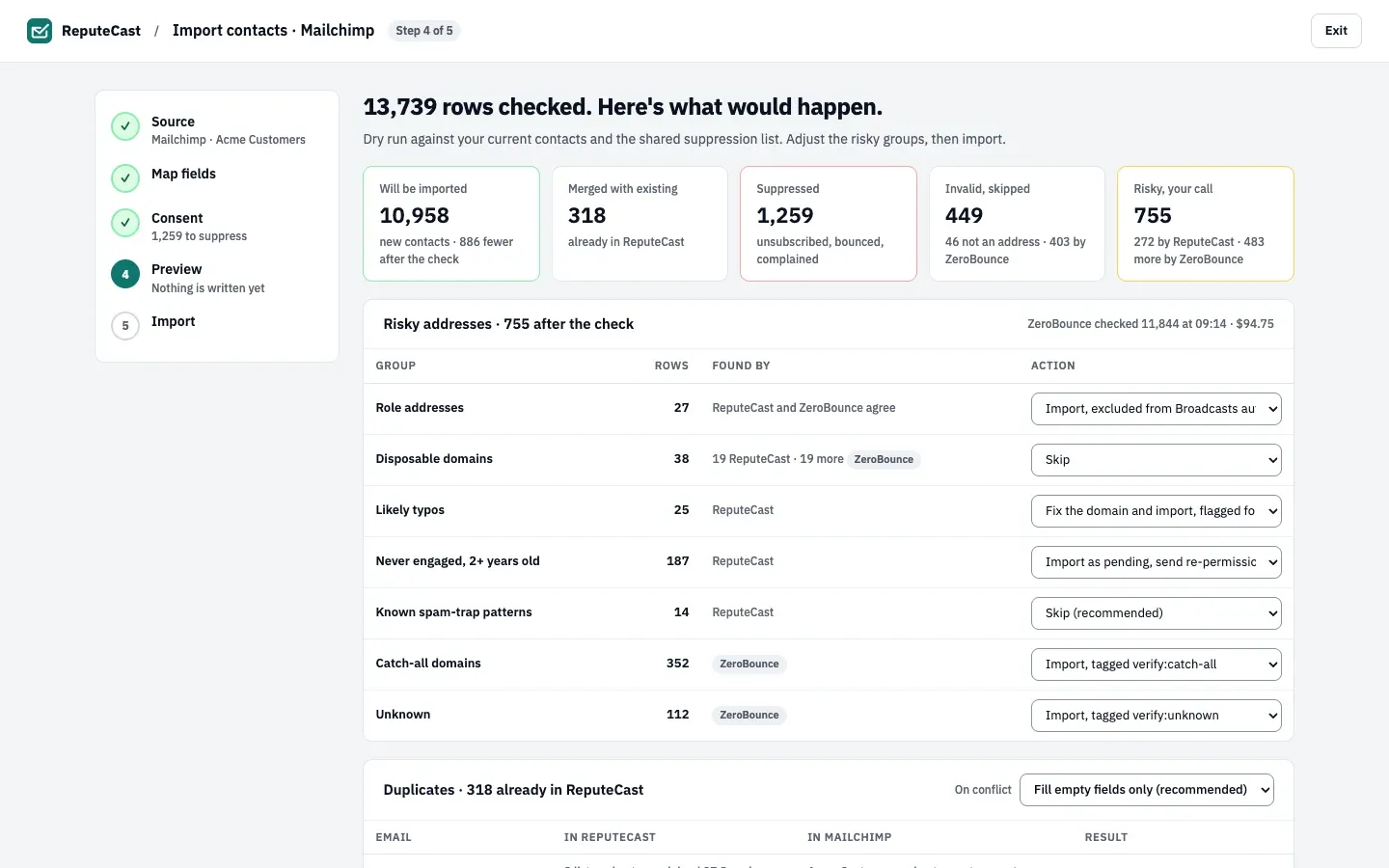
Choose an action for each risky group:
Group What it catches Default action Role addresses info@,sales@,support@,noreply@and similarImport, excluded from Broadcasts automatically Disposable domains Throwaway mailbox domains Skip Likely typos One letter away from gmail.com, outlook.com, hotmail.com, yahoo.com, icloud.com and others Fix the domain and import, tagged review-typoKnown spam-trap patterns Local parts such as spamtraporhoneypotSkip (recommended) Duplicates are matched on email, ignoring case. Under On conflict, keep Fill empty fields only (recommended) to fill only empty fields, or overwrite or keep the values in ReputeCast. A merge adds the list and the tags; it never changes a contact’s consent. Invalid rows (no domain, no MX record, not an address) are skipped; Download these rows gives you the list.
With a verification service connected, you can check the new addresses first, with the cost shown, or select Import without verifying.
-
Select Import N contacts. The import runs in the background in batches of 500 rows. Select Leave, keep running to use the app meanwhile; contacts already imported are usable right away and you get a notification with the report when it finishes. Stop import keeps the rows already imported; a stopped import can’t be resumed, but you can start a new one.
-
Read the summary. It counts imported, merged, suppressed, pending and skipped rows, explains every skipped or changed group, and offers two downloads:
- Download skipped rows · CSV:
row,value,source_status,reason. - Download full report · CSV:
row,email,source_status,outcome,reasonfor every row.
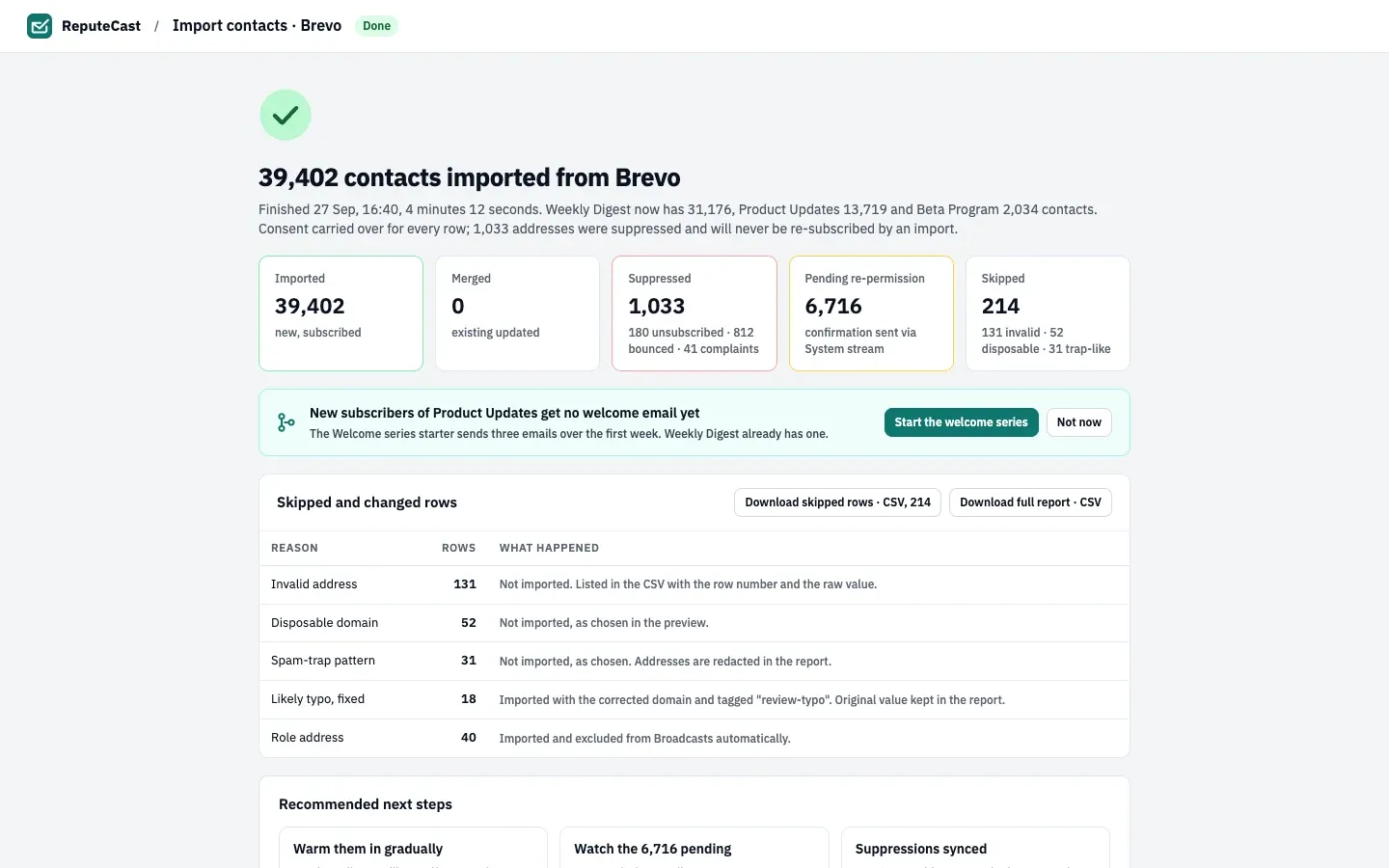
New suppressions are pushed to the sending providers that accept them, so the next campaign can’t reach those addresses on any provider.
- Download skipped rows · CSV:
Check that it worked
Section titled “Check that it worked”- Audience, then Contacts shows the new contacts. Filter Source by CSV import to see them, and Consent by Imported, pending to see who still has to confirm.
- Each list named in the summary shows its new contact count.
- Audience, then Suppression list shows the imported suppressions grouped under the import, with View rows to open them.
Troubleshooting
Section titled “Troubleshooting”- “Row N has X columns, the header has Y” → a value contains an unquoted comma. Skip the rows or quote the value and upload again.
- “That file is over 100 MB” → split the file, or import from the source’s API.
- The wrong column was used for email → rename that column’s header to
emailand upload again. - Many rows became suppressed → the status column has values ReputeCast doesn’t recognize. Rename the column so it
isn’t read as a status, or change the values to
subscribed. - Pending contacts never got a confirmation email → no System provider is connected. Connect one in routing, then select Resend opt-in for them in Contacts.
- Tags are missing → only a column headed
tags,tag,labelsorlabelis read as tags.