
Design emails in the composer
The composer is the drag and drop email builder MJML powers in ReputeCast: you build the email from blocks on a canvas, and every change is also MJML code you can read and edit, compiled to HTML that renders in Outlook, Gmail and Apple Mail.
Before you begin
Section titled “Before you begin”- Editing needs
campaigns:edit. Without it the composer opens read-only: you can look, preview and send yourself a test, but not change anything. - A campaign can be edited while it is a draft, pending approval, approved or scheduled. Once it is sending or sent, its content is locked; duplicate it to reuse the content.
- Open the composer from Campaigns: select a draft’s name or Edit in its row. A new campaign opens on the template gallery.
Find your way around
Section titled “Find your way around”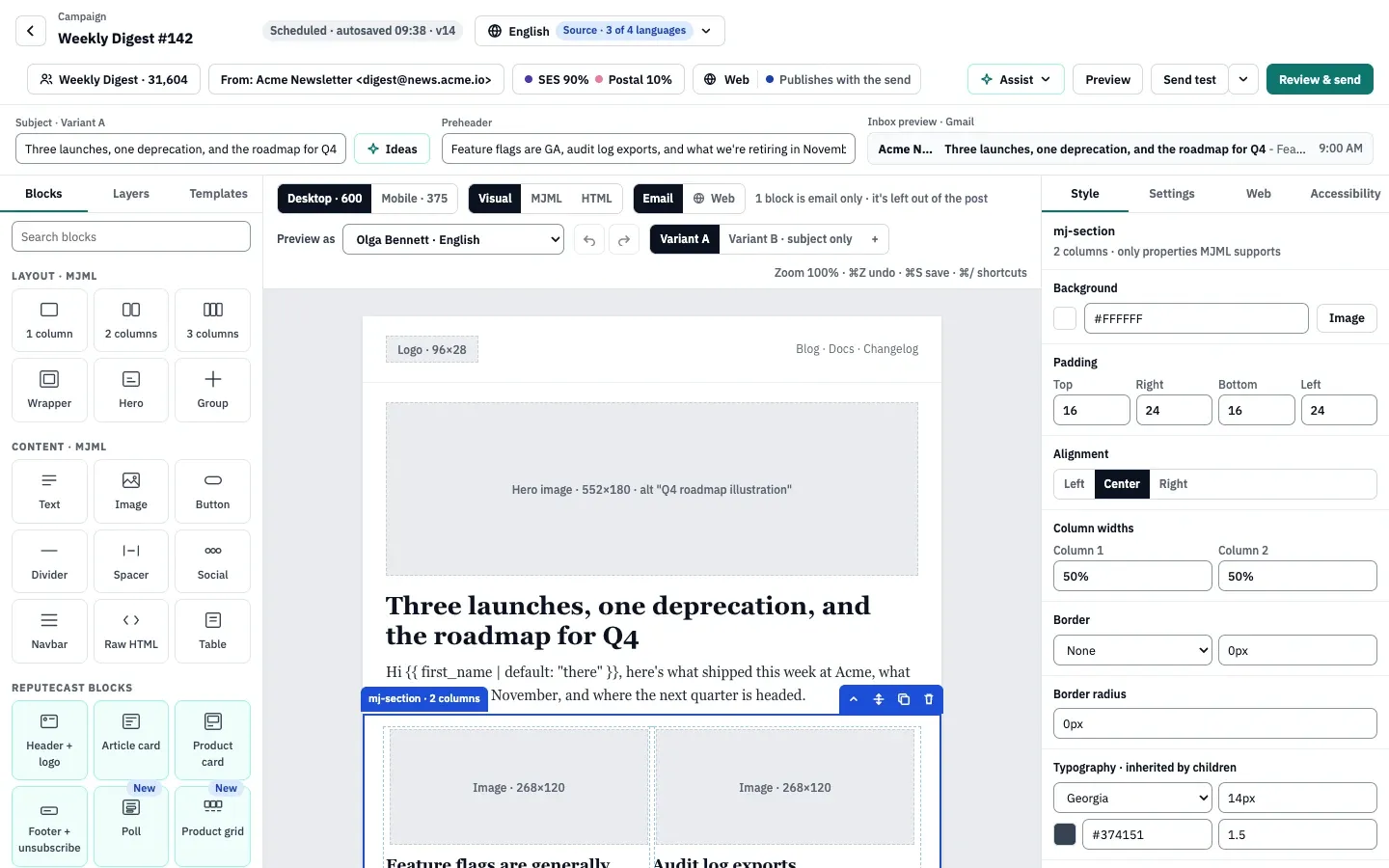
- The left panel: Blocks to add content, Layers for the tree of sections, columns and elements, and Templates.
- The canvas, with the device switch, the view switch and the A/B variant switch above the email.
- The inspector for the selected element: Style and Settings, plus tabs that appear when they apply.
- The actions: the AI assistant, Preview, Send test and Review & send.
The row above the canvas holds the subject, the preheader and an inbox preview that shows how they read in Gmail (on the desktop canvas) or iPhone Mail (on the mobile canvas). The header shows the campaign name, its status and version (for example “Draft · autosaved 09:41 · v12”), and the audience, sender and route pickers.
Build the email
Section titled “Build the email”-
Write the Subject and the Preheader. Content checks flag spam-like subjects as you type; see fix content warnings.
-
Add blocks from Blocks: drag a tile onto the canvas, or select it to insert it. Section blocks go after the selected section; content blocks (Text, Image, Button and the like) go into the selected column, so select a column first. Use Search blocks to filter the tiles.
-
Select any element on the canvas and change it in the inspector. Style holds colors, typography, padding, borders and alignment; Settings holds links, button text, image alt text, text roles (paragraph or heading level), the visibility rules and the name shown in Layers. Double-click text to edit it on the canvas.
-
Switch the canvas between Desktop · 600 and Mobile · 375. Columns stack below 480 px, as MJML renders them, and the inspector shows mobile checks (buttons at least 44 px tall, text at least 14 px).
-
Personalize text with tokens such as
{{ first_name | default: "there" }}: select Insert a personalization token in the text toolbar. The Liquid personalization reference lists every variable and filter. -
Select Preview to see the email in each email client, then send yourself a test.
-
Select Review & send to save and open Send Readiness.
Blocks
Section titled “Blocks”| Group | Blocks | Notes |
|---|---|---|
| Layout · MJML | 1 column, 2 columns, 3 columns, Wrapper, Hero, Group | Sections that hold columns. |
| Content · MJML | Text, Image, Button, Divider, Spacer, Social, Navbar, Raw HTML, Table | Go inside a column. |
| ReputeCast blocks | Header + logo, Article card, Product card, Footer + unsubscribe, Poll, saved sections | The footer carries your postal address and the unsubscribe, preferences and view-in-browser links. See polls. |
| Grow | Referral, Recommendations | See referral programs and recommendations. |
| Earn | Sponsor, Upgrade | See sponsorships and paid subscriptions. |
A Product grid block appears when a store is connected (Shopify or WooCommerce), and Feed items appears in recurring digest templates. If the email has no footer, the ReputeCast group moves to the top and the footer tile is outlined in red.
Images come from the image library: PNG, JPEG or GIF files up to 5 MB, served from your ReputeCast address so they load in every inbox. A pasted image URL must start with https://.
Inspector tabs
Section titled “Inspector tabs”- The tabs Style and Settings are always there. With nothing selected, they tell you to select a component; under them, a summary shows the selected section’s images, links and warnings.
- The Deliverability tab appears, with a count, while content checks report a Block or a warning. Each row has its one-click fixes; see fix content warnings before sending.
- The Accessibility tab appears once the canvas has content; see check email accessibility.
- The Web tab appears when your newsletter website is on, to publish the campaign as a post.
In Settings, Visibility has two separate controls: hiding an element on mobile or on desktop (Outlook for Windows ignores this), and who sees a block.
Edit the MJML or HTML
Section titled “Edit the MJML or HTML”The view switch above the canvas has three views:
- Visual is the canvas.
- MJML shows the MJML source, the source of truth, next to the compiled HTML. Edit the code, then select Apply to canvas; leaving the view applies it too. Format tidies the code and Import MJML replaces it with a file.
- HTML shows only the compiled HTML, read-only: what the sending providers receive, before tracking links and the open pixel are added. Use Copy compiled HTML to take it elsewhere.
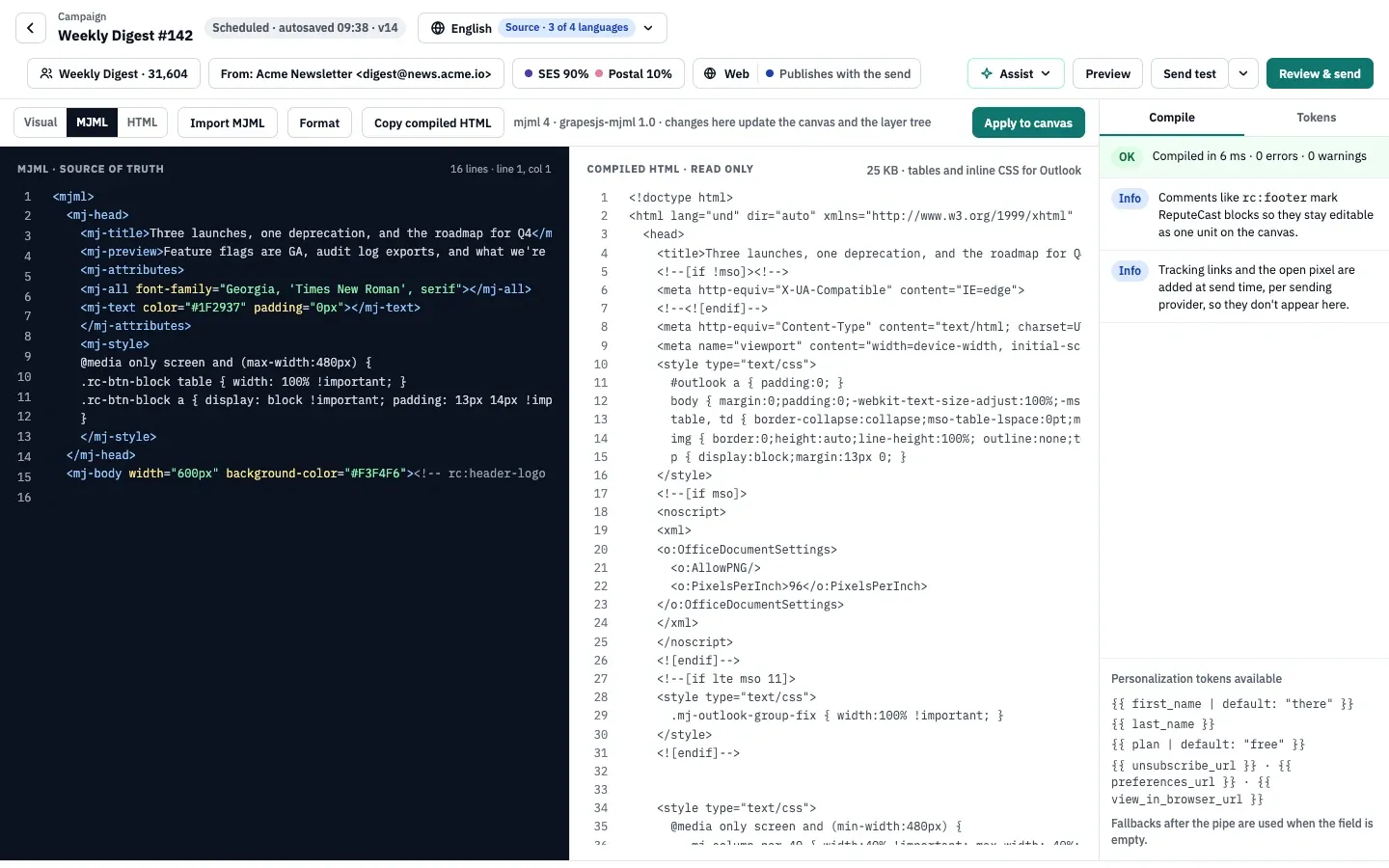
The panel on the right has two tabs. Compile reports the compile time and every error or warning with its line, including columns that add up to more than 100% and images wider than their column. Tokens lists the personalization tokens; select one to copy it.
Applying MJML that doesn’t parse (an unclosed tag, or no <mj-body>) shows an error with its line. The canvas keeps the last good version until you fix the code or undo your changes, and you can’t switch views until it compiles. Subject and preheader stay in sync with <mj-title> and <mj-preview> in the MJML head.
To bring in existing HTML, use Import MJML or HTML in the template gallery. HTML goes into one Raw HTML section: it is sent as it is, but you can’t edit it block by block.
Preview the email
Section titled “Preview the email”Select Preview in the header. The preview shows the email as Gmail on the web, Outlook for Windows, Apple Mail on iOS and Yahoo would show it, each in light and dark mode, at desktop or mobile width.
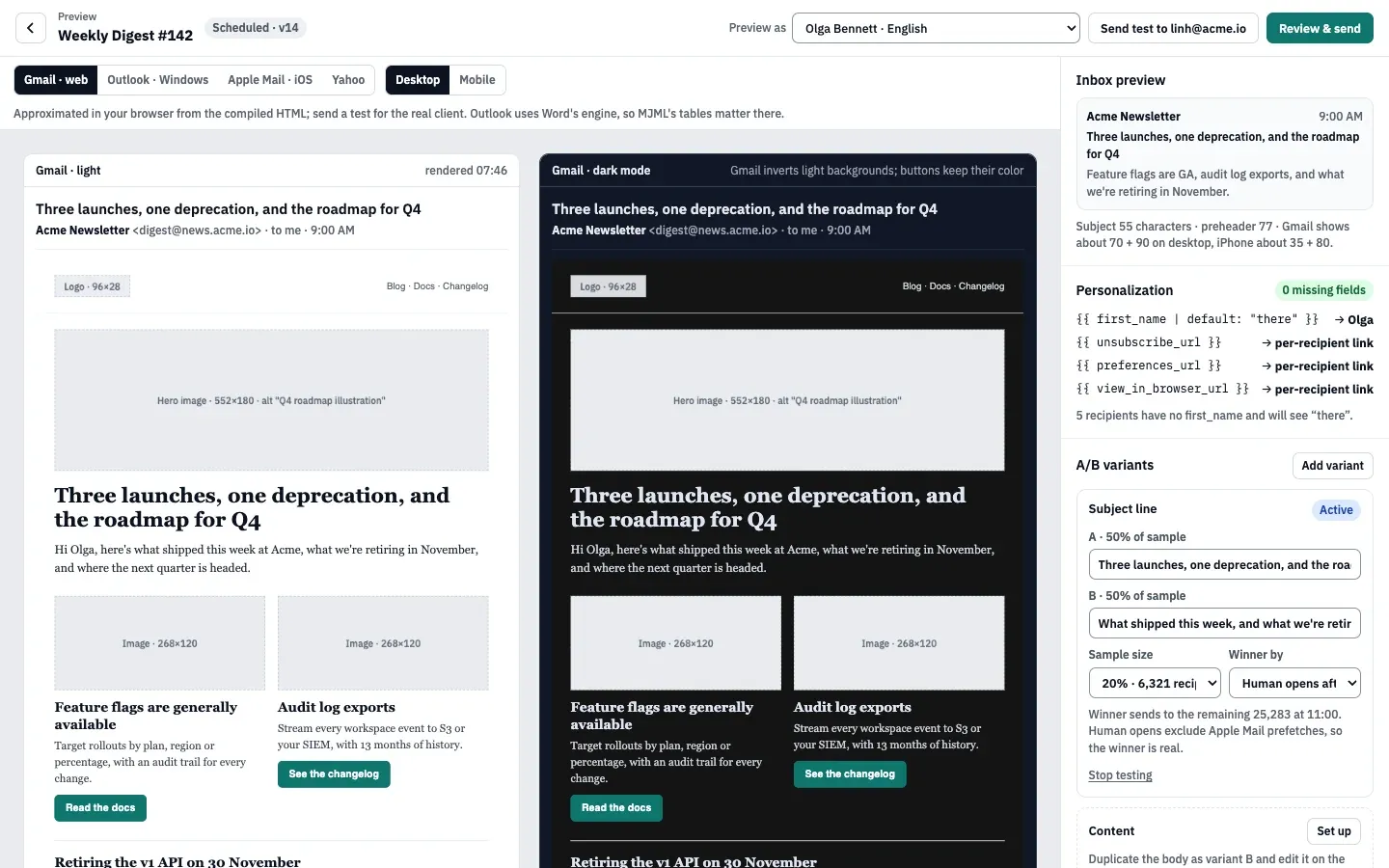
Below the cards, Dark-mode checks flag logos without a transparent background and text whose contrast drops when a client inverts colors, and a card shows the plain-text version. The side panel holds the inbox preview with subject and preheader lengths, the Personalization values for the contact you preview as, and the A/B variants.
Preview as fills the email with a real contact from the audience, a contact without a first name (to check your fallbacks) or a random Active contact. Picking real contacts needs subscribers:view; without it you see a sample contact.
Send a test
Section titled “Send a test”-
Select Send test. The composer saves first, so the test always shows the saved version.
-
In Send a test, tick workspace members (your own address is ticked) or type other addresses. With several content languages, pick the language of the test or one of each.
-
Select Send.
A test goes to at most 10 addresses through the System stream’s route, with “[Test]” before the subject and a note under the email saying it is a test. Tokens are filled with the default preview contact’s data, not with each recipient’s, and the unsubscribe and preferences links are test links. Without campaigns:send you can only send tests to yourself: the button reads Send test to me.
The arrow next to the button also offers a placement test, which needs placement:run.
Autosave and version history
Section titled “Autosave and version history”The composer saves on its own: every 30 seconds while there are changes, and 2 seconds after you add or remove a section or element. It doesn’t save while you are typing in a text block. Press ⌘ S (Ctrl S on Windows and Linux) to save a named version at any time; there is no Save button.
Every save is a new version. The Version history button in the status bar under the canvas lists the latest 50 with who saved them and what changed. Tick two versions and select Compare two versions to see a line-by-line diff of the MJML, subject and preheader, or select Restore on an older one. Restoring saves it as a new version, so nothing is deleted.
When someone else saved first
Section titled “When someone else saved first”If a teammate saves while you are editing, a conflict card appears above the canvas naming who saved which version and which parts each of you changed. You choose:
- keep yours, saved as the next version on top of theirs,
- load their version, which replaces your unsaved edits, or
- compare the two first.
Nothing is lost either way: both versions stay in the history.
When you are offline
Section titled “When you are offline”If a save fails because the connection dropped, the composer keeps your edits in the browser tab and retries every 10 seconds. Keep the tab open until it saves, or select Retry now. Download MJML as backup saves the MJML to a file you can import later.
On a phone
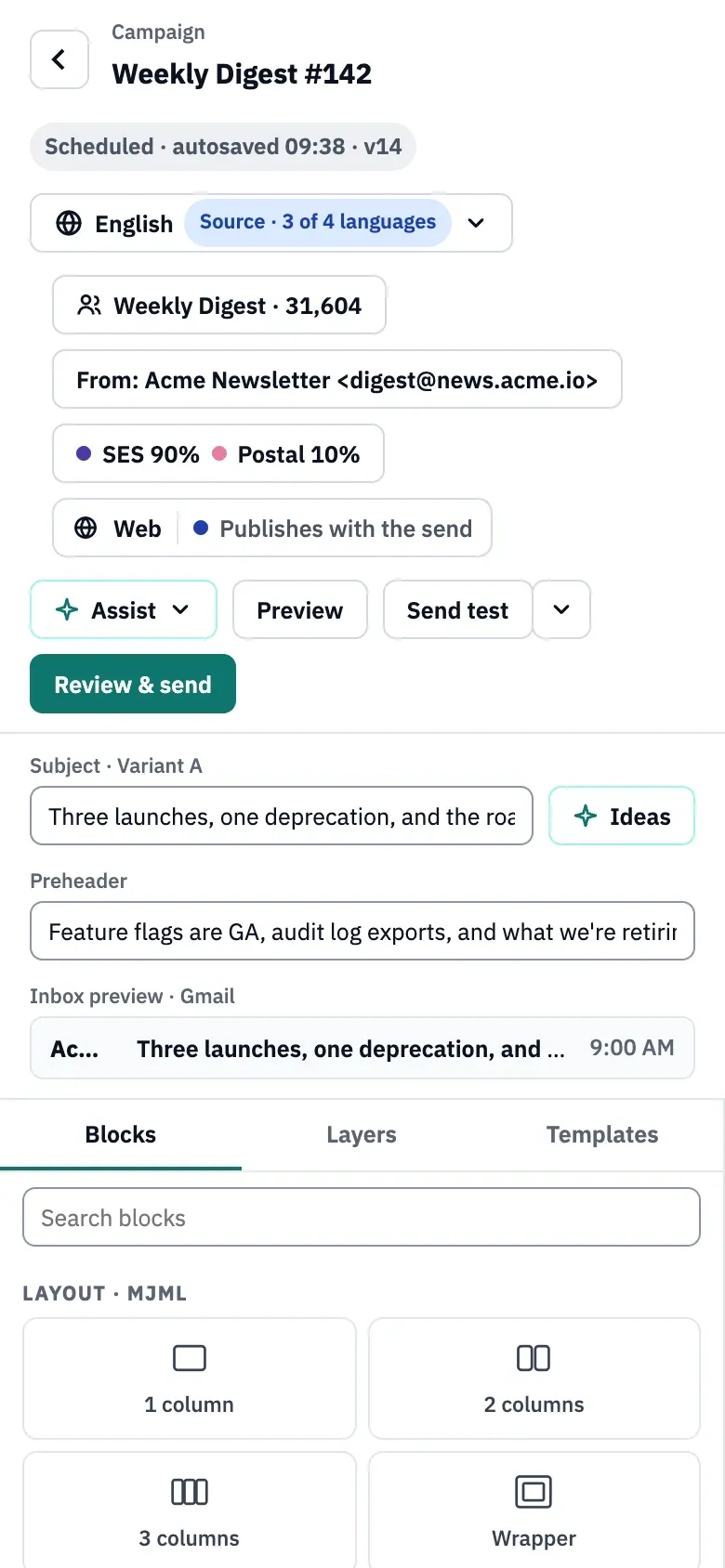
Section titled “On a phone”On a phone the panels stack below the canvas and the header actions wrap onto a second row. A 600 px email is zoomed out to fit the screen; switch to Mobile · 375 to see it at full size.
Keyboard shortcuts
Section titled “Keyboard shortcuts”Press ⌘ / in the composer to list its shortcuts: save a version, undo and redo, copy, paste and delete the selected component, bold and italic while editing text, and Esc to stop editing. ⌘ Enter saves and opens Send Readiness. The full list is in the keyboard shortcuts reference.
Defaults and limits
Section titled “Defaults and limits”| Setting | Default | How to change |
|---|---|---|
| Autosave | Every 30 s while there are unsaved changes, and 2 s after a section or element is added or removed | Fixed |
| Autosaved versions kept | 300 | Fixed; the first version and versions saved with ⌘S, restores and imports are always kept |
| Gmail clipping warning | Warns from 85 KB of HTML; Gmail clips at 102 KB | Fixed |
| Canvas and preview widths | Desktop 600 px, mobile 375 px | Composer device switch |
| Subject and preheader length | Subject 998 characters, preheader 500 | Fixed |
Check that it worked
Section titled “Check that it worked”- The header shows “autosaved” with the time and a version number that goes up after your changes.
- The test arrives with “[Test]” in the subject, sent through your System route.
- Review & send opens Send Readiness without a Block from the content checks.
Troubleshooting
Section titled “Troubleshooting”- The canvas doesn’t accept a Text or Image block. Content blocks go inside a column. Select a column on the canvas, or drag the block into one.
- Nothing can be edited. The campaign is sending or sent, or your role lacks
campaigns:edit. Duplicate a sent campaign to reuse it. - Review & send reads Request approval. Your role lacks
campaigns:send; see require approval for risky sends. - The test fails with “no sending provider can deliver them yet”. Tests go through the System stream. Connect a sending provider and give the System stream a route.
- Undo and redo buttons are missing. While content warnings are open, the toolbar shows the warning counts instead. ⌘ Z and ⇧ ⌘ Z still work.
- “Fix the MJML first”. The MJML view has an error. Go to the line it names, or undo your changes.