
Manage contacts
Find, filter and change your contacts in Audience, then Contacts, and open any profile to see its fields, consent per list and every email it was sent. This page covers how to manage email subscribers one at a time and in bulk; to bring many in at once, import them.
Before you begin
Section titled “Before you begin”Permission keys say subscribers; the app says contacts.
| Action | Permission | Built-in roles |
|---|---|---|
| See contacts, profiles and activity | subscribers:view |
Owner, Admin, Editor, Viewer |
| Add a contact | subscribers:create |
Owner, Admin, Editor |
| Add to a list, add a tag, resend opt-in, suppress, edit fields | subscribers:edit |
Owner, Admin, Editor |
| Export a CSV or a contact’s data | subscribers:export (sensitive) |
Owner, Admin |
| Erase contacts | subscribers:delete (sensitive) |
Owner, Admin |
A role limited to some lists sees only the contacts on those lists. See roles and permissions.
Find contacts
Section titled “Find contacts”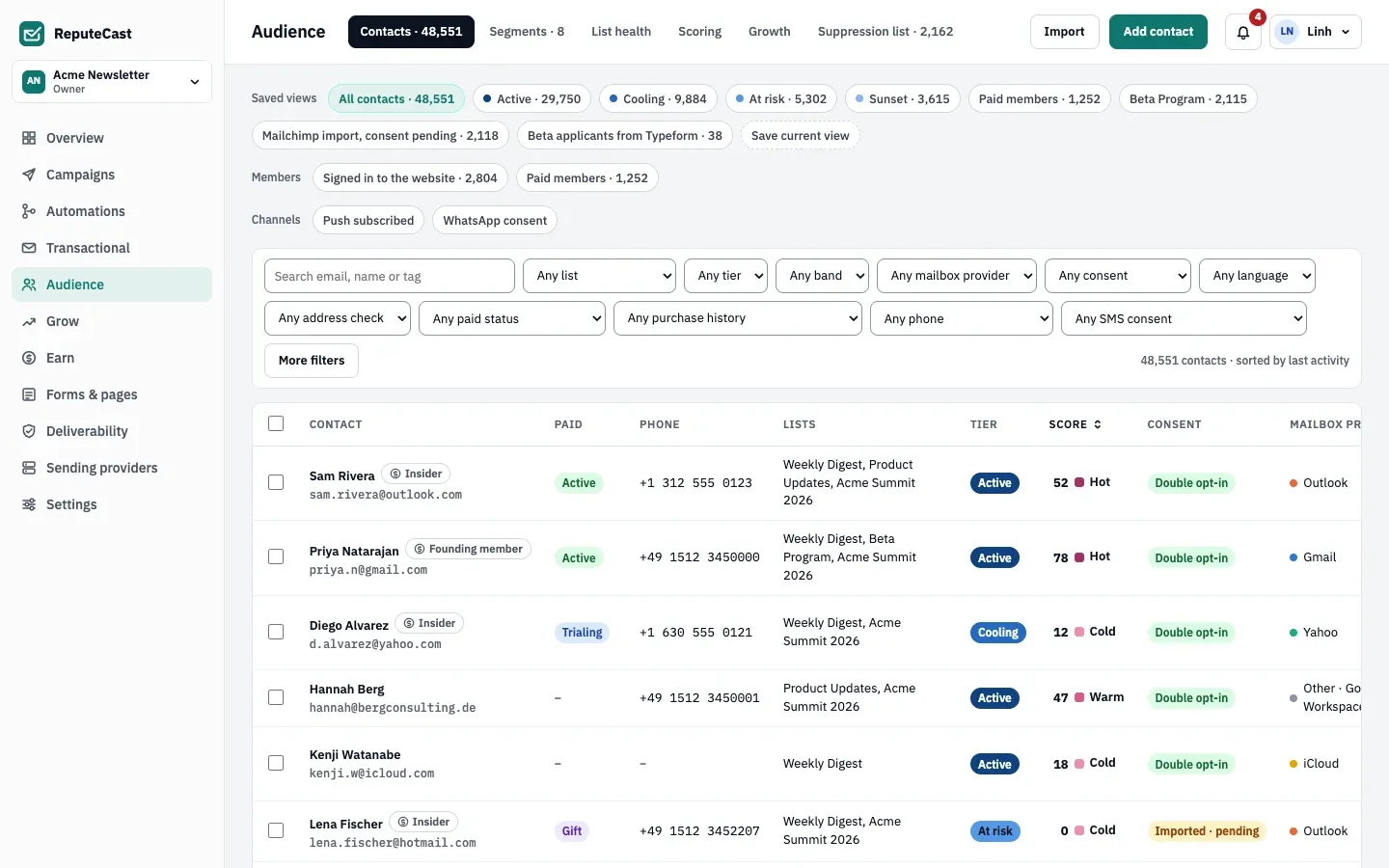
-
Go to Audience, then Contacts.
-
Type in Search email, name or tag. Search matches part of an email address or a name, or a tag exactly (tags are stored in lower case).
-
Narrow the table with the filters: List, Tier (engagement tier), score band, Mailbox provider, Consent, language and address check. More filters adds Source, Tag, Joined after, Segment, growth source and UTM values, and a score range. Filters for paid status, purchases, phone and SMS consent, push and WhatsApp appear once those features are in use.
-
To keep the filters, select Save current view, name the view and select Save view. Tick Only for me to keep it private; shared views show for everyone in the workspace. Each view’s count updates as contacts change.
The table is sorted by last activity; select the Score header to sort by score instead. Last open shows “never”, a date, or “date · machine” when the last open came from a mail client that loads images by itself, such as Apple Mail Privacy Protection. A red Suppressed badge in Consent means the address is on the suppression list.
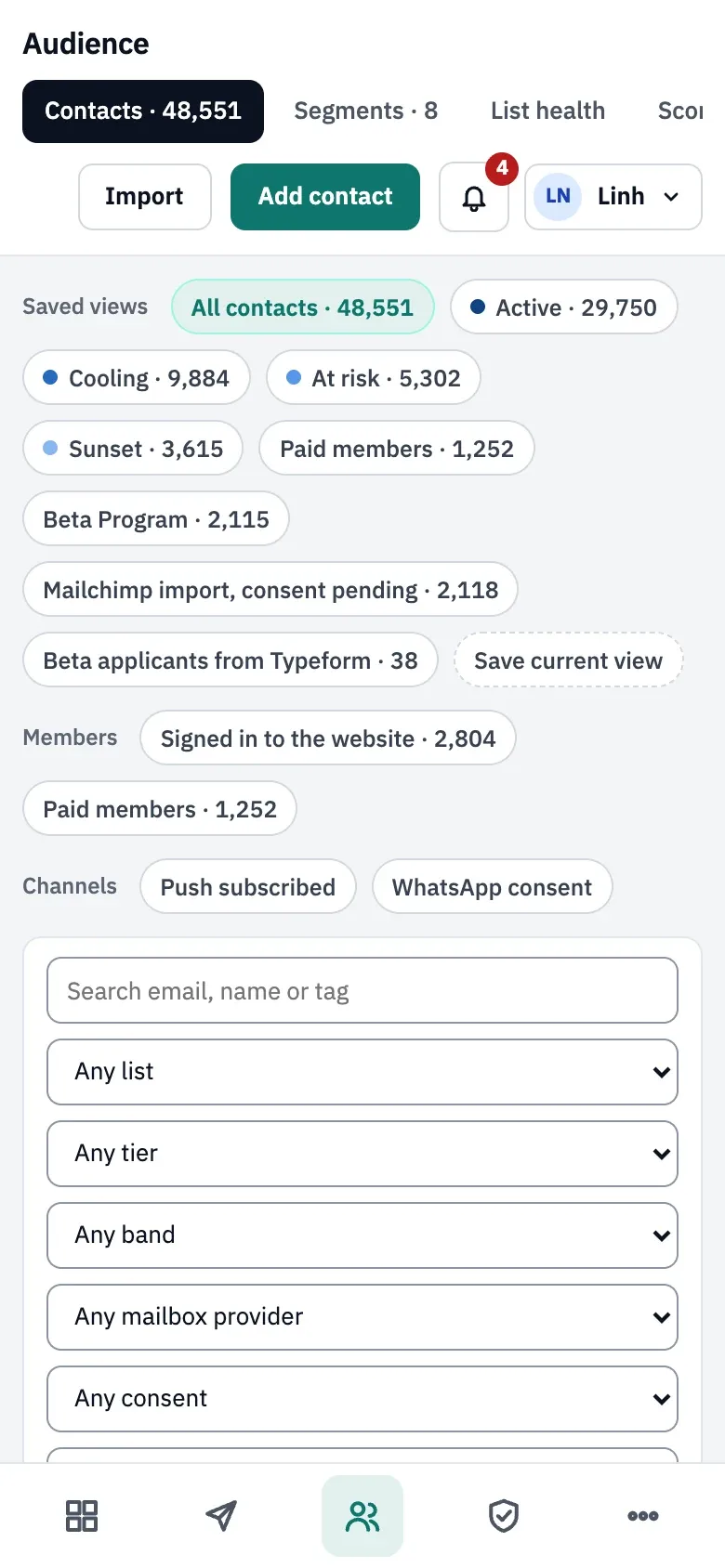
On a phone, the saved views and the filters stack above the table, and the app’s sections move to a bar at the bottom of the screen.
Add a contact
Section titled “Add a contact”-
Select Add contact.
-
Enter the email, optionally first and last name and tags, and tick at least one list.
-
Under Consent, choose:
- Send a confirmation email (default): double opt-in. The contact stays pending until they click the link, sent through the System stream.
- They already agreed: single opt-in. They are subscribed at once. Use this only when you have their consent on record.
-
Select Add contact. The contact’s source shows as “Added by the team”, with your name in the consent history.
An address on the suppression list, or one that is already a contact, is refused. See Lists, consent and double opt-in for how each consent status works.
Change many contacts at once
Section titled “Change many contacts at once”Tick contacts on the current page (up to 100), then pick a bulk action. The selection clears when you change the page, a filter or the page size.
| Action | What it does |
|---|---|
| Add to list | Subscribes them to a list at once. Suppressed addresses are refused. |
| Add tag | Adds a tag (lower case, up to 60 characters). |
| Resend opt-in | Sends a confirmation email through the System stream, up to 5,000 contacts. |
| Export CSV | Downloads the selected contacts as CSV. Every export is in the audit log. |
| Suppress | Adds the addresses to the suppression list for all mail. A reason is required. |
| Delete | Erases the contacts for good (see below). |
If some contacts can’t be changed, a Partly done panel says how many succeeded and lists the others.
The CSV export has the columns email, first_name, last_name, company, country, timezone, language,
lists, tier, consent, mailbox_provider, source, joined_at, last_open_at, last_click_at, tags, then one
column per custom field. Times are in UTC.
Erase contacts
Section titled “Erase contacts”Erasing removes names, fields, tags, list memberships, consent history and preferences for good. Delivery statistics stay, without the address, so campaign reports still add up.
-
Tick the contacts and select Delete.
-
Type the number of contacts to confirm, then select Erase N contacts.
Read a contact’s profile
Section titled “Read a contact’s profile”Select a contact’s name to open the profile.
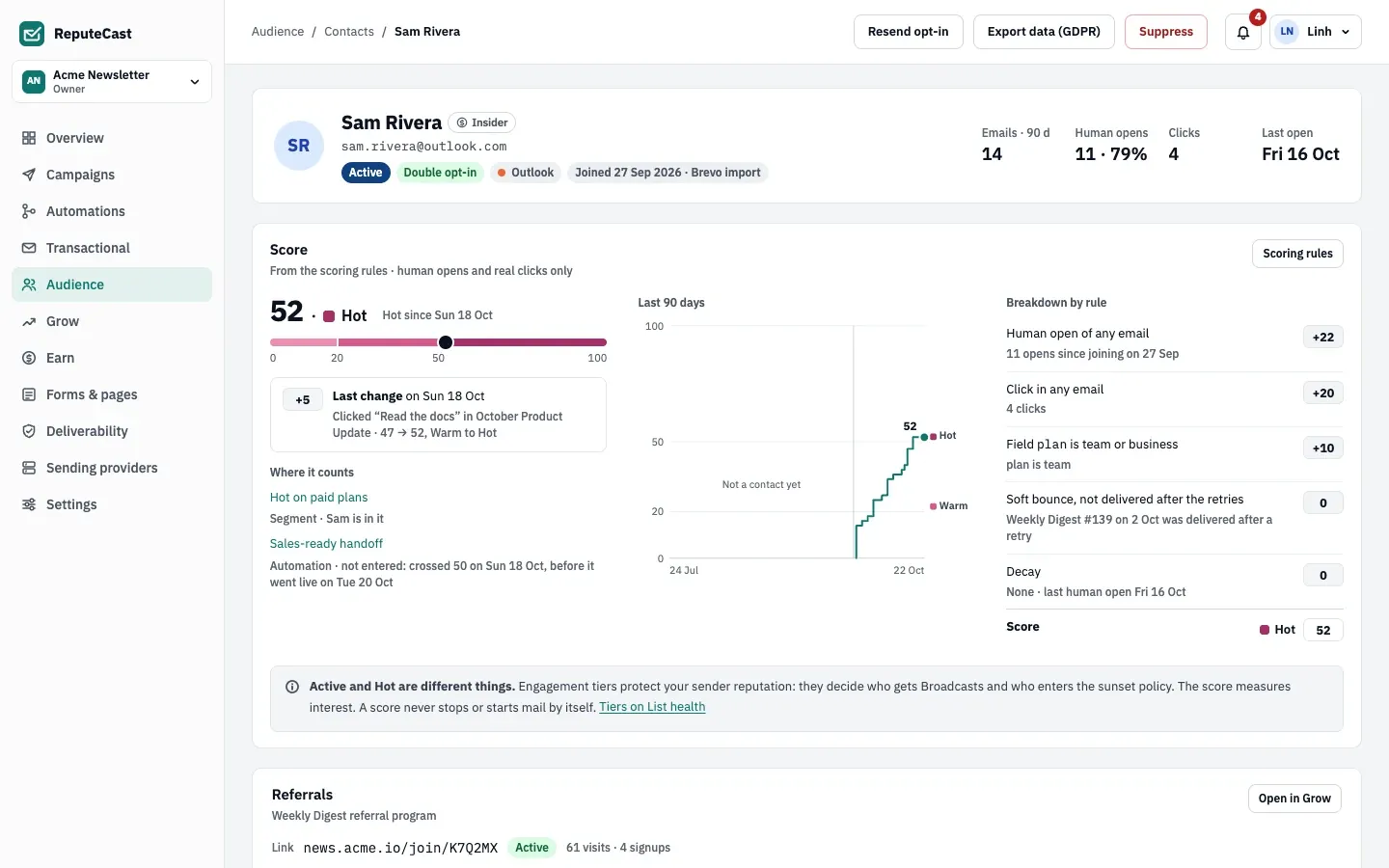
- Header: tier, consent, mailbox provider, when and how they joined, and a “Role address · no Broadcasts” badge
for addresses such as
info@. The figures cover emails sent in the last 90 days, human opens, clicks and the last open. - Fields: built-in and custom fields, tags and the address check result. Edit changes them; the audit log keeps the old and new values. The email address can’t be edited.
- Consent per list: each list’s status with how and when they subscribed or confirmed, from which IP address, and the consent text version. With texting set up, email, SMS and WhatsApp consent show side by side.
- Activity: every delivery, open, click and consent change, filterable by Deliveries, Engagement and Consent. Each delivery names the sending provider that carried it, marks failovers and retries, and shows the original SMTP code for bounces.
- Cards for the score, referrals, paid subscription and purchases appear when those features are in use.
The header actions:
- Resend opt-in sends a new confirmation email. If no System provider can send it, the page gives you the link to share instead.
- Export data (GDPR) downloads a JSON file with the full profile, consent evidence, up to 10,000 messages and events, and any suppression. The export is in the audit log.
- Suppress puts the address on the shared suppression list, with a reason.
- Open preference center as name (under Consent per list) opens the contact’s preference page in a new tab. Opening it is logged.
Check that it worked
Section titled “Check that it worked”- A saved view appears in the Saved views row with its count.
- After a bulk action, a message says how many contacts changed.
- Exports and erasures appear in Settings, then Audit log.
Troubleshooting
Section titled “Troubleshooting”- A button is disabled → hover it to see the permission it needs, then ask an Owner or Admin.
- “email is on the suppression list” when adding a contact → remove the address from the suppression list with a reason, but only if they gave you a new opt-in.
- “No System provider could send the confirmation” → connect a sending provider to the System stream in routing, or share the link from the profile.
- A saved view has the wrong name → the app can’t rename or delete views yet. The API can delete one with Delete a contact view; a personal view can be deleted only by the person who created it.