
Connect a sending provider
To connect email sending provider accounts such as Amazon SES, Postmark or an SMTP server, ReputeCast walks you through a six-step wizard: provider, connection, domain verification, test send, streams and contacts. Most people finish in about 10 minutes, and the wizard remembers where you stopped.
Before you begin
Section titled “Before you begin”- You need the
providers:managepermission. Members withproviders:viewcan open the catalog and follow a setup someone else started, but can’t change it. - Have an account at the sending provider and its API key (or, for SMTP, the server details) ready. Choose a sending provider compares what each one supports.
- ReputeCast’s public URL must be reachable over HTTPS from the internet, because the provider reports deliveries,
bounces and complaints by calling it. Set it with
REPUTECAST_PUBLIC_URLin the Docker Compose.envfile (thehttp.public_urlsetting); read Reverse proxy and TLS. - To verify your sending domain, you need access to its DNS records.
Connect the provider
Section titled “Connect the provider”-
Open Sending providers, then Add provider. On an empty workspace the button reads Connect a provider.
-
Provider. Pick the provider in the catalog and choose its Connect button. If a setup for it is already open, the wizard carries on where it stopped.
-
Connection. Enter the credentials the provider asks for. ReputeCast checks them with a read-only call before it stores them, encrypted; they are never shown again. Then it tests its own webhook endpoint the way the provider will call it, and registers the webhooks at the provider for you.
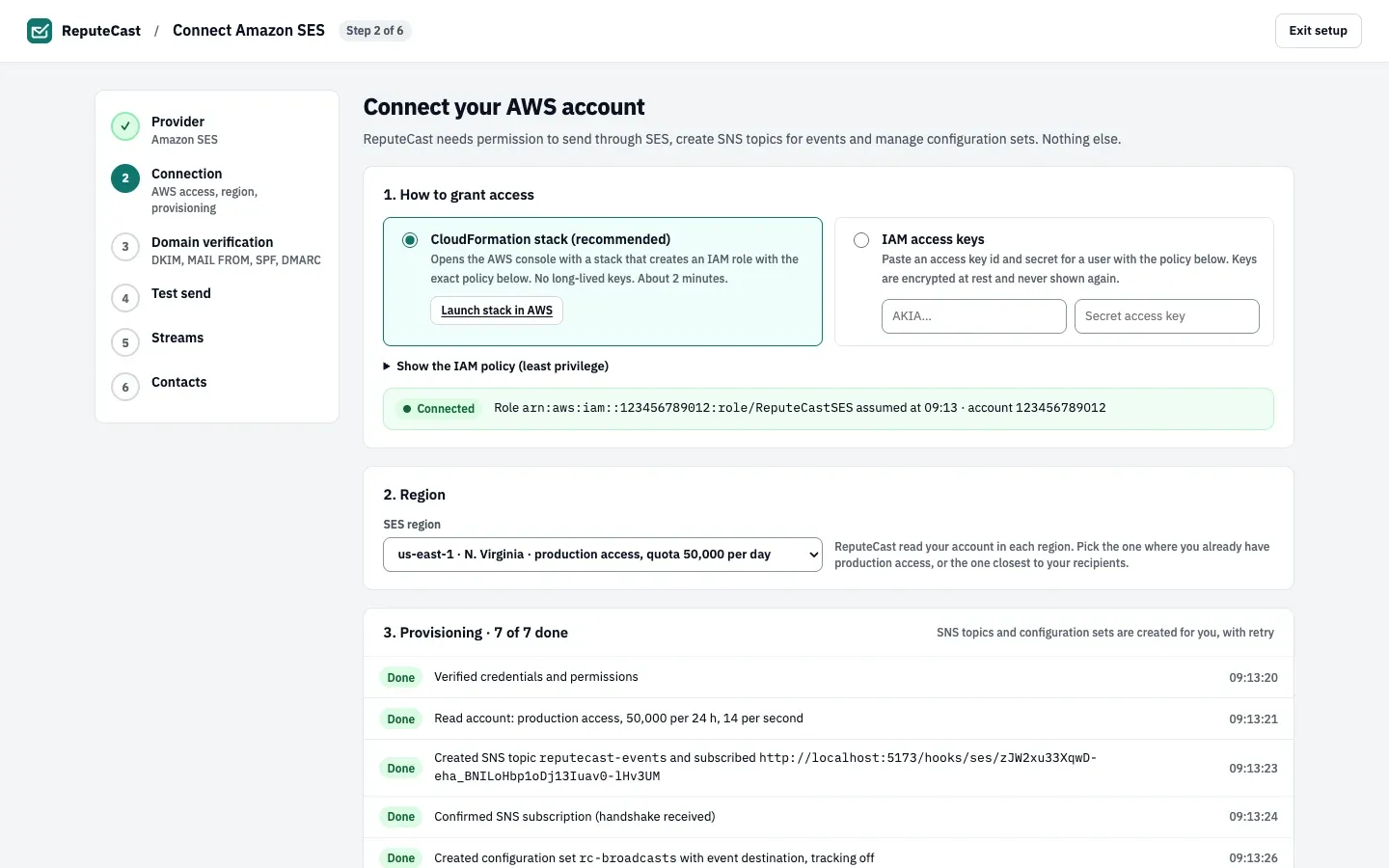
Each provider’s guide covers its own fields, for example Amazon SES (a CloudFormation stack or IAM keys, the region, SNS topics and configuration sets) and any SMTP server (the outgoing server and a bounce mailbox, because SMTP has no webhooks). For Azure Communication Services and the generic HTTP adapter, ReputeCast can’t register the webhook itself: it shows the webhook URL and a secret to paste into the provider. The secret is shown once.
Choose Continue to domain verification.
-
Domain verification. Enter the domain in your From address. ReputeCast asks the provider which DNS records that domain needs, or works them out when the provider has no domain API, and checks them every 30 seconds while the page is open.
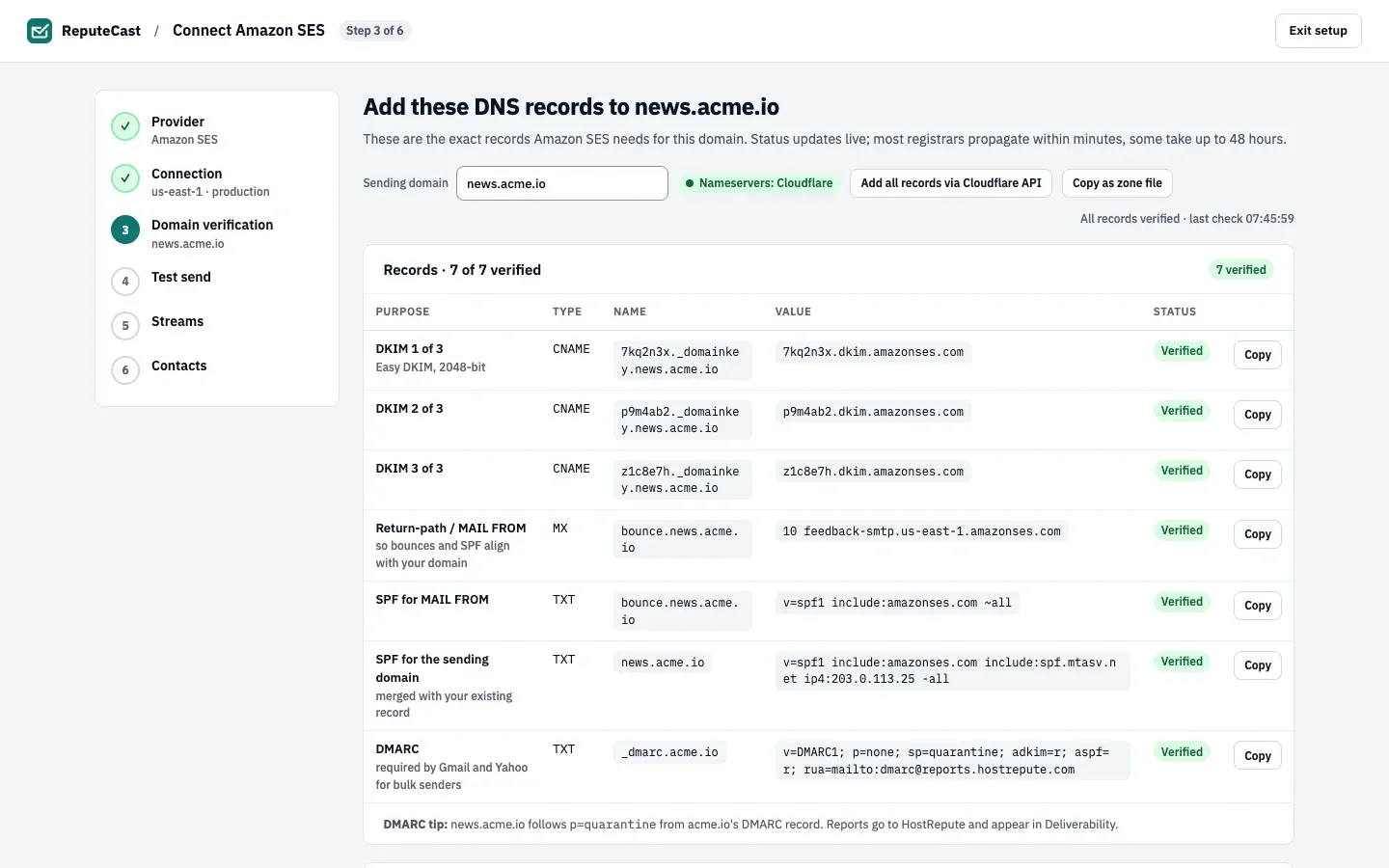
- DKIM, the first of three records that let Amazon SES sign mail for your domain.
- The return-path (MAIL FROM) record, so bounces and SPF align with your domain.
- SPF for the sending domain.
- DMARC, which Gmail and Yahoo require of bulk senders.
- The live status: all records verified, and when they were last checked.
Publish the records at your DNS host. Most DNS hosts publish within minutes; some take up to 48 hours. If the domain uses Cloudflare, Add all records via Cloudflare API adds the missing records and fixes wrong ones with a Cloudflare API token that has Zone › DNS › Edit permission on the zone; the token is used once and never stored. For other DNS hosts, Copy as zone file gives you every record at once. Read Set up SPF, DKIM and DMARC for what each record does.
Under Optional you can add a custom link-tracking domain and see whether BIMI is set up. If DNS isn’t ready yet, choose Skip for now · test send still works from a verified address.
-
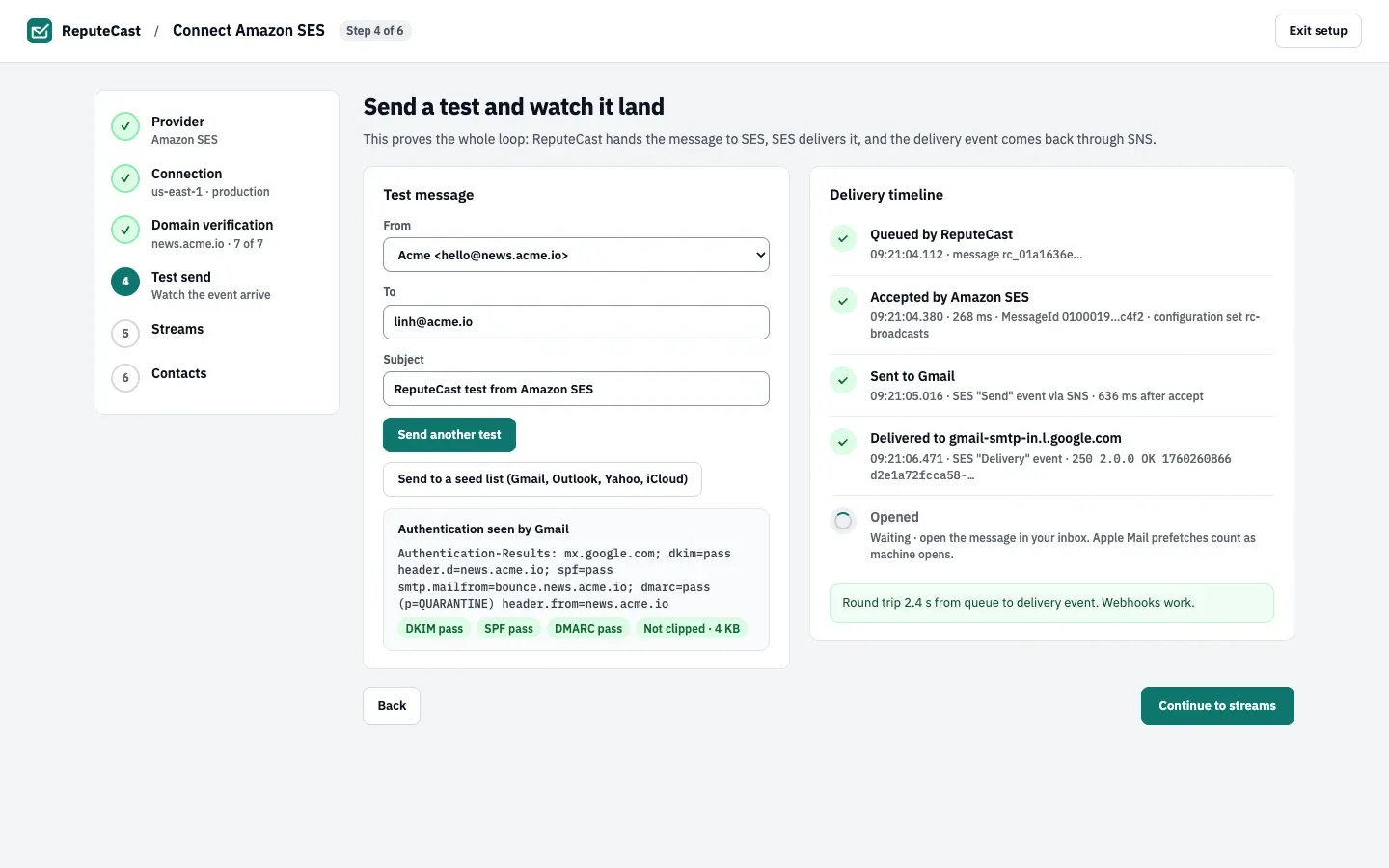
Test send. Check From, To and Subject, then choose Send test. The delivery timeline fills in as the provider hands the message over and the delivery event comes back, and shows how the receiving mailbox provider saw your authentication. Send to a seed list (Gmail, Outlook, Yahoo, iCloud) sends the same test to your own addresses at each mailbox provider.
-
Streams. Choose which streams the provider carries: Broadcasts (campaigns), Automations, System (double opt-in confirmations, preference links, team invites) and Transactional (mail from your product). Each stream has its own route and failover policy, so a bad campaign never blocks a password reset.
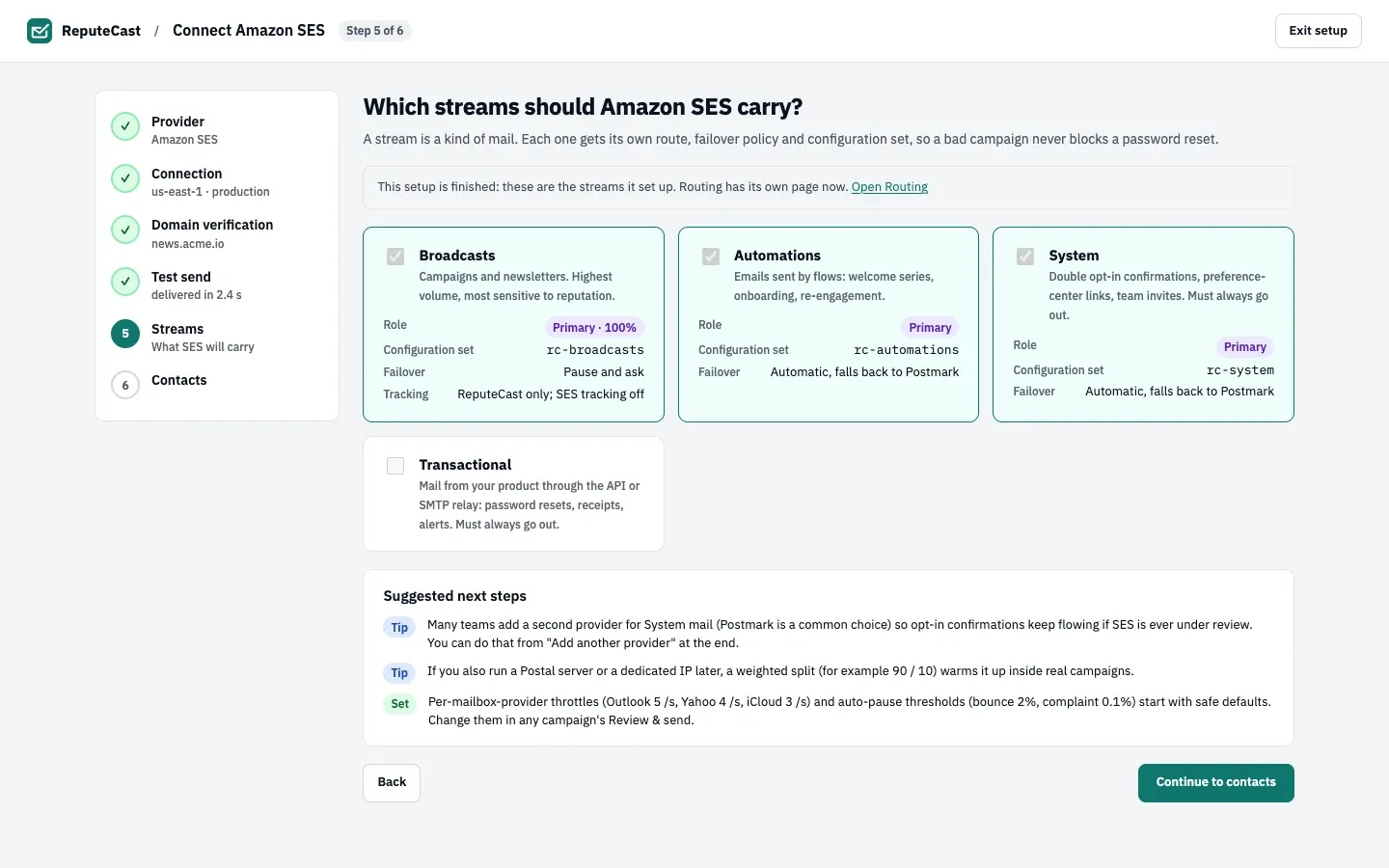
When another provider already carries a stream, pick this provider’s role: Primary (it replaces the current one), Fallback (it takes over when the primary fails) or, for Broadcasts only, Weighted split with its share. If the provider’s terms don’t allow bulk marketing, Broadcasts can’t be switched on for it.
-
Contacts. Bring your contacts with an import, pull the suppressions the provider already holds (recommended, so ReputeCast never tries those addresses on any provider), or start empty. Imports keep consent: unsubscribed, bounced and complained contacts become suppressions and are never subscribed again. Choose Finish setup or Start empty and finish.
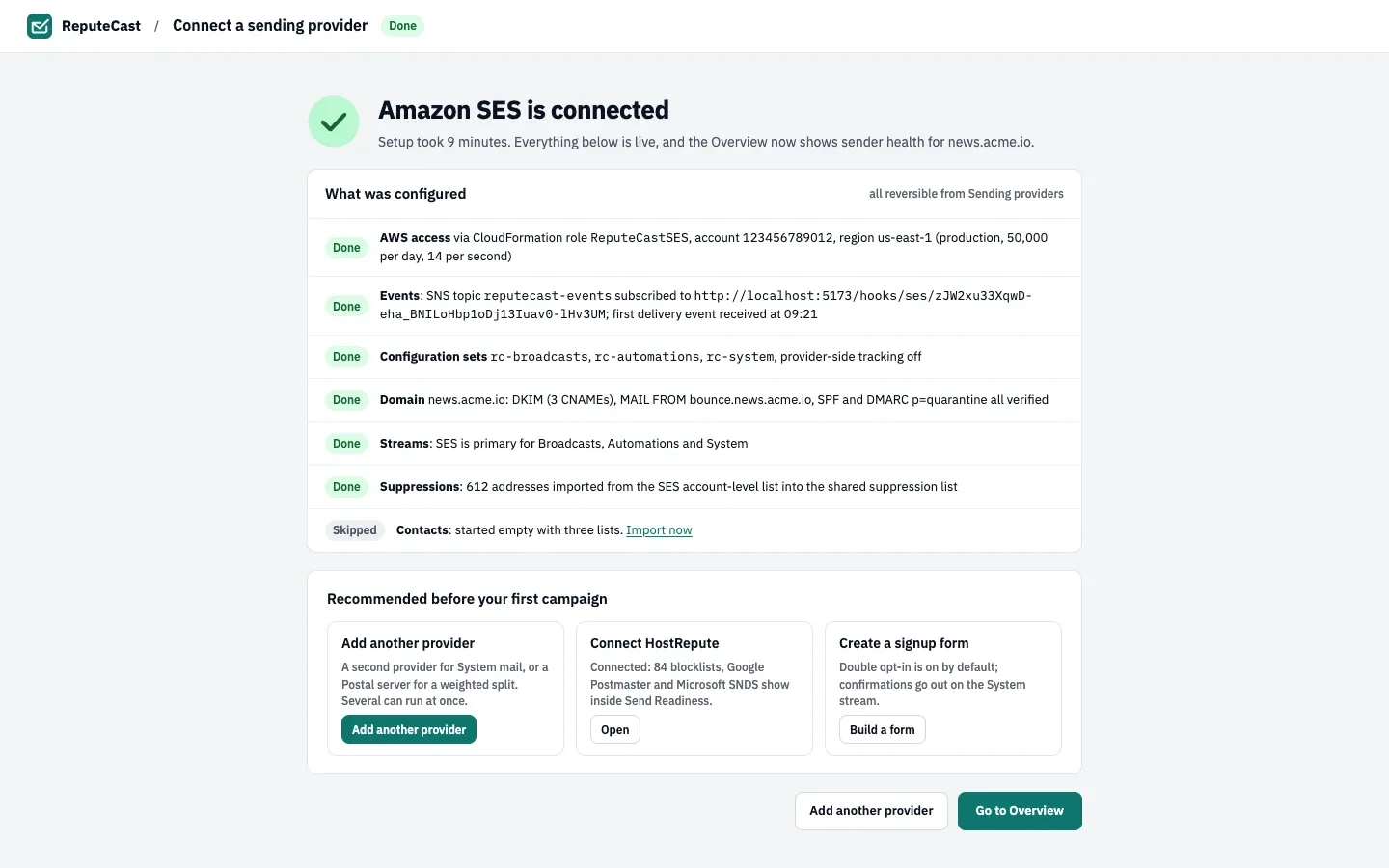
The summary lists what was configured, all of it reversible from Sending providers, and what to do before your first campaign: add another provider, connect HostRepute and create a signup form.
Finish later or cancel
Section titled “Finish later or cancel”- Save and finish later or Exit setup leaves the setup open. Pick the same provider in the catalog to carry on at the step you left.
- There is no cancel button in the app. To cancel an unfinished setup, call the cancel-provider-setup API operation: a provider the setup connected that no route uses yet is disconnected again, and the cancellation is recorded in the audit log.
Change or remove a provider later
Section titled “Change or remove a provider later”Each provider card on Sending providers, then Providers has a Settings button. There you can give the provider a label, replace credentials (the new ones are checked with the provider before they replace the old ones), set how you pay for it, and choose Remove provider. Removing a provider asks you to pick a replacement for every route it is part of, deletes its credentials and removes its webhook where the provider’s API allows. The suppressions it contributed, its past events and its reports stay.
Check that it worked
Section titled “Check that it worked”- Sending providers, then Providers shows the provider with a status of Healthy, Sandbox or Warming up, its webhook line (“last event …”) and the streams it carries.
- The test send’s timeline ended with a delivered event.
- Settings, then Senders shows the domain’s records as verified. Read Add sending domains and senders.
Troubleshooting
Section titled “Troubleshooting”- “Endpoint not reachable from the internet”: the provider can’t call ReputeCast’s public URL. Set
REPUTECAST_PUBLIC_URLto the HTTPS address your reverse proxy serves and restart, or, while testing on a laptop, paste a Cloudflare Tunnel or ngrok URL that points at port 8080 and choose Re-test endpoint. Providers with an events API (Mailgun, SparkPost) also offer Use polling for now: ReputeCast asks for new events every minute, so bounce protection during a send lags by up to a minute. - “ReputeCast won’t connect to that address”: the server you entered resolves to a loopback or private address.
An operator can allow those with
providers.allow_private_networks; link-local and cloud metadata addresses are always refused. - The key is rejected: the connection step names the key type the provider needs (for example, a Postmark server token rather than the account token). Check the provider’s guide.
- Records stay Pending: the DNS host hasn’t published them yet. Compare the “Found” value under a record with the value ReputeCast expects, and give the DNS host up to 48 hours.
- The test send never shows a delivery event: ReputeCast waits up to 30 minutes for it. If nothing arrives, the webhooks aren’t reaching ReputeCast; read Provider health and outages.
- Broadcasts can’t be switched on: the provider’s terms don’t allow bulk marketing on this connection. For Postmark, create a Broadcast message stream first. Read Choose a sending provider.