
Set up SPF, DKIM and DMARC
SPF, DKIM and DMARC prove to mailbox providers that mail from your domain really comes from you. This SPF DKIM DMARC setup guide shows the records ReputeCast asks you to publish for a sending domain, how to add them at Cloudflare, Amazon Route 53 or any other DNS host, and how to read their live status.
What each record does
Section titled “What each record does”| Record | DNS type | Published at | What it proves |
|---|---|---|---|
| SPF | TXT | The domain in the envelope sender (MAIL FROM) | The server that handed over the message may send for that domain. |
| DKIM | CNAME or TXT | <selector>._domainkey.<domain> |
The message was signed by the sending provider with a key you published, and wasn’t altered. |
| DMARC | TXT | _dmarc.<domain>, or the organizational domain |
What receivers do when neither SPF nor DKIM passes in line with the From address. |
DMARC passes when SPF or DKIM passes and its domain is aligned with the domain in the From address. In relaxed
mode, the default, both domains need the same organizational domain: bounce.news.acme.io aligns with
news.acme.io. In strict mode they must be identical
(RFC 7489, section 3.1, checked October 2026).
That is why ReputeCast asks for a custom return path (MAIL FROM) on your own domain wherever the sending provider supports one: SPF is checked against the return path, so with the sending provider’s default return path only DKIM can align. Send Readiness warns about that case (“uses the default MAIL FROM, so SPF doesn’t align”) but doesn’t block, because DMARC still passes through DKIM.
The records ReputeCast shows
Section titled “The records ReputeCast shows”ReputeCast lists the records in two places, with the same table:
- In the connect wizard, at step 3, Domain verification (see Connect a sending provider).
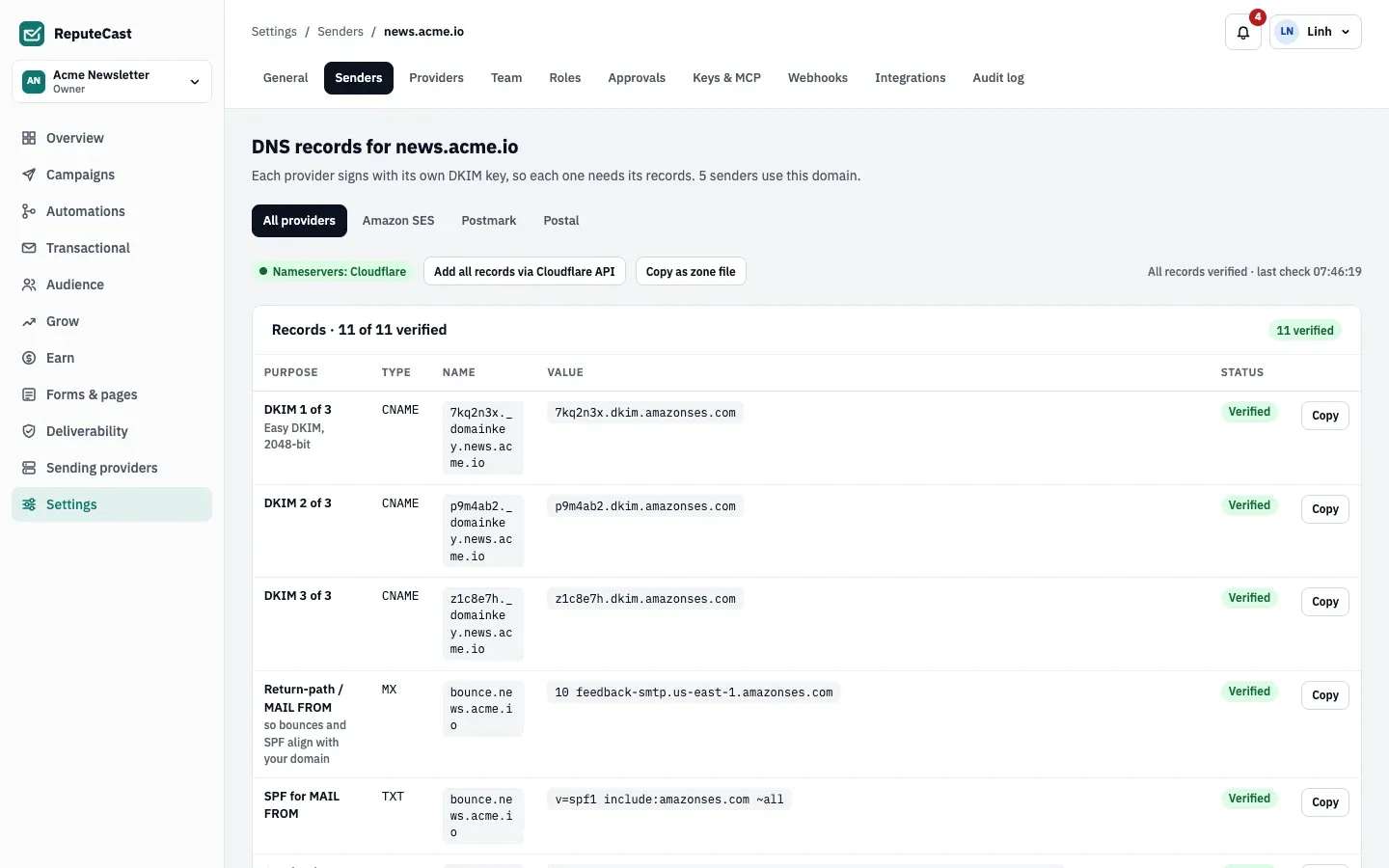
- Later, under Settings, then Senders: select Records next to a domain. When several sending providers use the domain, a tab per provider filters the table.
Each sending provider signs with its own DKIM key, so each one needs its own records. Sending providers with a domain
API (Amazon SES, Mailgun, SendGrid, Resend, Mailjet, Brevo, SparkPost, and Postmark with an account token) return the
exact records, and ReputeCast adds the domain-wide SPF and DMARC rows. For Amazon SES on news.acme.io the table
looks like this:
| Purpose | Type | Name | Value |
|---|---|---|---|
| DKIM 1 of 3 (2 and 3 alike) | CNAME | <token>._domainkey.news.acme.io |
<token>.dkim.amazonses.com |
| Return-path / MAIL FROM | MX | bounce.news.acme.io |
10 feedback-smtp.us-east-1.amazonses.com |
| SPF for MAIL FROM | TXT | bounce.news.acme.io |
v=spf1 include:amazonses.com ~all |
| SPF for the sending domain | TXT | news.acme.io |
Your current SPF record with include:amazonses.com added |
| DMARC | TXT | _dmarc.news.acme.io |
v=DMARC1; p=quarantine; adkim=s; aspf=r (a suggestion) |
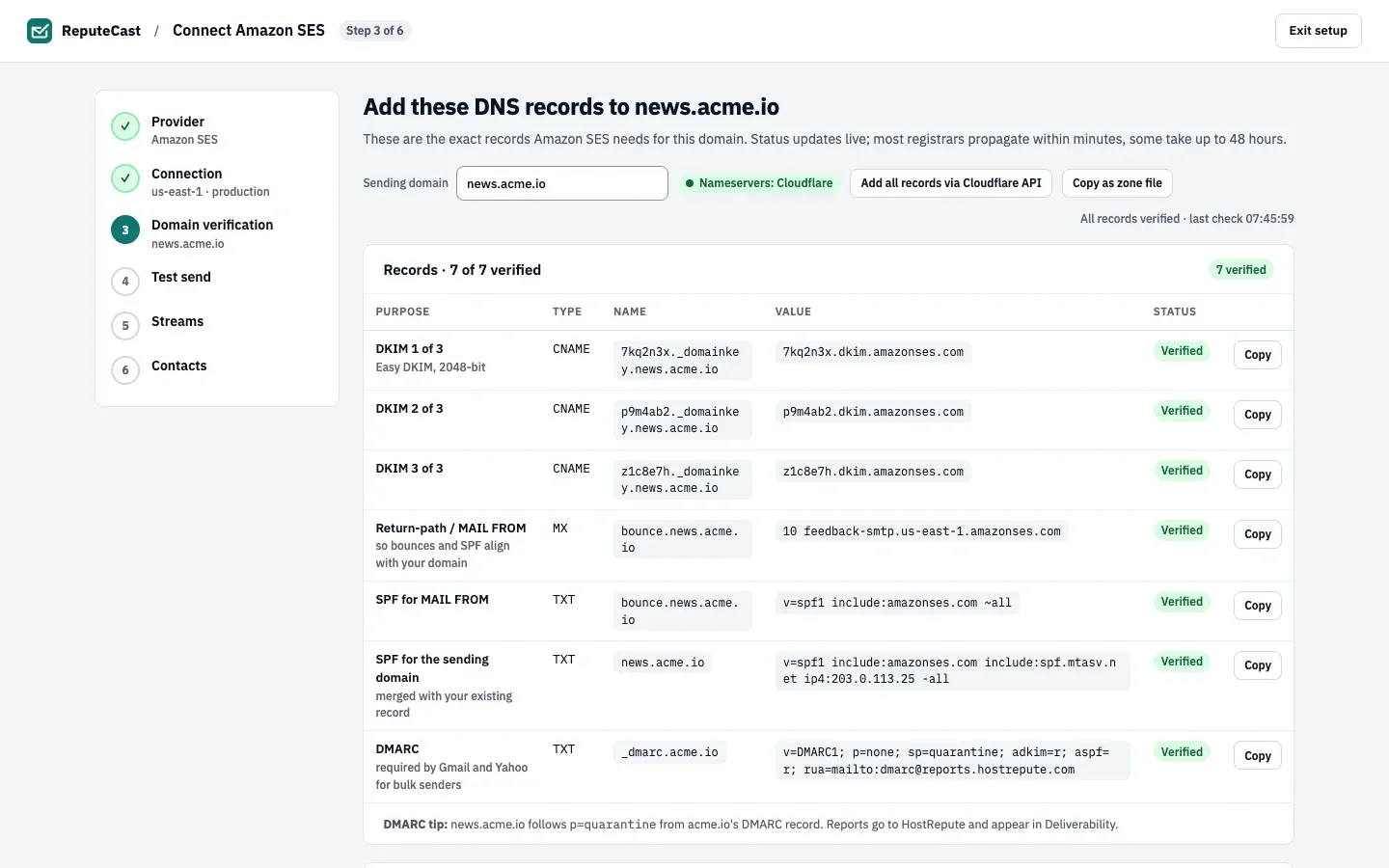
- The first of three DKIM records Amazon SES signs with, each a 2048-bit key.
- The return path (MAIL FROM) on
bounce.news.acme.io, so bounces and SPF align with your domain. - The SPF record of the sending domain, merged with the record you already publish.
- DMARC: here
news.acme.iofollows the policy ofacme.io, so the record lives at_dmarc.acme.io. - The live status line: when every record is verified, it shows the time of the last check.
Some sending providers have no domain API in ReputeCast: SMTP servers, Postal, Azure Communication Services, the
generic HTTP adapter, and Postmark without an account token.
For them the table holds only the SPF row of the sending domain and DMARC. Add the domain in the sending provider
itself and publish the DKIM record it shows there; ReputeCast checks SPF and DMARC right away and DKIM with the first
send. For an SMTP server or Postal, the SPF row authorizes the server’s host name with a:<host>.
How the SPF value is built
Section titled “How the SPF value is built”A domain can have only one SPF record, so ReputeCast never asks for a second one. It reads the record you publish
and inserts the mechanisms each sending provider needs before the closing all, redirect= or exp= term. Terms you
already have stay as they are; if nothing is missing, the value is your record unchanged. Without any record,
ReputeCast proposes v=spf1 <mechanisms> -all.
Published:  v=spf1 include:_spf.google.com ~allProposed:   v=spf1 include:_spf.google.com include:amazonses.com ~all
Published:  v=spf1 mxProposed:   v=spf1 mx include:spf.mtasv.net -all
The DMARC row
Section titled “The DMARC row”When no DMARC record exists for the domain or its organizational domain, ReputeCast suggests
v=DMARC1; p=quarantine; adkim=s; aspf=r, plus rua=mailto: with HostRepute’s report address when
HostRepute is connected. The row counts as verified as soon as any valid DMARC
record is published at _dmarc.<domain> or at the organizational domain, including p=none. Read
Choose a DMARC policy before you publish the suggestion.
Before you begin
Section titled “Before you begin”- You need
domains:manageto add domains and change their records (Owner and Admin have it). In the connect wizard you also needproviders:manage. See Permissions and roles. - You need access to the DNS of the domain, at the DNS host its nameservers point to.
- List every other service that sends mail as this domain, such as your office mail, a help desk or a CRM. Their SPF mechanisms must stay in the record, and each of them should sign with its own DKIM key.
Open the records
Section titled “Open the records”-
Open Settings, then Senders and select Records next to the domain. If the domain isn’t listed yet, add it first (Add sending domains and senders). During the connect wizard you are already on the right screen.
-
If more than one sending provider uses the domain, choose a provider tab or keep all providers.
-
Look at the badge above the table. When ReputeCast recognizes your DNS host from the nameservers, it shows it, for example Nameservers: Cloudflare. Pick the matching tab below.
Publish the records at your DNS host
Section titled “Publish the records at your DNS host”When the nameservers are Cloudflare’s, ReputeCast can add the records for you through the Cloudflare API.
-
In the Cloudflare dashboard, go to My Profile > API Tokens, select Create Token and use the Edit zone DNS template. Under zone resources, choose the zone of your domain, then select Continue to summary and Create Token (Cloudflare, “Create API token”, checked October 2026).
-
In ReputeCast, select Add all records via Cloudflare API, paste the token and select Add records. The token needs Zone › DNS › Edit on this zone. ReputeCast uses it for this one request and never stores it.
-
Read the result. ReputeCast adds the records that are missing and fixes those with a wrong value; records it doesn’t need stay as they are:
- An existing SPF record is edited in place, so the zone never ends up with two.
- An existing DMARC record is left alone.
- CNAME records are created as DNS only (not proxied) with an automatic TTL.
Records Cloudflare refused are listed in the notice; add those by hand.
To add records by hand instead, go to DNS > Records in the Cloudflare dashboard, select Add record, choose the type, fill in the name and value, and select Save (Cloudflare, “Manage DNS records”, checked October 2026). Set Proxy status to DNS only on CNAME records: Cloudflare recommends DNS only for email records (Cloudflare, “Proxy status”, checked October 2026).
Adding records through the API needs a signed-in member with domains:manage. API keys and AI agents can’t use it.
ReputeCast has no Route 53 integration; add the records in the Route 53 console.
-
Open the Route 53 console, choose Hosted zones and the zone of your domain.
-
For each row in the ReputeCast table, choose Create record:
- Record name: the part of the name before the hosted zone. In the
acme.iozone, the MAIL FROM records arebounce.news. Leave it empty for a record at the zone itself. - Record type: the type from the table.
- Value: the value from the table. Enclose TXT values in double quotation marks. A TXT value longer than 255
characters goes in as several quoted strings on one line:
"first part" "second part".
- Record name: the part of the name before the hosted zone. In the
-
If the name already has a TXT record (an SPF record at the zone itself, for example), edit that record instead of creating another one. Route 53 keeps every TXT value of a name in one record, one value per line; replace the old
v=spf1value with the merged one rather than adding a secondv=spf1line. -
Choose Create records. Changes usually reach every Route 53 name server within 60 seconds (AWS, “Creating records by using the Amazon Route 53 console” and “Supported DNS record types”, checked October 2026).
Route 53 can also import a zone file (Copy as zone file gives you one), but the import fails when the zone already holds any of the records in the file, and no records are created (AWS, “Creating records by importing a zone file”, checked October 2026). For an existing zone, create the records one by one.
-
Select Copy as zone file. ReputeCast copies every row of the table to the clipboard as zone file lines with a TTL of 3600 seconds. It doesn’t download a file.
Zone file lines (example) bounce.news.acme.io. 3600 IN MX 10 feedback-smtp.us-east-1.amazonses.com.bounce.news.acme.io. 3600 IN TXT "v=spf1 include:amazonses.com ~all" -
If your DNS host imports zone files, paste or upload the lines there. Otherwise create each record by hand and use the Copy button on each row for the value.
-
Check how your DNS host expects names. Many add the zone name for you, so
bounce.news.acme.iois entered asbounce.newsin theacme.iozone. Entering the full name there createsbounce.news.acme.io.acme.io.
Wait for the records to verify
Section titled “Wait for the records to verify”ReputeCast checks the records while the table is open: every 30 seconds until all of them are verified, with the line “Checking every 30 s · last check …”. Opening the page checks again if the last check is more than 20 seconds old, and a background job checks every domain every 30 minutes, so a change you make later also shows up in Send Readiness within the hour.
| Status | Meaning |
|---|---|
| Verified | The record is published with the right value. |
| Pending | Not found yet, or not checked yet. |
| Pending · old value still cached | A TXT record still answers with its old value; it updates once the TTL shown has passed. |
| Wrong value | A CNAME or MX record points somewhere else; the value found is shown under it. |
| Missing | No record of that type exists at that name. |
| Couldn’t check | The DNS lookup failed. ReputeCast tries again on the next check. |
Most DNS hosts publish changes within minutes; some take up to 48 hours. Until SPF authorizes the sending provider and DKIM is verified, Send Readiness blocks campaigns from this domain, and a missing DMARC record blocks them too.
Choose a DMARC policy
Section titled “Choose a DMARC policy”p=none asks receivers to deliver mail that fails DMARC as usual and only send you reports. p=quarantine sends it
to spam, and p=reject refuses it. Gmail, Yahoo and Microsoft accept p=none from bulk senders
(Gmail, Yahoo and Microsoft bulk sender requirements).
- Other services send as the domain, or you aren’t sure: start with
p=noneand aruaaddress that collects aggregate reports. ReputeCast’s DMARC tip says the same when its suggestion would be too strict. - Only the sending providers in ReputeCast send as the domain: ReputeCast’s suggestion,
p=quarantine, is safe once every record in the table is verified.
v=DMARC1; p=none; rua=mailto:dmarc-reports@acme.ioThen read the reports for a few weeks and raise the policy once every legitimate source passes, as described in
Read DMARC aggregate reports. A DMARC record at the organizational domain
(_dmarc.acme.io) also covers subdomains such as news.acme.io; its sp= tag sets their policy, and ReputeCast
reads it when the subdomain has no record of its own.
Check that it worked
Section titled “Check that it worked”- The table title reads “Records · 7 of 7 verified” (with your counts), and the status line says “All records verified”.
- In the domains table under Settings, then Senders, SPF shows
pass, DKIM showsVerified(or, with several sending providers, a count such as3 of 3 providers) and DMARC shows the policy, such asp=quarantine.p=noneis shown as a warning, not an error. - The Authentication group in Send Readiness passes for a campaign from this domain: “SPF authorizes …”, “DKIM signing on …”, “DMARC p=…” and, where the sending provider supports it, “Custom MAIL FROM domain verified”.
- A placement test shows the SPF, DKIM and DMARC results that real mailboxes recorded for the copies.
Troubleshooting
Section titled “Troubleshooting”- SPF shows Invalid. The domain publishes two
v=spf1records, which makes SPF fail with a permanent error (RFC 7208, section 4.5, checked October 2026). Merge them into one record with the value ReputeCast shows, and delete the other. - SPF shows Too many lookups. SPF allows at most 10 DNS lookups across
include,a,mx,ptr,existsandredirectterms, including nested includes (RFC 7208, section 4.6.4, checked October 2026). Remove includes for services you no longer use;ip4andip6terms don’t count. ReputeCast doesn’t count the lookups of a merged value before you publish it, so look at the status after publishing. - SPF ends in
+all. ReputeCast treats it as invalid, because it lets anyone send as the domain. Use~allor-all. - A record stays Missing although you added it. Check the name for a doubled zone (
news.acme.io.acme.io) and that you edited the zone at the DNS host the nameservers point to. - A DKIM CNAME at Cloudflare stays Pending. Check that the record is DNS only, not proxied.
- Send Readiness warns that DKIM keys are under 1024 bits. Mailbox providers expect at least 1024-bit keys; generate a longer key at the sending provider and publish the new record.
- “Cloudflare rejected this token.” The token lacks Zone › DNS › Edit on this zone. Create a token with the Edit zone DNS template for the right zone.
- “No Cloudflare zone … is visible to this token.” The token’s zone resources don’t include the domain’s zone.
- The Cloudflare button isn’t there. The nameservers aren’t Cloudflare’s, or ReputeCast hasn’t looked them up yet. Use the zone file.
- Gmail rejects mail with 550 5.7.26. The message failed authentication; see Gmail 550 5.7.26.