
Check and fix blocklist listings
ReputeCast runs an email blocklist check on your sending domains and dedicated IPs once a day, shows the results under Deliverability, then Health, and turns a listing into a Send Readiness result before your next campaign goes out. This guide shows how to run the check on demand, read what it found and get a listing removed.
The lists ReputeCast checks
Section titled “The lists ReputeCast checks”Without HostRepute, ReputeCast queries eight public blocklists (DNSBLs) itself. IP lists are queried for your dedicated IPs and domain lists for your sending domains. Mail sent through a sending provider’s shared IP pool, such as Amazon SES without dedicated IPs, is checked at domain level only, because the sending provider manages those IPs.
| List | Checks | Impact | Delisting page |
|---|---|---|---|
| Spamhaus ZEN | IPs | High | check.spamhaus.org |
| Spamhaus DBL | Domains | High | check.spamhaus.org |
| SURBL | Domains | High | surbl.org |
| URIBL | Domains | High | admin.uribl.com |
| Barracuda BRBL | IPs | High | barracudacentral.org |
| SpamCop | IPs | Medium | spamcop.net |
| Mailspike | IPs | Medium | mailspike.org |
| PSBL | IPs | Low | psbl.org |
The impact decides what the Sender reputation group of Send Readiness does with a listing of the domain or IPs a campaign sends from: a listing on a high-impact list is a Block, a listing on a medium- or low-impact list is a Warn. Links inside your email are checked as well: the composer and Send Readiness block a campaign that links to a domain on a URI blocklist (see Fix content warnings before sending).
When HostRepute is connected, it checks 84 sources every hour instead, and the built-in check is skipped while that connection is healthy. If HostRepute can’t be reached, the built-in check runs as a fallback. See Connect HostRepute.
When checks run
Section titled “When checks run”| Setting | Default | How to change |
|---|---|---|
| Built-in blocklist checks | 8 lists (Spamhaus ZEN, Spamhaus DBL, SURBL, URIBL, Barracuda BRBL, SpamCop, Mailspike, PSBL), daily, for sending domains and dedicated IPs | Run all checks now; skipped while a healthy HostRepute connection supplies the results |
| Run all checks now | At most once a minute | Fixed |
| DNS lookup timeout | 4 s | Config dns.timeout; resolvers in dns.servers |
| DMARC aggregate report upload | XML, .xml.gz or .zip, up to 20 MiB compressed and uncompressed | Fixed (needs domains:manage) |
| HostRepute sync | Hourly per connected workspace; failed syncs retry hourly and the built-in checks run meanwhile | Fixed |
| History read from HostRepute | Google Postmaster 30 days, Microsoft SNDS 30 days, DMARC 7 days | Fixed |
| Time to approve the connection in HostRepute | 15 minutes | Fixed |
| Incident timeline | Last 45 days, latest 8 items | Fixed |
Before you begin
Section titled “Before you begin”- You need
deliverability:viewto open the page and run checks. Owners, Admins, Editors and Viewers have it. - Connect a sending provider and add a sending domain first. Until then there is nothing to check.
- If you run the server: the instance needs a DNS resolver that blocklists answer. Set it up before you rely on the results.
dns: servers: - 10.0.0.53 - 10.0.0.54:53As an environment variable, separate the servers with commas:
REPUTECAST_DNS__SERVERS=10.0.0.53,10.0.0.54:53An empty dns.servers uses the system’s resolvers from /etc/resolv.conf. If your host or container forwards DNS to a
public resolver, Spamhaus and URIBL lookups fail even though authentication checks (SPF, DKIM, DMARC) keep working.
Run a blocklist check
Section titled “Run a blocklist check”-
Open Deliverability, then Health.
-
Select Run checks now. When HostRepute is connected, the button reads Run all checks now and asks HostRepute to check again as well.
A progress line shows how many sources have answered. A run started less than a minute after the previous one returns that run instead of starting another.
-
When the run finishes, read the blocklists table. Each list shows what it checked, its status (Listed or Clean), since when an asset is listed, and, for a listing, the list’s Delisting page.
-
To keep a copy for a ticket or a spreadsheet, select Export report: one CSV row per check.
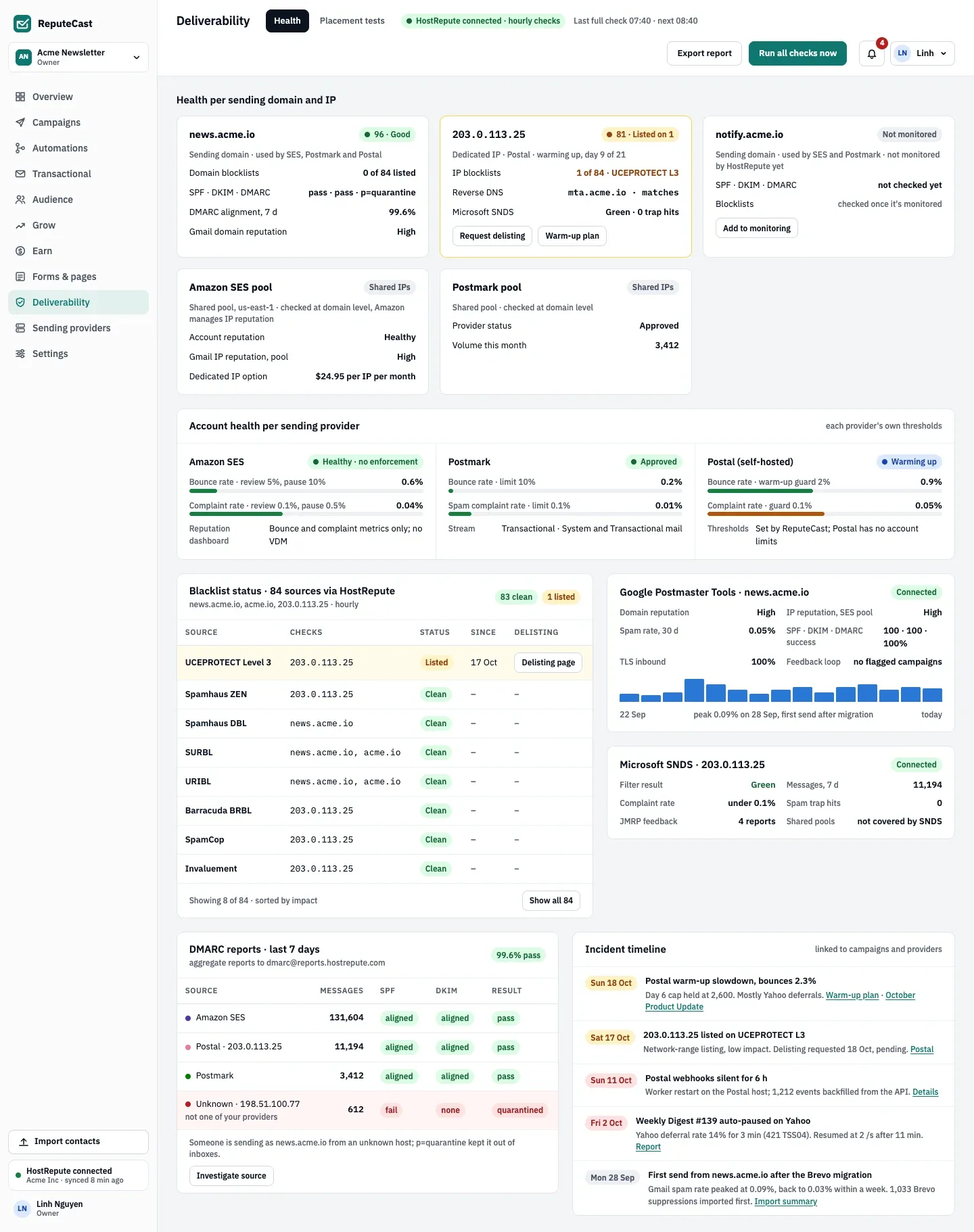
- Health per sending domain and dedicated IP, with the number of lists that list each one.
- The blocklist table: listed sources first, then the clean ones, with delisting links.
- Account health per sending provider, measured against each provider’s own limits.
A new listing found by the built-in check also lands in the incident timeline on the same page and in the notifications of every member who can see Deliverability, with the list’s delisting page. A listing on a high-impact list is marked as serious.
Get a listing removed
Section titled “Get a listing removed”-
Find out why the asset was listed. Open the list’s Delisting page and look the asset up there. Common causes are mail to old or bought addresses that have turned into spam traps and a sudden jump in volume from a new IP.
-
Fix the cause before you ask for removal. Remove the addresses that caused it (see Keep your list healthy and The suppression list), slow down a new IP with a warm-up plan, and check the sending domain’s SPF, DKIM and DMARC records.
-
Request removal on the list’s own page; each list describes its own process there. With HostRepute connected, Request delisting files the request from ReputeCast and HostRepute follows up.
-
If the listed IP belongs to your sending provider rather than to you, contact the sending provider, which controls that IP and its sending. Meanwhile, route the affected stream through another provider (Route mail across providers).
-
Run the check again once the list says the listing is gone.
Check that it worked
Section titled “Check that it worked”- The list shows Clean for the asset after the next run.
- The reputation group of Send Readiness passes for the campaign’s sending domain and IPs (Send Readiness: check before you send).
Troubleshooting
Section titled “Troubleshooting”- The run says some lookups didn’t answer. Those lookups show as unknown, not clean. The usual cause is a public
DNS resolver: set
dns.serversas shown in Before you begin. Slow resolvers can also time out; the per-lookup timeout isdns.timeout(default 4 s). - Spamhaus ZEN or DBL never shows up in the table. Spamhaus refused every query, so no result was stored. Same fix: your own resolver.
- The button does nothing new. A run already in progress, or one started less than a minute ago, is shown instead of a new one. Wait for it to finish.
- “Connect a sending provider first” appears. No sending domain or dedicated IP exists yet. Finish connecting a sending provider.
- A shared-pool IP is listed elsewhere. ReputeCast doesn’t check shared IPs; your sending provider monitors them. Ask the sending provider, or move the stream to a provider with a clean pool.
- The listing comes back after removal. The cause is still there. Look at bounces and complaints by mailbox provider in your campaign reports and stop mailing contacts who never engage.
Related
Section titled “Related”- Connect HostRepute for 84 sources checked hourly and delisting requests from ReputeCast
- Monitor domain and provider health
- Bounces, complaints and provider limits
- Configuration reference