
Sell paid subscriptions
Set up paid newsletter subscriptions by creating tiers readers pay for, publishing the hosted upgrade page and marking which content is for paid members only. Readers pay on Stripe Checkout, and their paid status decides what they can read.
Before you begin
Section titled “Before you begin”- Connect Stripe. Start with a test key to try every page without charging anyone.
- You need
earn:edit(sensitive) to change tiers, prices and the upgrade page. - Decide which lists paid members join. A tier adds its members to the lists you pick (Lists, consent and double opt-in).
Create a tier
Section titled “Create a tier”-
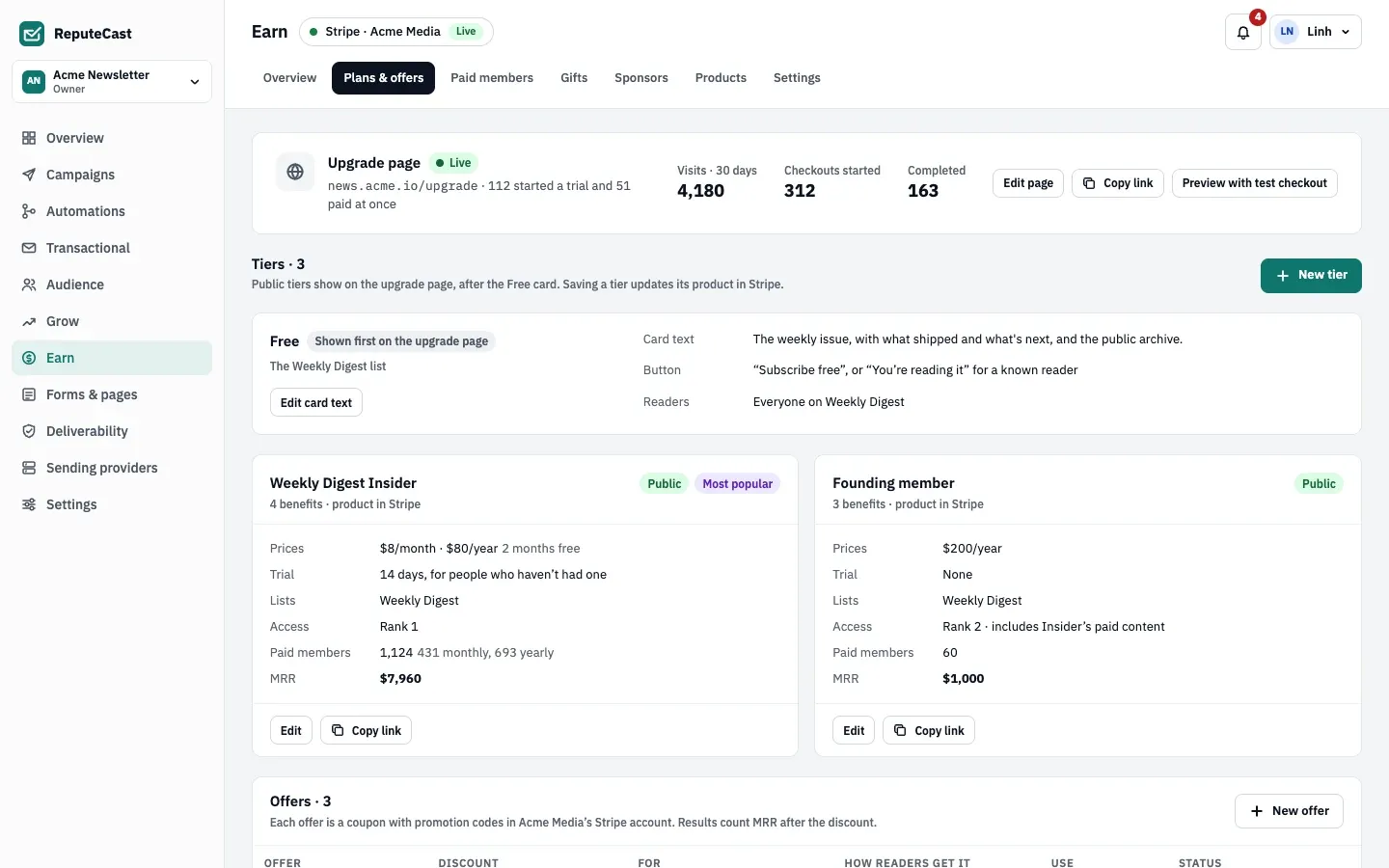
Open Earn, then Plans & offers and select New tier.
-
Name the tier and list its benefits. Readers see both on the upgrade page.
-
Set a monthly price, a yearly price or both, in the currency you chose when you connected Stripe.
-
Choose a trial: None, 7, 14 or 30 days. A trial is offered only to people who haven’t had one.
-
Under Lists and access, pick the lists paid members join (their consent is recorded as “Paid subscription”) and the access rank. A tier includes the paid content of every tier of a lower rank.
-
Choose the visibility: Public (on the upgrade page, after the Free card), Hidden (only through its own link) or Archived (no new paid members; current ones keep paying). You can highlight one tier on the upgrade page with a label such as “Most popular”.
-
Save. Each tier is a product in your Stripe account. You can draft tiers before Stripe is connected; publishing them needs Stripe.
Edit the upgrade page
Section titled “Edit the upgrade page”-
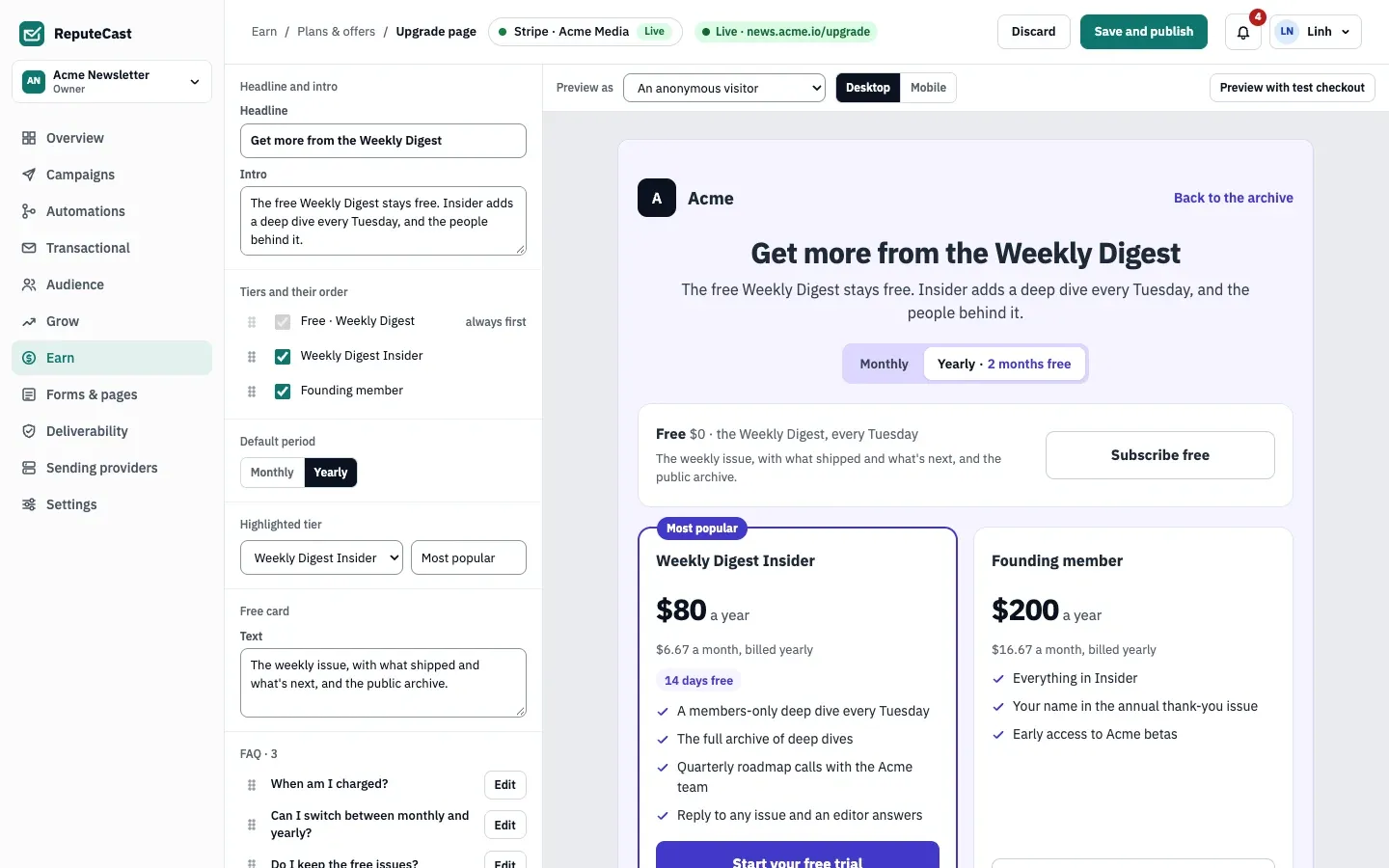
In Earn, then Plans & offers, select Edit the upgrade page.
-
Write the headline and intro, order the tiers and choose the default period (monthly or yearly).
-
Pick a highlighted tier and its label, edit the free card and the FAQ.
-
Use Preview as to see the page as an anonymous visitor or another reader, on desktop or mobile.
-
Select Preview with test checkout to run a checkout with Stripe’s test cards.
-
Select Save and publish.
The upgrade page lives on your public pages (and your own domain, if you set one up in Brand your pages and use your own domain). The cancel and gift pages are edited in Earn, then Settings, then Pages.
Make content paid-only
Section titled “Make content paid-only”- A block in an email or post: in the composer, set the block’s visibility to Paid access. Free readers get the rest of the email.
- A whole campaign: choose who on the list gets it: Everyone, Paid members only or Free subscribers only.
- An invitation to pay: add the Upgrade block. It links to the upgrade page.
- Personal details: use the Liquid tokens
paid.tier,paid.status,paid.price,paid.renews_atandpaid.ends_at(Personalize emails with Liquid). - Website posts: set a post’s visibility to Paid (Publish a newsletter website).
Turn on member emails
Section titled “Turn on member emails”Eight member emails go out automatically once you publish their transactional templates in Earn, then Settings, then Member emails:
| When | |
|---|---|
| Welcome to a paid tier | When a trial or paid subscription starts |
| Trial ends soon | 3 days before a trial ends |
| Payment failed | Stripe couldn’t charge the card |
| Renewal reminder | 7 days before a yearly renewal |
| Membership canceled | When a cancellation is confirmed |
| Gift receipt | When a gift is bought |
| Your gift | On the gift’s delivery date |
| Gift ending | 7 days before a gift ends |
An unpublished template means that email is not sent; Earn’s Overview lists it under the items that need you.
Check that it worked
Section titled “Check that it worked”- On the upgrade page, run a test checkout. The test reader appears in Earn, then Paid members with the Test label once you turn on Show test data.
- Send yourself a test of a campaign with a Paid access block, using Preview as with a paid and a free contact.
Troubleshooting
Section titled “Troubleshooting”- The tier is missing from the upgrade page → its visibility is Hidden or Archived, or it is unticked in Tiers and their order.
- The currency can’t be changed → it is fixed once a tier has prices.
- No welcome email arrives → publish its template in Earn, then Settings, then Member emails.