
Require approval for risky sends
An email approval workflow in ReputeCast makes a second person check a send before it goes out, but only when it is risky: a large audience, a new or warming-up sending provider, an author without send permission. Each workspace has one approval policy. When one of its rules matches, the author requests approval instead of sending, and an approver approves exactly what will be sent.
Before you begin
Section titled “Before you begin”- Changing the policy needs
workspace:manage. Everyone else sees it read-only. - Approvers are members with
campaigns:approve: the Owner and Admin roles have it, Editor and Viewer don’t. In an agency’s client workspace, the Client approver role has it too. - Requesting approval needs
campaigns:edit. An author never approves their own campaign.
Choose when approval is needed
Section titled “Choose when approval is needed”-
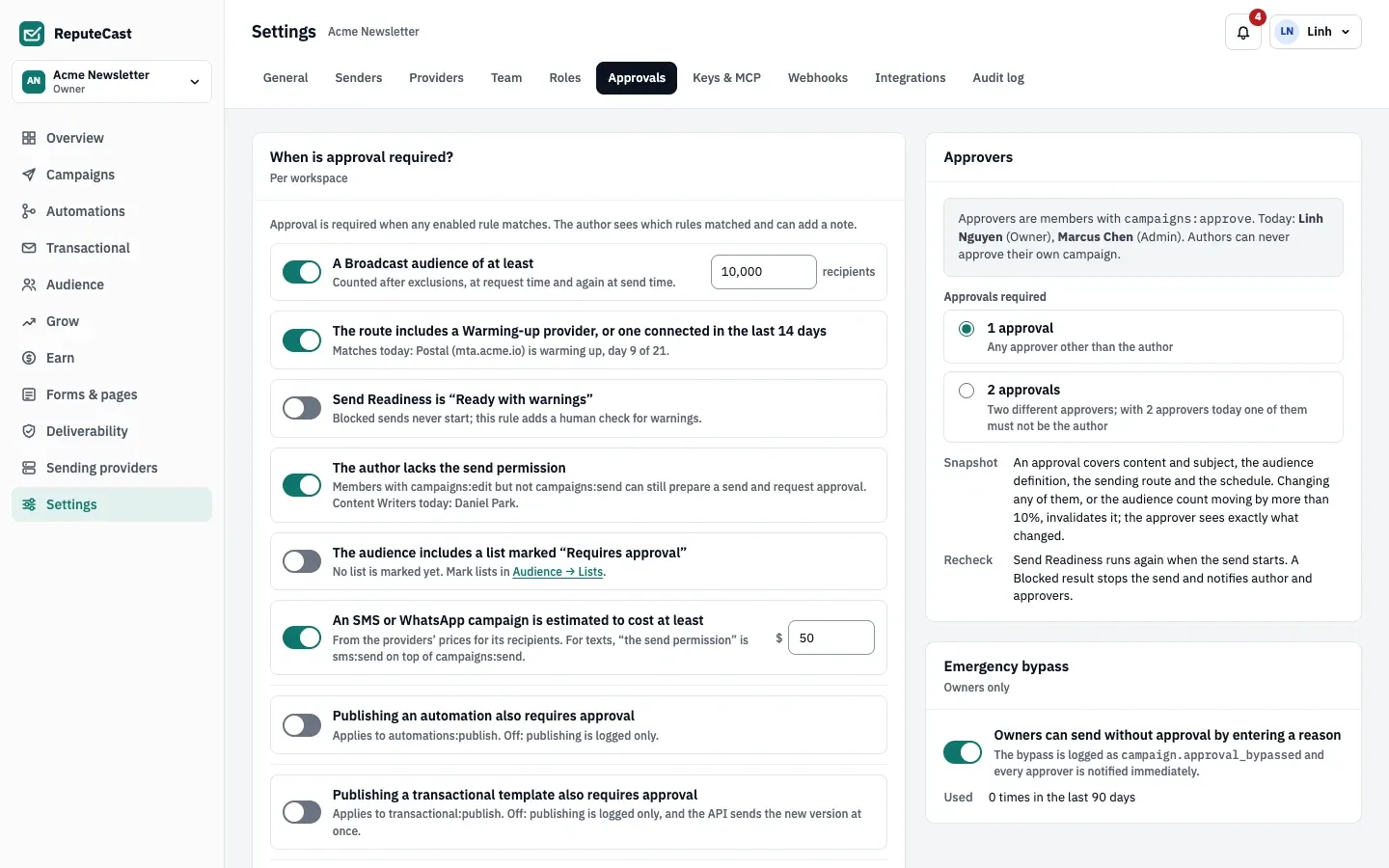
Open Settings, then Approvals. Approval is required when any rule that is on matches.
-
Turn on the rules you want:
Rule In a new workspace A Broadcast audience of at least N recipients, counted after exclusions On, 10,000 The route includes a Warming-up provider, or one connected in the last 14 days On Send Readiness is “Ready with warnings” (blocked sends never start anyway) Off The author lacks the send permission ( campaigns:send, orsms:sendfor texts)On The audience includes a list marked “Requires approval” Off An SMS or WhatsApp campaign is estimated to cost at least $N Off ($50 when on) Publishing an automation also requires approval Off Publishing a transactional template also requires approval Off Publishing a post or page needs approval Off The rules also apply to each issue of a recurring digest. In an agency’s client workspace there is one more rule: every send needs one approval from a Client approver.
-
Under Approvals required, choose 1 approval or 2 approvals. Two approvals come from two different approvers, neither of them the author; the option is available once two members hold
campaigns:approve. -
Under Emergency bypass, choose whether Owners can send without approval by giving a reason (see emergency bypass).
-
Select Save policy. The change is recorded in the audit log.
Request approval
Section titled “Request approval”-
On the campaign’s Review & send page, the scheduling card shows Approval required and the rules that matched.
-
Fix every block first: a Blocked campaign can’t be sent for approval. Choose when it should go out.
-
Add a note for the approvers if it helps, then select Request approval. ReputeCast refuses the request if there aren’t enough approvers besides you.
-
The card changes to Waiting for approval. Approvers get a notification in the app and by email.
-
If nobody has answered, select Remind approvers. Reminders are never sent automatically, and you can remind at most once an hour. To withdraw, select Cancel request.
Review a request
Section titled “Review a request”-
Open the request from the notification, from Review request on the campaign’s Review & send page, or from the approvals inbox at
/w/<workspace>/approvals(it lives under Campaigns). Approvers see every request; everyone else sees their own. -
Read what you are approving: the email, the subject, the sender, the links, the audience and its count, the route, the schedule, the thresholds and the Send Readiness result at request time.
-
Decide under “Your decision”:
- Select Approve (a comment is optional).
- Select Request changes and say what should change.
- Select Reject and say why.
-
After an approval, the author schedules the campaign with Schedule as approved. With changes requested or a rejection, the campaign goes back to draft and the author is notified.
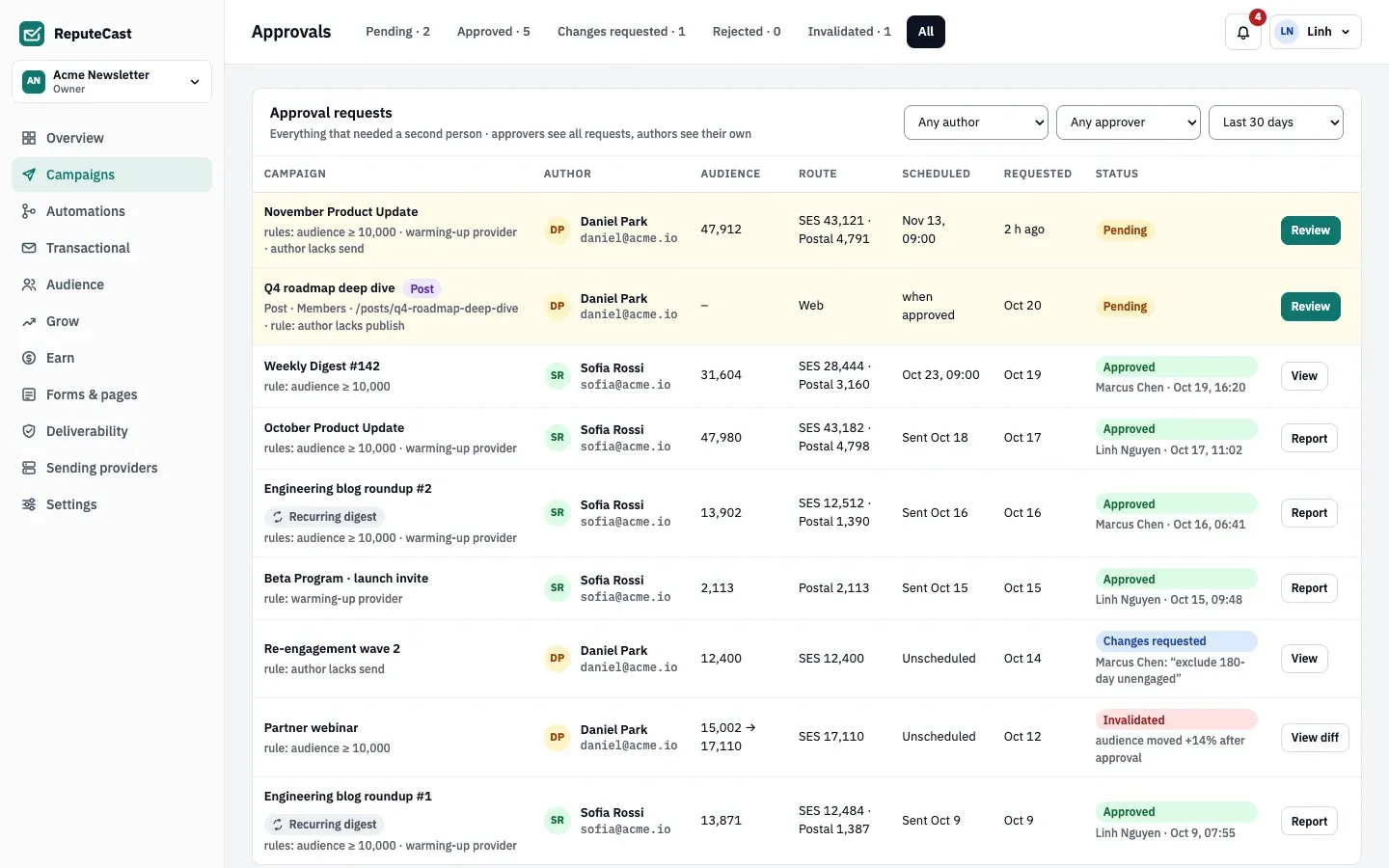
Request statuses are Pending, Approved, Changes requested, Rejected and Invalidated.
What an approval covers
Section titled “What an approval covers”An approval covers a snapshot of the send, not the campaign in general. It is invalidated, with the exact difference shown, when any of these change after the request: subject, preheader, links, content, sender, audience definition, route, schedule or language versions. It is also invalidated when the audience count moves by more than 10% from the count at request time.
When an approval is invalidated, the campaign goes back to draft and the author and approvers are notified. A scheduled campaign keeps its time slot but doesn’t start without a new approval. Restoring the approved version of the content, audience or schedule keeps the approval.
At the send time, ReputeCast checks again: Send Readiness runs 15 minutes before the send and at its start, and a missing, rejected or invalidated approval holds the send the same way a block does. See Send Readiness.
Emergency bypass
Section titled “Emergency bypass”When the policy allows it, an Owner can use Send without approval on Review & send for a send that a rule matched. They write a reason (at least 10 characters) and, if their account has a password, confirm it. The bypass is recorded as campaign.approval_bypassed with the reason, IP address and the campaign snapshot, and every approver is notified. Warnings still have to be confirmed, and a Blocked Send Readiness result still stops the send. The policy page shows how often the bypass was used in the last 90 days.
Defaults and limits
Section titled “Defaults and limits”| Setting | Default | How to change |
|---|---|---|
| Broadcast audience that needs approval | 10,000 recipients or more (rule on) | Settings › Approvals, 1–100,000,000 |
| Route includes a warming-up provider or one connected within | 14 days (rule on) | Settings › Approvals turns the rule on or off; the number of days (1–90) is set through the API (newProviderDays) |
| Approvals required | 1 | Settings › Approvals, 1 or 2 |
| Rules on in a new workspace | Audience size, warming-up or new provider, author lacks send permission | Settings › Approvals |
| SMS and WhatsApp cost rule | Off; $50 when turned on | Settings › Approvals, $0.01–$1,000,000 |
| Audience change that invalidates an approval | More than 10% up or down | Fixed |
| Reminding approvers | At most once an hour | Remind on the request (author only) |
Check that it worked
Section titled “Check that it worked”- A campaign that matches a rule shows Approval required on Review & send, with the matched rules listed.
- The request appears under Pending in the inbox, and approvers have a notification.
- Integrations can follow along with the
approval.requestedandapproval.decidedwebhook events.
Troubleshooting
Section titled “Troubleshooting”- Request approval is refused because nobody can approve. You need at least one member with
campaigns:approvebesides the author (two for 2 approvals). Ask an Owner to give an approver role to someone. - “Approvers were reminded less than an hour ago.” Reminders are limited to one an hour; the message says when you can remind again.
- The approval was invalidated though nobody touched the email. The audience count moved by more than 10%, for example after a large import. The inbox shows “audience moved” with the difference; request approval again.
- The 2 approvals option is greyed out. Fewer than two members hold
campaigns:approve. - The policy page is read-only. Changing it needs
workspace:manage.
Related
Section titled “Related”- Schedule and send a campaign covers sending once approved.
- Roles and permissions explains
campaigns:approveand the built-in roles. - Run client workspaces as an agency covers client sign-off.
- Publish automation changes safely uses the same approvers for automations.