
Polls and surveys
An email poll asks one question inside a campaign and records each reader’s answer on a page that opens from the email, so link scanners and prefetchers can’t vote. A survey asks up to 20 questions on its own page. Both can save answers on the contact and start an automation.
Before you begin
Section titled “Before you begin”- Adding a poll to a campaign needs
campaigns:edit. Creating and publishing a survey needsforms:edit. - Reading results needs
reports:view; exporting answers with each contact’s name and email needssubscribers:export. - To save answers on contacts, create the custom field first: a text field for choice answers, a number field for a 0–10 or emoji scale.
- Polls work in regular campaigns and recurring digest issues, not in transactional templates or automation emails.
Add a poll to a campaign
Section titled “Add a poll to a campaign”-
In the composer, open Blocks and drag Poll from ReputeCast blocks onto the canvas. Select the block to open its settings in Settings.
-
Pick the kind of poll and write the question:
- A Choice poll has two to five answers. An answer can start with an emoji. Lay them out as stacked buttons or in one row.
- A 0–10 scale poll takes answers from 0 to 10, with your own words for both ends. Turn on Use the NPS wording for a Net Promoter Score question.
- An Emoji scale poll shows three or five faces. Each face is sent with its words, such as “1 of 5, very unhappy”, for screen readers and the plain-text version.
-
Under Save the answer, keep the answer with the poll’s results only, give each choice a tag, or write it to a contact field. A changed answer swaps the tag or overwrites the field. Test answers never touch a contact.
-
Under Closes, choose after a number of days (7 days after sending by default), on a date (at the end of that day in the workspace’s time zone), or by hand.
-
Under After answering, show a thank-you message or Continue to a survey: the answer fills the survey’s first question, so pick a survey whose first question has the same kind and answers.
-
Decide what happens to people who aren’t contacts (readers of the web archive or a forwarded copy without its token): count their answers separately, or don’t accept them. Turn on Show results after answering to show the shares on the answer page after someone answers.
-
Select Preview the answer page, then send yourself a test and answer it. Test answers are marked Test and never counted; Clear test answers removes them.
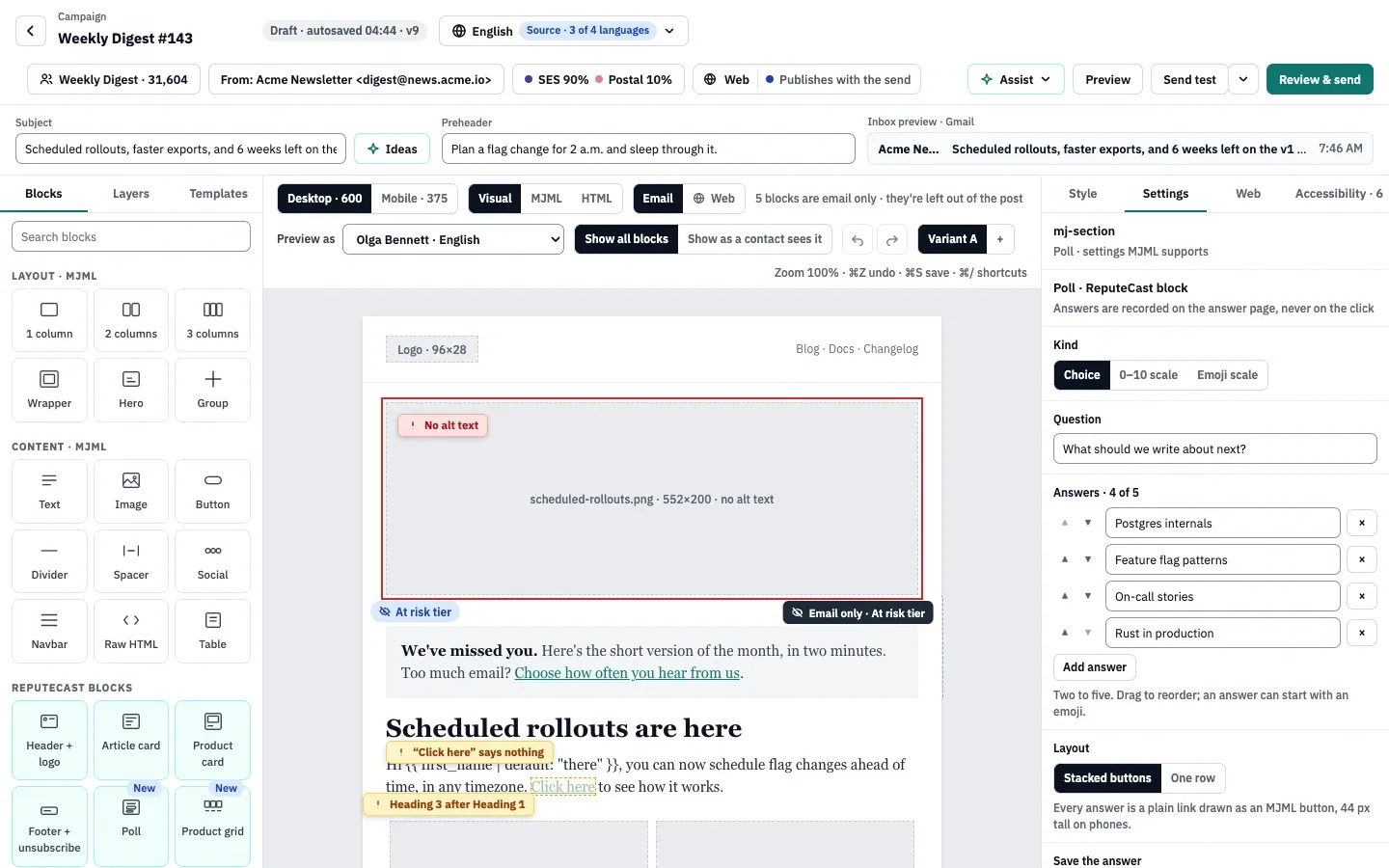
Each answer in the email is a plain link drawn as a button, 44 px tall on phones, so the poll works in every mail app. Poll links aren’t counted as clicks.
How answers are recorded
Section titled “How answers are recorded”- A reader selects an answer in the email. The answer page opens and says which answer they picked; opening it saves nothing.
- When the page has been visible for a moment, it saves the answer. In a browser without JavaScript, the reader presses Confirm my answer.
- The reader can add a comment of up to 500 characters, or pick another answer. The latest answer counts until the poll closes, and the earlier ones stay in the contact’s history.
Link scanners and mail gateways open links without running the page or pressing the button, so they never become answers. ReputeCast counts those visits apart as automated visits. A forwarded email answers as its original recipient, and the answer page says so.
When the poll is closed, its page says when it closed and records nothing.
Read the results
Section titled “Read the results”Open the campaign’s report. The Poll answers and Automated visits ignored tiles sit near the top, and each poll gets its own section.
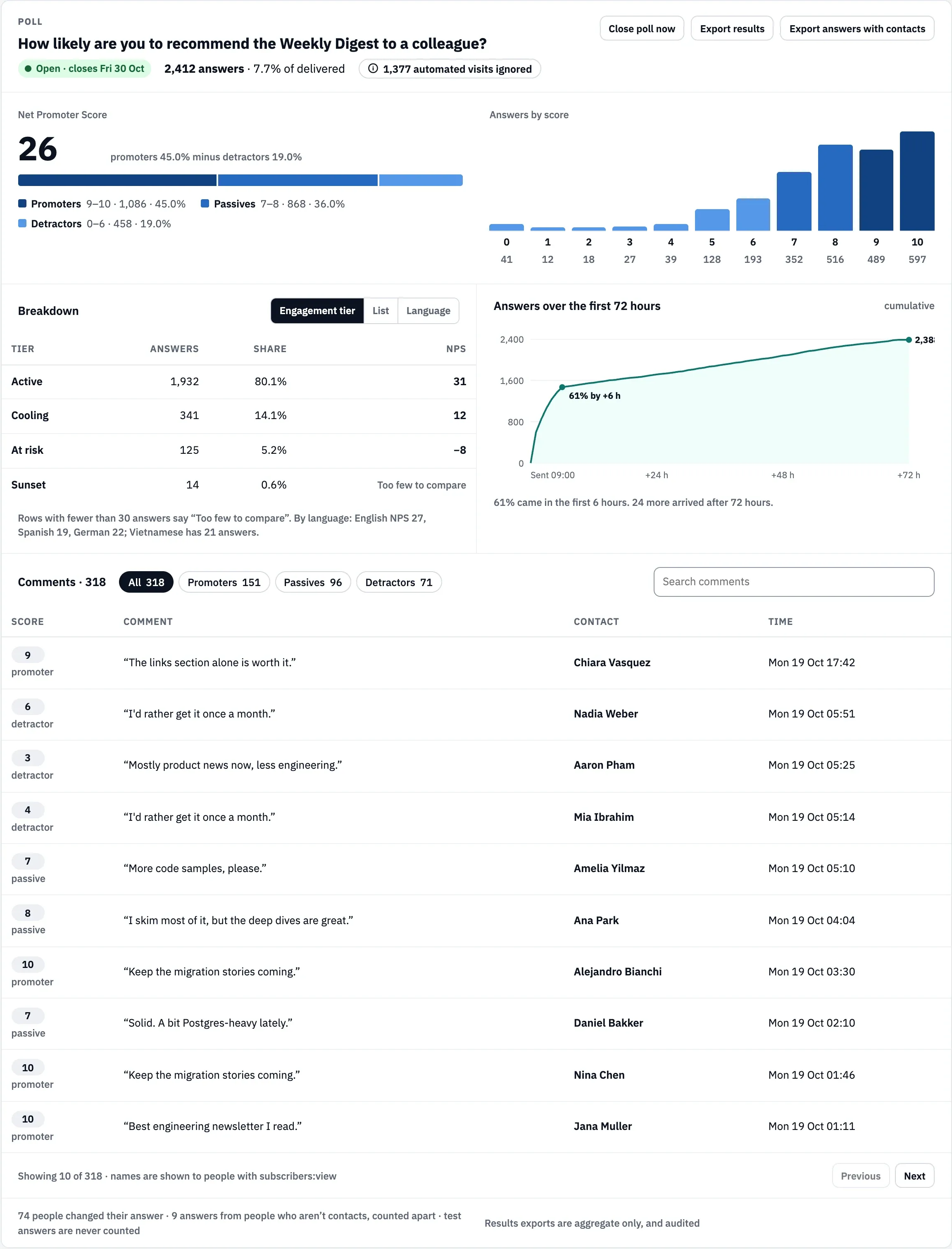
The section shows:
- the poll’s status (open, or when and how it closed), the number of answers and their share of delivered messages,
- the count of each answer, or for a 0–10 poll the NPS (promoters, 9–10, minus detractors, 0–6) and a bar per score,
- a breakdown by engagement tier, list or language; rows with fewer than 30 answers read “Too few to compare”,
- answers over the first 72 hours, refreshed every minute while that window is open,
- comments, with names shown to members who have
subscribers:view, - how many people changed their answer.
Close poll now closes the poll at once (you can reopen it; both need campaigns:edit). Export results downloads the totals as CSV; Export answers with contacts includes each contact and needs subscribers:export. Exports are recorded in the audit log.
Build a survey
Section titled “Build a survey”-
Open Forms & pages, then Signup forms, select New form…, choose Survey and select Create survey. A draft called “Untitled survey” opens.
-
On Questions, select Add question and pick a type: Single choice, Multiple choice, 0–10 scale, Emoji scale, Short text or Long text. Mark a question as required, and choose whether to save its answer to a contact field or as a tag per answer.
-
In the survey’s settings, set how long it stays open, the time zone, its address and introduction, and the thank-you text. One response per contact is on by default: people can change their answers until the survey closes, and the newest count. People who aren’t contacts are refused unless you turn on Accept people who aren’t contacts.
-
Select Publish. Publishing waits until every question is complete.
-
Link to the survey from an email: in the composer’s link editor, choose Survey: and the survey’s name. The link carries each contact’s token, so answers are linked to them. A poll can also continue into the survey.
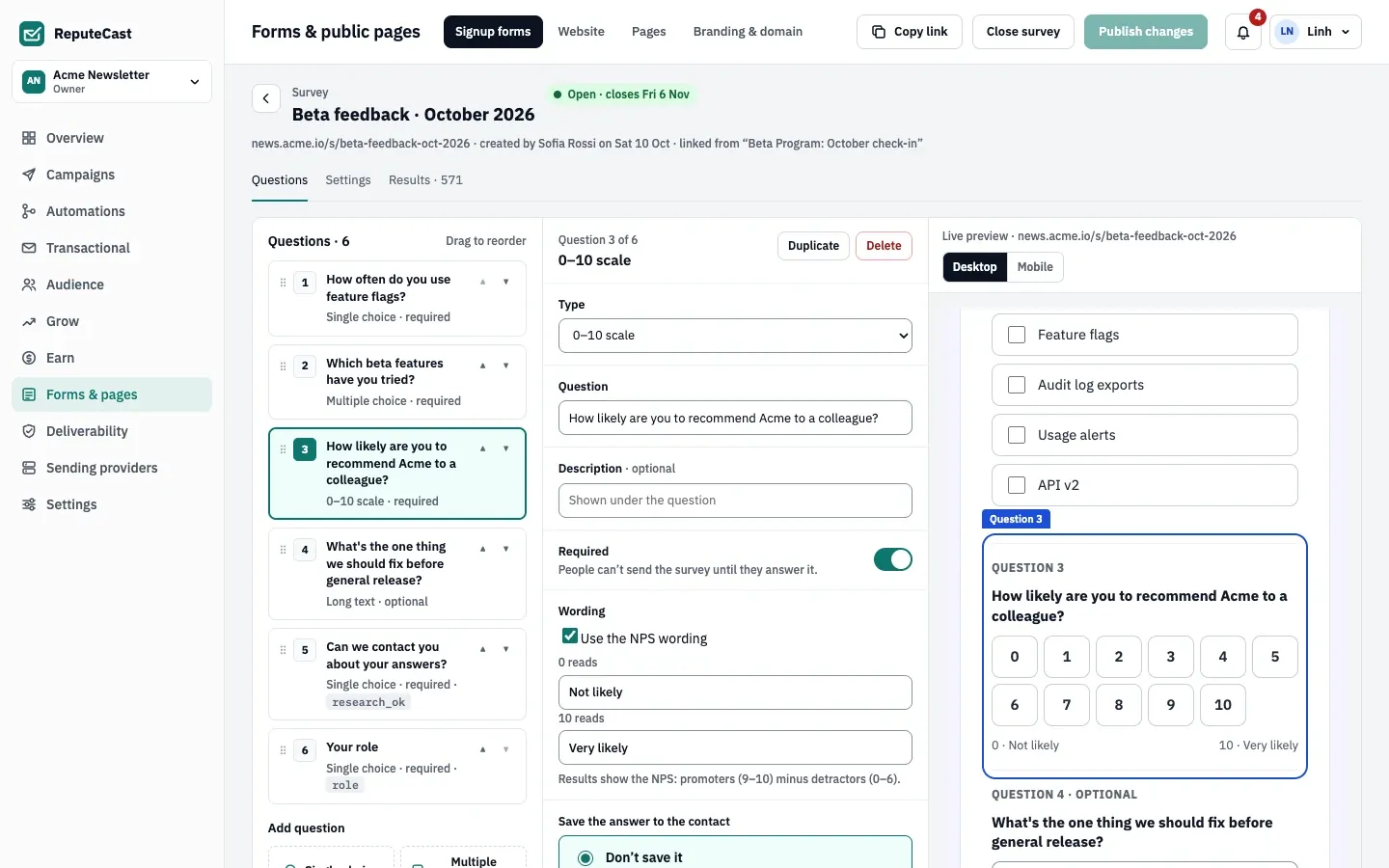
The survey page is at /p/<workspace>/s/<address>, or /s/<address> on your custom domain. Opening it records nothing; answers are saved when the person presses Send. A draft survey’s page doesn’t open, and a closed survey takes no answers. Select Close survey to close it early.
The results tab shows how many people started and completed the survey, a chart per choice question, the NPS for scales with the NPS wording, the text answers, and a table of responses. It exports the totals or the answers with contacts as CSV.
Start an automation from an answer
Section titled “Start an automation from an answer”Use the trigger Answered a poll or survey to start a flow when a contact answers a poll (any answer, or only some) or submits a survey. Test answers and answers from people who aren’t contacts never start it. See triggers and steps.
What Send Readiness checks
Section titled “What Send Readiness checks”The Content group of Send Readiness blocks a campaign whose poll is incomplete (no question, fewer than two answers, a missing tag or field). It warns when the poll closes before the campaign sends, when the survey it continues to isn’t published or closes before the send, and when your publisher domain isn’t verified, so answer links use the instance’s address.
Defaults and limits
Section titled “Defaults and limits”| Setting | Default | How to change |
|---|---|---|
| Answers in a Choice poll | 2–5 | Poll block |
| Poll closes | 7 days after sending | Poll block › Closes; after 1–365 days, on a date, or by hand |
| Comment length | 500 characters (longer text is cut) | Fixed |
| Questions per survey | 20, on one page | Fixed |
| Text answers in a survey | Short 200 characters, long 2,000 | Fixed |
Check that it worked
Section titled “Check that it worked”- Your test answer shows in the block’s test answers table, marked Test.
- After the send, the report’s Poll section counts answers and automated visits separately.
- A contact who answered has the tag or field you chose on their profile.
Troubleshooting
Section titled “Troubleshooting”- The answer page says the poll is closed. It closed by date, by its number of days or by hand. Reopen it from the report, or set a later closing date before sending.
- Answers from the web archive aren’t counted. Archive and view-in-browser copies carry no contact token. Count non-contacts’ answers separately, or accept that they’re refused.
- A survey can’t be picked under Continue to a survey. Its first question must be the same kind with the same answers as the poll.
- Publishing a survey does nothing. A question is incomplete: a choice question needs two answers, and a saved answer needs its field or tags.
- Many automated visits. That is mail security scanning links; they’re never counted as answers.