
First sign-in and instance setup
The ReputeCast first setup turns the account that reputecast install created into a protected Owner and the
installation into a named instance with its first
workspace. It takes six steps and about ten minutes; each finished step is saved, so
you can stop and continue later.
Before you begin
Section titled “Before you begin”- ReputeCast runs, installed with Docker Compose or the binary.
- You have the install banner: the email and the temporary password (
xxxx-xxxx-xxxx-xxxx). With Docker:docker compose logs app | grep -A4 "ReputeCast is installed". - The public URL opens ReputeCast over HTTPS through your reverse proxy. Passkeys and secure cookies need HTTPS.
- A phone or computer with a passkey (Touch ID, Face ID, Windows Hello, a security key) or an authenticator app.
Set up the instance
Section titled “Set up the instance”-
Open the public URL. On the sign-in page, enter the Owner’s email, select Continue, then enter the temporary password.
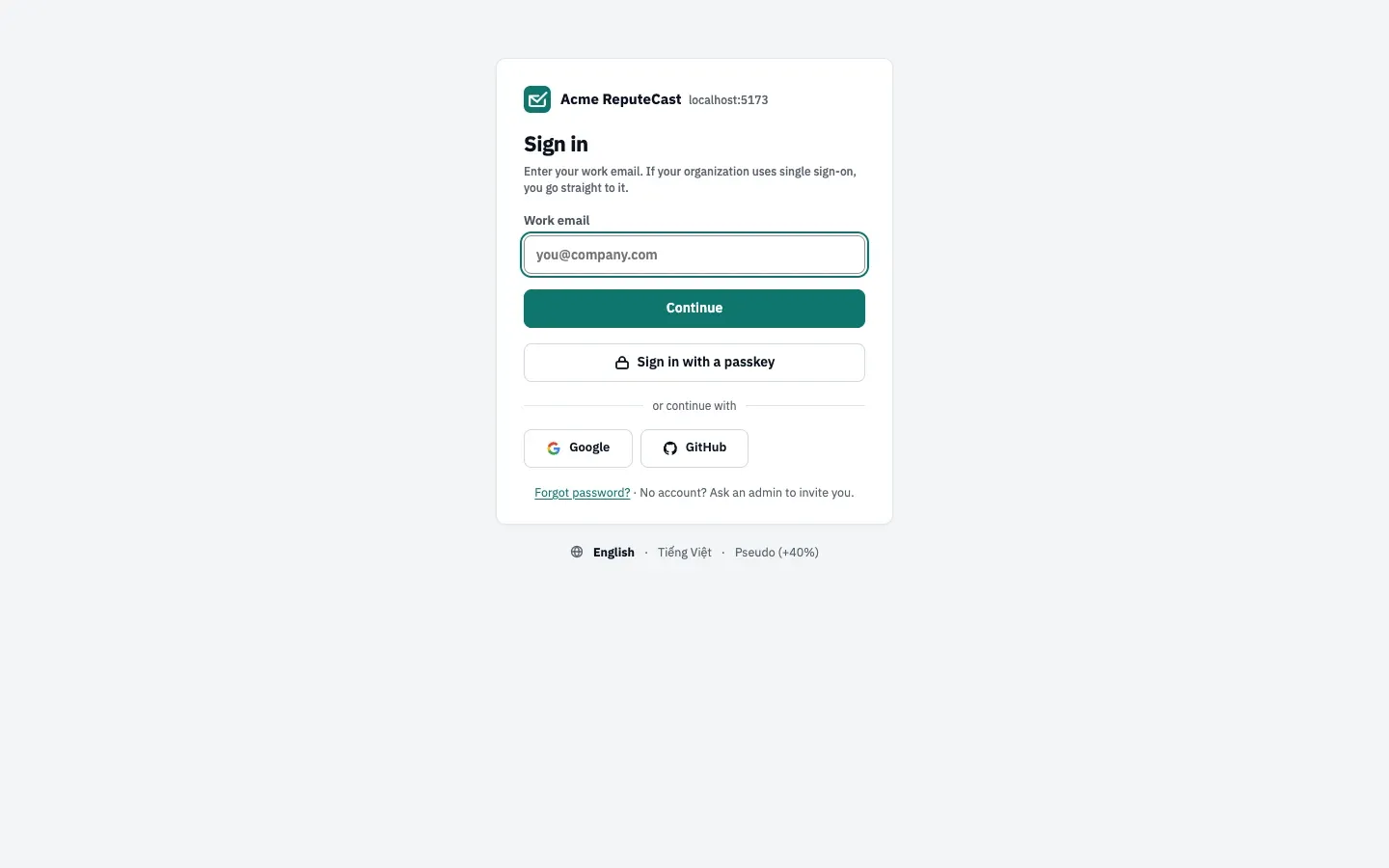
ReputeCast opens the setup at
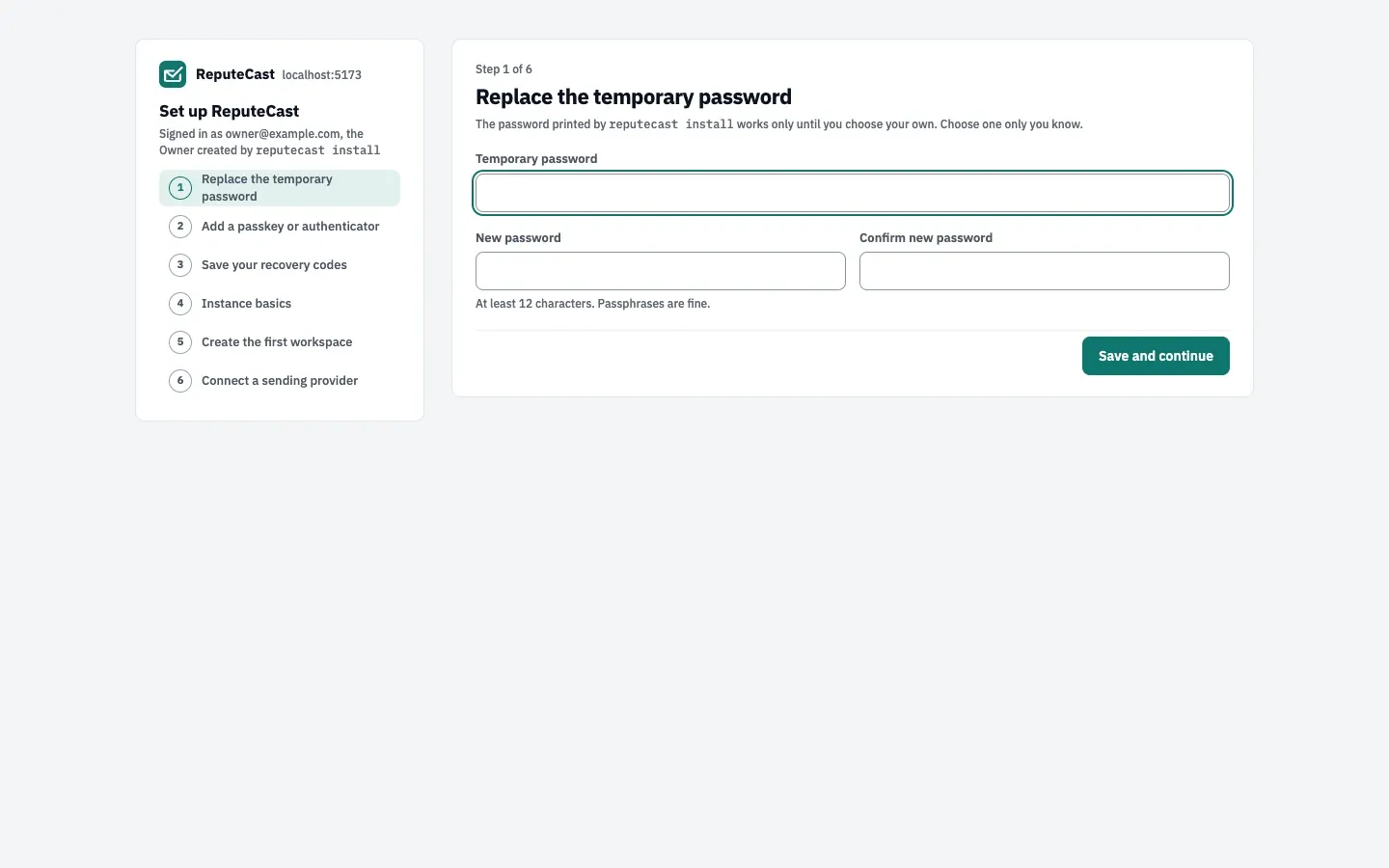
/setup. The steps on the left show where you are. -
Replace the temporary password. Enter the temporary password, then your new password twice. It needs at least 12 characters (the instance policy’s minimum; passphrases are fine). The temporary password stops working once you save.
-
Add a passkey or authenticator. Two-factor authentication is required for the first Owner and can’t be skipped. Add a passkey (recommended), or set up an authenticator app: scan the QR code and enter the code the app shows. You can add more passkeys later in your account settings.
-
Save your recovery codes. Generate the codes and store them in a password manager or print them. You get 10 codes, each signs you in once if you lose your passkey or authenticator, and they are shown only now.
-
Instance basics. These settings apply to every workspace on the instance:
- Instance name, shown on the sign-in page and in emails to your team.
- Default timezone, which new workspaces start with. It starts as your browser’s timezone.
- Default language of the app, for the sign-in page, invitations and members who haven’t picked one.
- Public URL, the address used for provider webhooks, SSO redirect URIs, public pages and the links in every email. ReputeCast checks it as soon as the step opens, and again each time you ask after a fix.
- Check GitHub for new releases once a day: only the version number is fetched. Turn it off for offline servers.
Then save; the next step opens.
-
Create the first workspace. Give it a name (shown in the workspace switcher and on public pages until you set a brand) and a timezone for its schedules and reports. A workspace has its own lists, campaigns, automations, sending providers and team; you can create more later.
-
Connect a sending provider. Continue to connect a sending provider, or skip it and open the workspace. Invitations, password resets and notifications by email start working once a sending provider handles the workspace’s System stream.
The public URL check
Section titled “The public URL check”The Instance basics step runs three checks from the server against the URL you enter:
| Check | Passes when | What a warning or failure means |
|---|---|---|
| DNS | The host name resolves; the result lists its addresses. | … doesn't resolve: add an A or AAAA record for the host. |
| TLS | The server presents a valid certificate (TLS 1.2 or later); the result shows issuer and expiry. | A warning when the certificate expires within 14 days, or when the URL is plain http:// (passkeys, secure cookies and most providers’ webhooks need HTTPS). |
| Reachable | GET <public URL>/healthz answers 200 within 6 seconds. |
Another status: the proxy answers but doesn’t forward to ReputeCast. No answer: DNS, firewall or proxy. |
The checks run from the ReputeCast server itself, so the server must be able to reach its own public address. A pass means that path works; sending providers reach the same address from the internet.
Saving a public URL that differs from http.public_url makes it the address for links, public pages and provider
webhooks on every process within 30 seconds. Session cookies and HSTS still follow http.public_url, so set the
configuration to the same address (configure ReputeCast).
Check that it worked
Section titled “Check that it worked”Open Instance admin, then Instance & updates. The Instance card shows the name, timezone, language and public URL you saved, with the latest URL check.
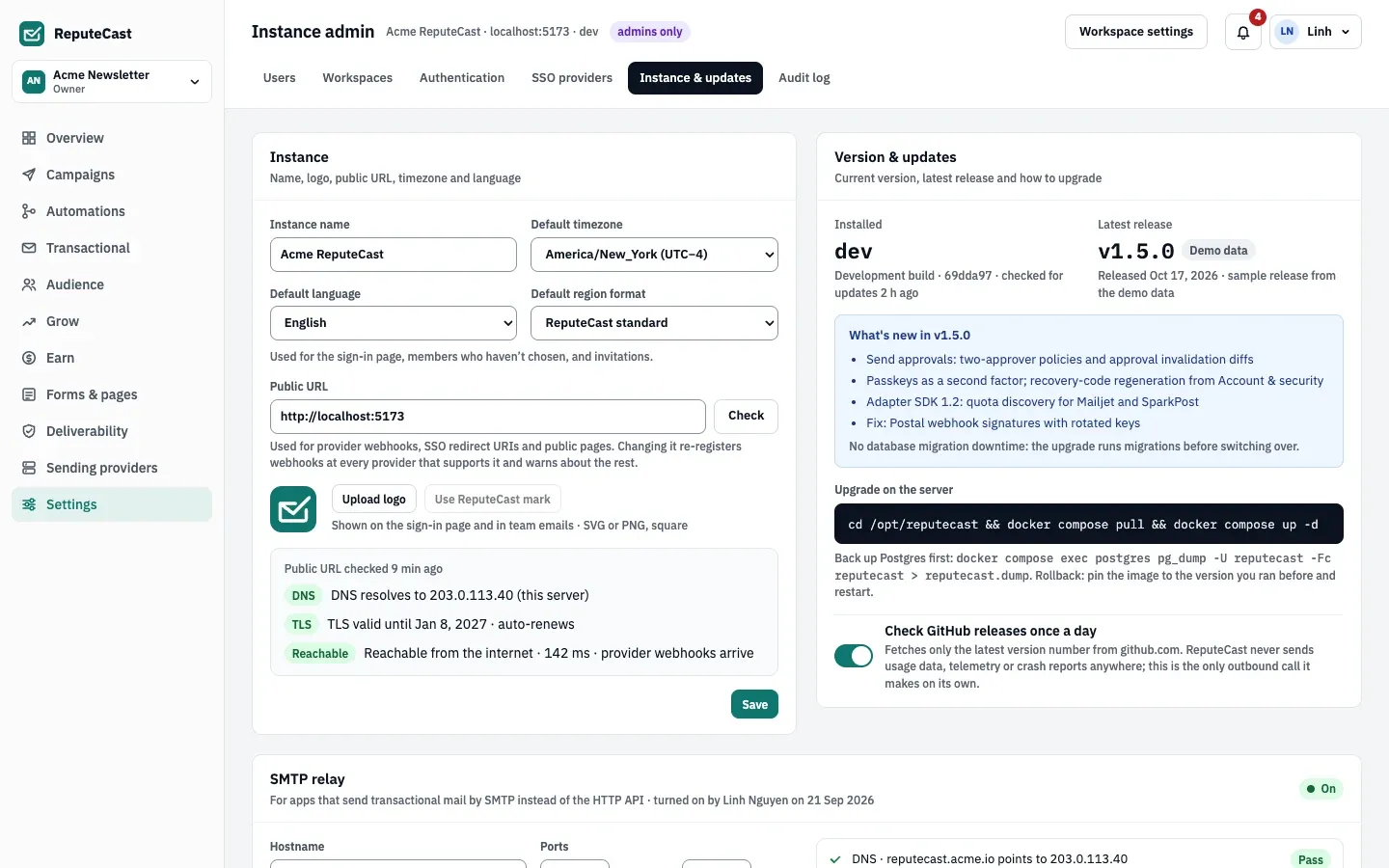
Change these settings there at any time, and use Upload logo (SVG or PNG, square) to replace the ReputeCast mark on the sign-in page and in team emails.
Troubleshooting
Section titled “Troubleshooting”- The temporary password is lost: print a one-time reset link on the server with
reputecast user reset-password --email you@company.com(recover access). - The setup asks you to sign in again: your session ended. Sign in again; the steps you finished are kept.
- Adding a passkey fails: the page isn’t served over HTTPS, or the browser has no passkey provider. Use an authenticator app, then add a passkey later.
- Reachable fails while the site opens in your browser: the server can’t reach its own public address, often because of a firewall rule or a DNS name that resolves differently on the server. Fix it before you connect sending providers, which deliver events to the same address.
- The banner showed
Sign in at http://localhost:8080:http.public_urlwas not set. Enter the right address in the Instance basics step and set the same value in the configuration.
Related
Section titled “Related”- Instance admin: users, workspaces, authentication policy and updates.
- Connect a sending provider
- Secure your account: passkeys, authenticator apps and recovery codes.